4_OTS MANAGEMENT SOFTWARE OJMAR 69
4. Delete: Deletes an Operator. To do so, select it from the list and click on this
button.
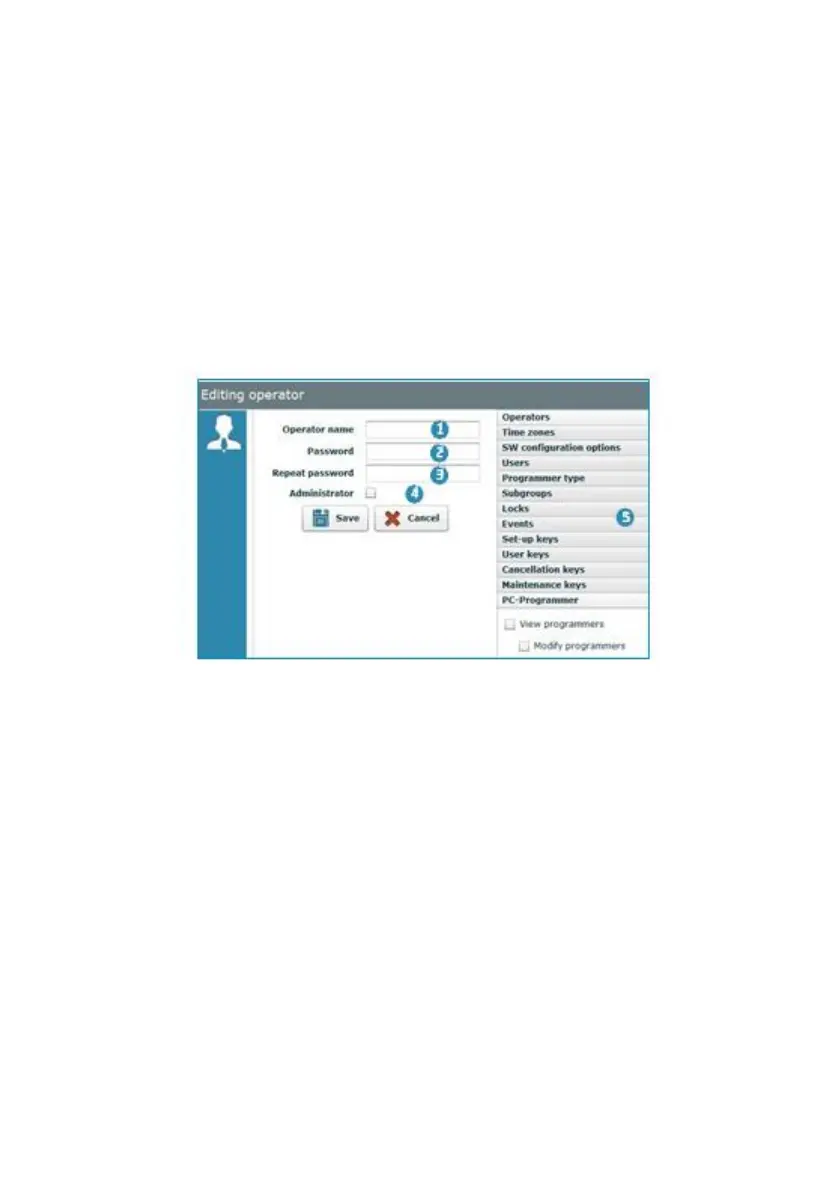
5. Edit: Allows for the Operator data/permissions to be modified (See Section
4.7.1). To do so, select it from the list and click on this button.
6. View: Allows for all data/permissions assigned to the user to be viewed. To do
so, select it from the list and click on this button.
4.7.1 Add New Operator
Fill in the following fields to add a new operator.
1. Operator name.
2. Password.
NOTE: The password must contain at least 4 characters.
3. Repeat password: This must match the password (2).
4. Administrator: On ticking this box, all permissions from the list (5) will be
assigned to the user.
5. Permissions list: If the Administrator tab (4) is not ticked, no custom
permissions can be assigned. The full list is given below:
Operators:
- View operators (this box must be ticked in order to tick the subgroup
boxes)
> Modify operators
> Add operators



 To Next Page