4_OTS MANAGEMENT SOFTWARE OJMAR 65
The list of cancelled keys is to be updated from the programmer.
4.6.1 Add Lock
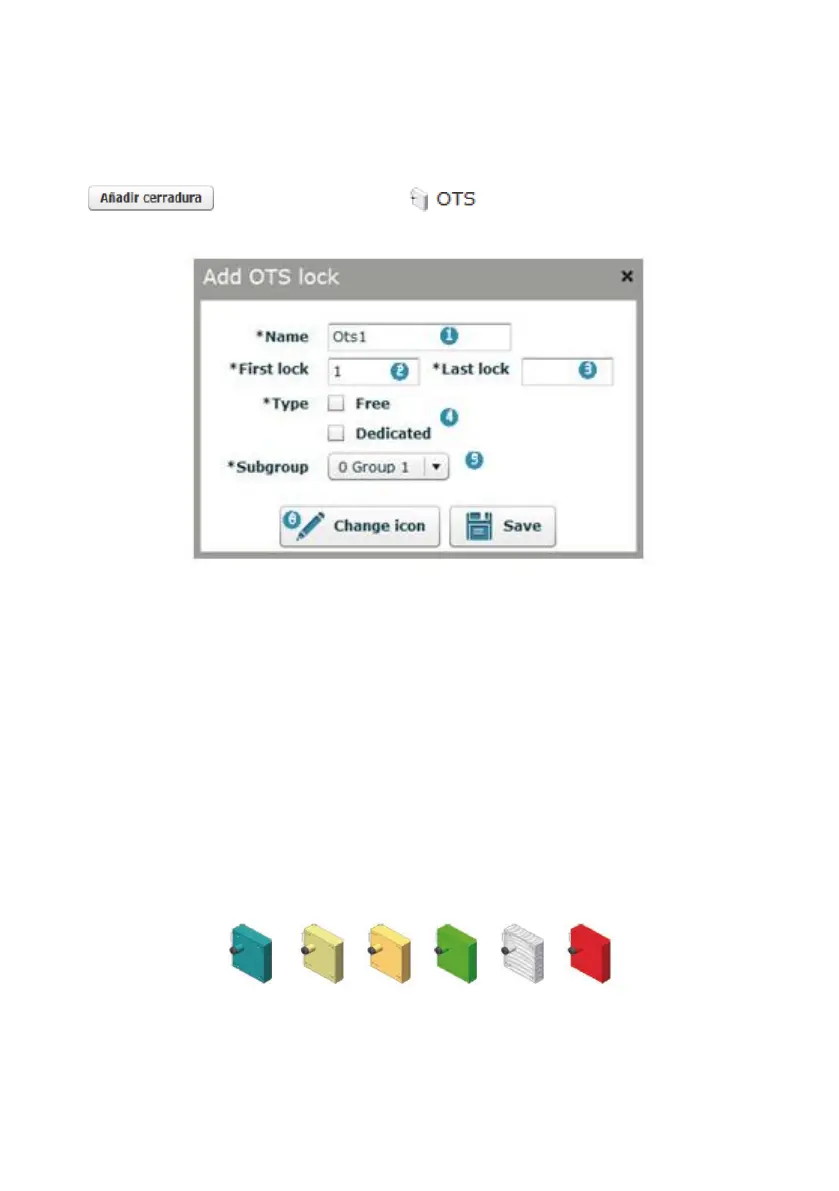
To add one or several new locks, click on the following icon on the main screen
or double click on the icon. The following screen will be
displayed:
1. Lock name: The name of the lock is formed by the name assigned here + a
number.
EXAMPLE: If you create a lock with the name "Lock" and the number "10" is
assigned to it, the lock will be called “Lock10”.
2. First Lock: Indicates the first lock number to be created.
3. Last Lock: Indicates the last lock number to be created.
4. Lock type: You must indicate whether the lock is Free (See Section 1.5.2) or
Dedicated (See Section 1.5.1).
5. Subgroup: Indicates the subgroup to be assigned to the lock (See Section 4.5).
6. Change icon: Allows for the lock icon to be changed. The "Icons" folder on the
installation CD includes a total of 6 different icons.
NOTE: The icon can be changed when the lock is created or after they have been
created.



 To Next Page