OJMAR 62
4. Delete: Deletes a previously created subgroup from the list. To do so, select it
and click on this button.
NOTE: On deleting a subgroup, the lock belonging to that subgroup are
automatically deleted.
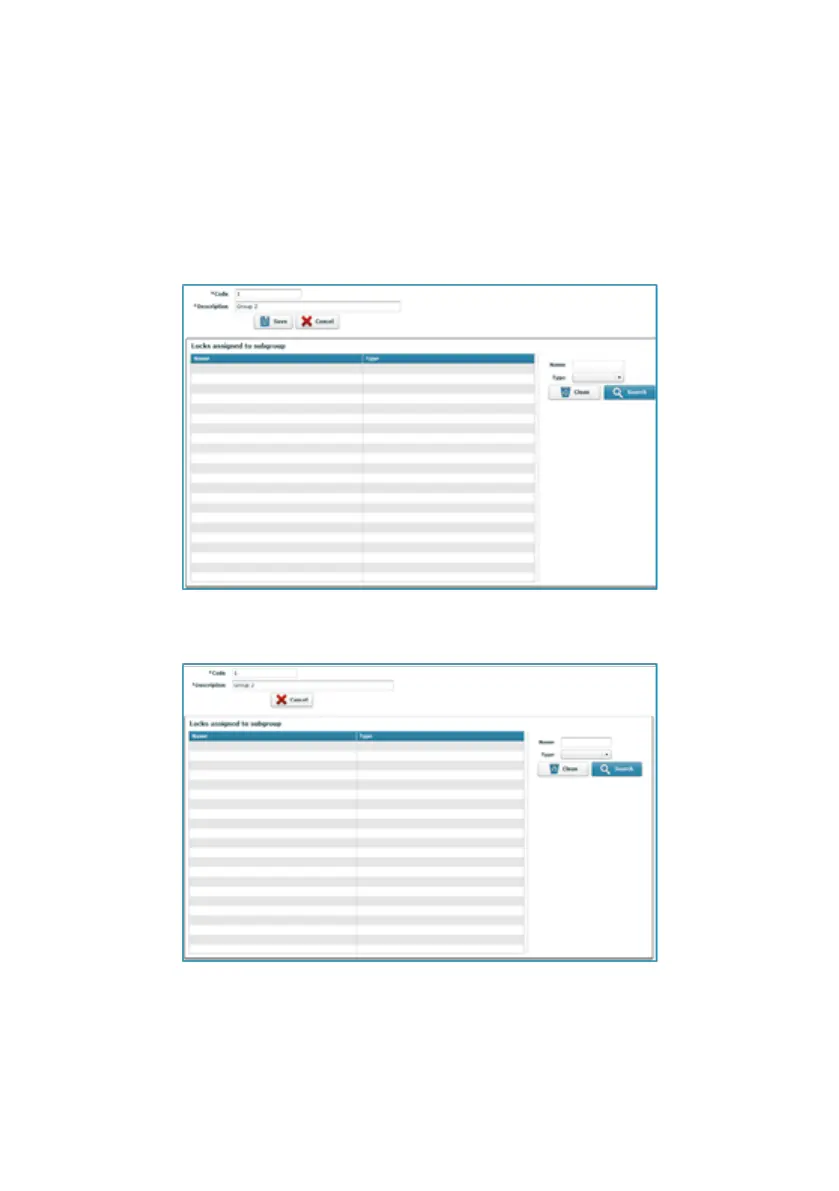
5. Edit: This allows for the name of the subgroup to be edited and for the locks
(name and type) associated to it to be seen. To do so, select a subgroup from
the list and click on this button.
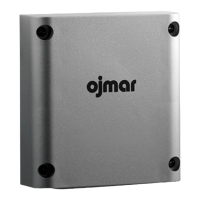
6. View: This allows for the locks (name and type) associated to the subgroup to be
viewed. To do so, select a subgroup from the list and click on this button.
4.6 LOCKS
This window displays all existing locks.
NOTE: The "Locks" window is displayed by default when the application starts.



 To Next Page