4_OTS MANAGEMENT SOFTWARE OJMAR 63
Access this screen via the “Configuration / Locks" menu or by clicking on the
following button on the main screen:
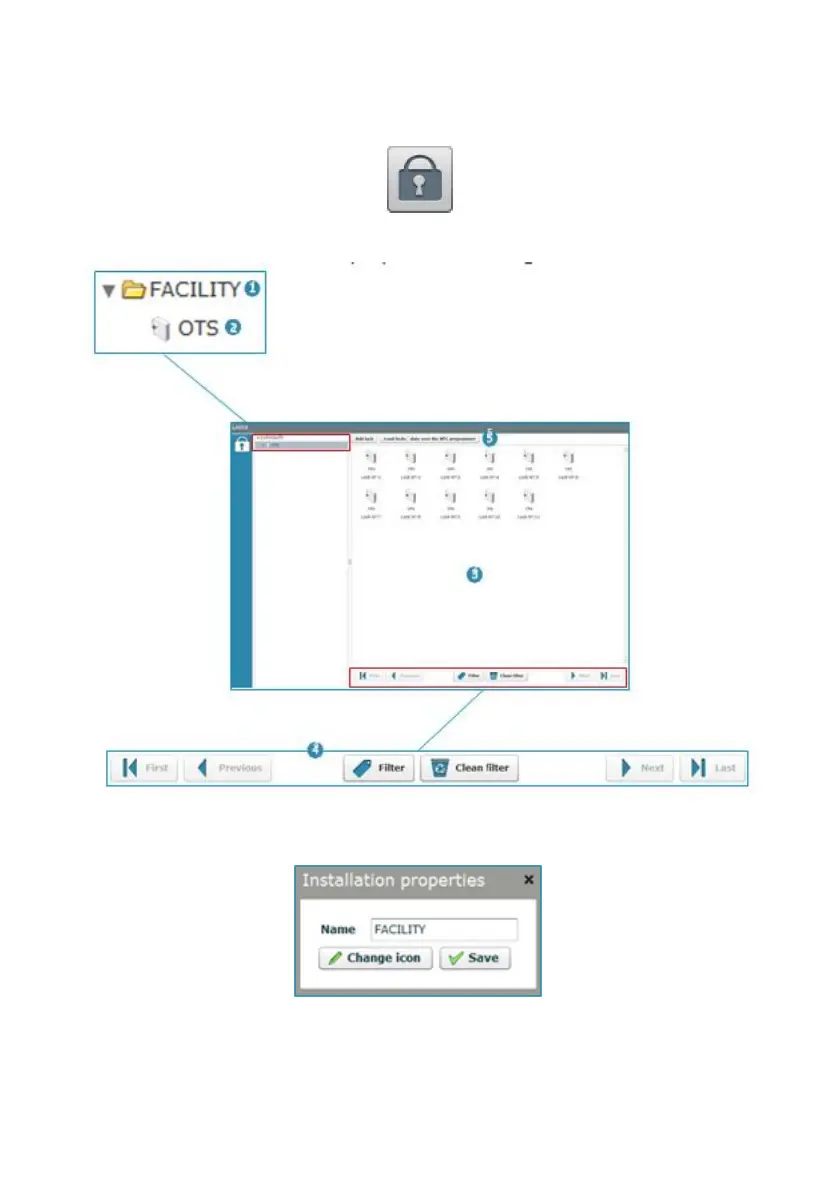
The main Locks screen displays the following information:
1. Name of the facility: The application allows for the name and icon of the facility
where the set of locks are located to be changed. To do so, double click on it.
NOTE: The icon must include one of the following formats: swf, gif, jpg or png.
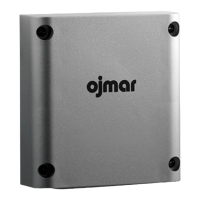
2. Lock type: A facility may have different types of lock. In this case, the locks are
of the OTS type.



 To Next Page