EasyManua.ls Logo

Oki ML1120 - User Manual

Oki ML1120
108 pages
Print Icon
To Next Page IconTo Next Page
Loading...
User’s Guide
ML1120/ML1190 eco

Table of Contents

Other manuals for Oki ML1120

Questions and Answers

  • N
    natalie11Aug 30, 2025
    Why is the horizontal printing position offset on my Oki ML1120?
    • L
      Laura HughesAug 30, 2025
      If the horizontal printing position is offset on your Oki printer, it may be because the start position changed after the printer was powered on. When the printer is powered on, switch from off-line mode to on-line mode by pressing the SEL button to reset the start position. Remember to turn the power off before changing the start position.
  • D
    Drew MoodyAug 31, 2025
    How to fix Oki ML1120 when the print carriage does not operate?
    • A
      Allen PollardAug 31, 2025
      If the print carriage on your Oki printer isn't operating, it might be due to contamination on the carriage shaft. Clean any paper dust and contamination from the carriage with a dry cloth.
  • A
    Amber RichardsAug 25, 2025
    How to fix Oki ML1120 when no printing takes place?
    • G
      Gregory KruegerAug 25, 2025
      If your Oki printer isn't printing, several factors could be the cause. First, ensure the printer driver is correctly installed; if not, reinstall it. If the printer has simply stopped, press the SEL button. Also, check if there's paper loaded. Verify the interface cable is connected properly, and that you're using the correct cable. Finally, confirm the ribbon cartridge is installed.
  • K
    Kyle SnowSep 1, 2025
    How to resolve Oki ML1120 issue with paper has run out?
    • A
      Amanda WilsonSep 1, 2025
      If your Oki printer indicates that the paper has run out, simply add paper and press the SEL button.
  • C
    Cody CookSep 1, 2025
    What to do if Oki ML1120 Printer paper type lever is wrongly set?
    • K
      kathleen79Sep 1, 2025
      If the Paper Type lever on your Oki printer is wrongly set for the paper you're using, press the SEL button and set the Paper Type lever to the correct position.
  • A
    Austin ThomasSep 2, 2025
    What to do if Oki Printer receives print data but no paper is fed?
    • R
      romeromarySep 2, 2025
      If your Oki printer receives print data but doesn't start printing because no paper is being fed, insert paper into the printer.
  • N
    Nicole HayesSep 2, 2025
    What to do if Oki Printer printing cannot be resumed?
    • H
      Heather DixonSep 3, 2025
      If printing cannot be resumed on your Oki printer, turn the power OFF, verify that the carriage moves properly, then turn the power ON again. If the problem persists, contact your dealer.
  • B
    Brian AllenSep 3, 2025
    What to do if the TOF is not correctly selected on my Oki Printer?
    • E
      Emily CruzSep 3, 2025
      If the TOF (Top of Form) is not correctly selected on your Oki printer, initialise the printer. Also, select the correct TOF for cut sheets and continuous forms. Select the first-line print position and adjust the paper top position. Finally, reselect the margin correctly in the application.
  • B
    Bruce FosterSep 3, 2025
    What to do if the left or right margin is not correctly selected on my Oki Printer?
    • M
      Michelle BakerSep 4, 2025
      If the left or right margin is not correctly selected on your Oki printer, check the positions of the Paper Guide or Pin Tractors and adjust them depending on the paper type. Also, reselect the left and right margins correctly in the application.
  • S
    Sue ClementsSep 4, 2025
    What to do if the left and/or right margins are not correctly selected on my Oki ML1120?
    • A
      Adrienne JonesSep 4, 2025
      If the left and/or right margins are not correctly selected on your Oki printer, reselect the left and right margins correctly in the application.

Summary

Preface

Notes, Cautions, and Warnings

Note

Provides additional information to supplement the main text.

Caution

Provides additional information which, if ignored, may result in equipment malfunction or damage.

Warning

Provides additional information which, if ignored, may result in a risk of personal injury.

Introduction

About This Guide

Explains the purpose and structure of the user's guide and related documents.

On-line Usage

Instructions on how to read the guide on screen using Adobe Acrobat Reader.

Printing Pages

Procedure for printing the whole manual, individual pages, or sections.

Getting Started

Retaining Packing Materials

Advise to retain packing materials for future shipping or transport.

Printer Component Identification

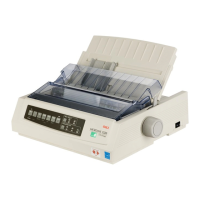
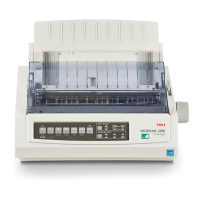
Identifies and explains the main parts of the printer, including front and rear views.

Control Panel Overview

Details the buttons and indicators on the printer's control panel for operation.

Locating and Powering On Printer

Guidance on selecting a location and powering on the printer for the first time.

Producing a Test Print

Procedure to print a test page to verify printer functionality.

Connecting to a Computer

Printer Interfaces

Describes the available data interfaces for connecting the printer to a PC.

Interconnection and Setup

Steps for connecting the printer and computer, installing drivers, and printing a test page.

Paper Handling

Loading Cut Sheet Paper

Step-by-step guide on how to load cut sheet paper into the printer.

Ejecting Cut Sheet Paper

Instructions on how to manually eject a cut sheet left in the printer.

Loading Continuous Forms

Procedures for setting up and feeding continuous forms via rear and bottom feeds.

Handling Continuous Forms

Instructions for tearing off and removing continuous forms from the printer.

Operating Instructions

Control Panel and Indicators

Overview of control panels, buttons, and indicators for both ML1120 and ML1190 models.

Button Functions

Describes the specific functions of each button on the printer's control panel.

Changing Print Modes

Instructions on how to change printer modes directly from the front panel.

Menu Settings Management

Guides on setting, confirming, initializing, and viewing printer menu items and values.

Adjusting TOF Position

Procedures for setting the Top of Form (TOF) position for optimal paper alignment.

Printer Speed and TOF Settings

Adjusting print speed modes (normal, high, quiet) and setting user-defined TOF positions.

Troubleshooting

Clearing Paper Jams

Guides for clearing paper jams for both cut sheet and continuous forms.

Responding to Printer Issues

Addresses alarm conditions, general problems, printing errors, and paper feed issues.

Cleaning Your Printer

Printer Exterior Cleaning

Instructions for cleaning the outside surfaces of the printer.

Printer Interior Cleaning

Guidance on cleaning the internal components of the printer safely.

Consumables and Accessories

Changing Ribbon Cartridge

Step-by-step instructions for replacing the printer's ribbon cartridge.

Consumable Ordering Information

Lists consumables and their corresponding order numbers for purchasing.

Specifications (ML1120 ECO)

ML1120 ECO Technical Details

Covers print method, speed, head, direction, LF/FF time, paper feed control, duplication.

ML1120 ECO Media and Power

Details character sets, media, ink, print head life, dimensions, weight, power rating, and consumption.

ML1120 ECO Environmental and Usage

Specifies interfaces, dust/corrosion, operating/storage conditions, standard usage, and noise level.

Specifications (ML1190 ECO)

ML1190 ECO Technical Details

Covers print method, speed, head, direction, LF/FF time, paper feed control, duplication for ML1190.

ML1190 ECO Media and Power

Details character sets, media, ink, print head life, dimensions, weight, power rating, and consumption for ML1190.

ML1190 ECO Environmental and Usage

Specifies interfaces, conditions, usage, and noise level for ML1190.

OKI Contact Details

European Oki Systems Offices

Provides contact details for Oki Systems offices across various European countries.

Oki ML1120 Specifications

General IconGeneral
Noise level49.7 dB
Maximum duty cycle18000 pages per month
Maximum number of copies9 copies
Power requirements120 - 220V
Dimensions (WxDxH)889 x 587 x 379 mm
Weight and Dimensions IconWeight and Dimensions
Dimensions (W x D x H) (imperial)35 x 23.1 x 14.9 \

Related product manuals