54
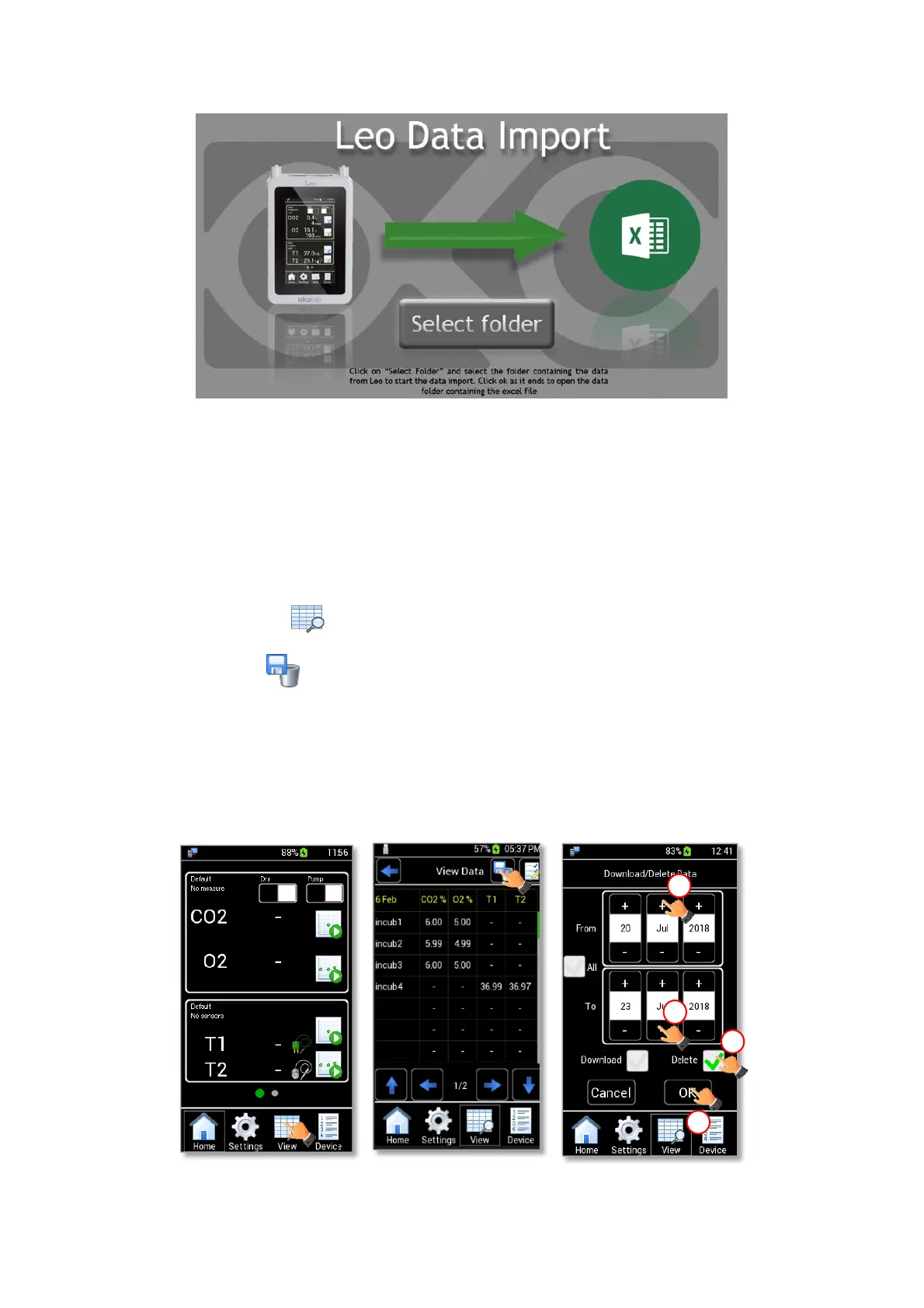
Figure 69. Leo Data Import Excel Data
Press Select folder and choose the folder that contains LEO data. LEO Data Import Excel Macro
automatically creates a new Excel file in the same folder with LEO data. The new excel file contains all LEO data
automatically organized.
12.3 Deleting Data
To delete the stored data, follow the instructions below.
1. Press the View icon (see Figure 70 a), the View Data page opens (see Figure 70 b).
2. Press the icon (see Figure 70 b) to access the Download/Delete page.
3. Insert the start-time and the end-time corresponding to the data interval to delete (1 and 2 in Figure
70 c).
4. Enable the Delete check box to delete the selected data (3 in Figure 70 c). Then press OK button to
delete data (4 in Figure 70 c).
Figure 70. How to Delete Data (a – b – c).



 To Next Page