5-16
Using Convenient Fax Functions > Sub Address Box Function
3 Press the [OK] key.
2
Selecting the Originals.
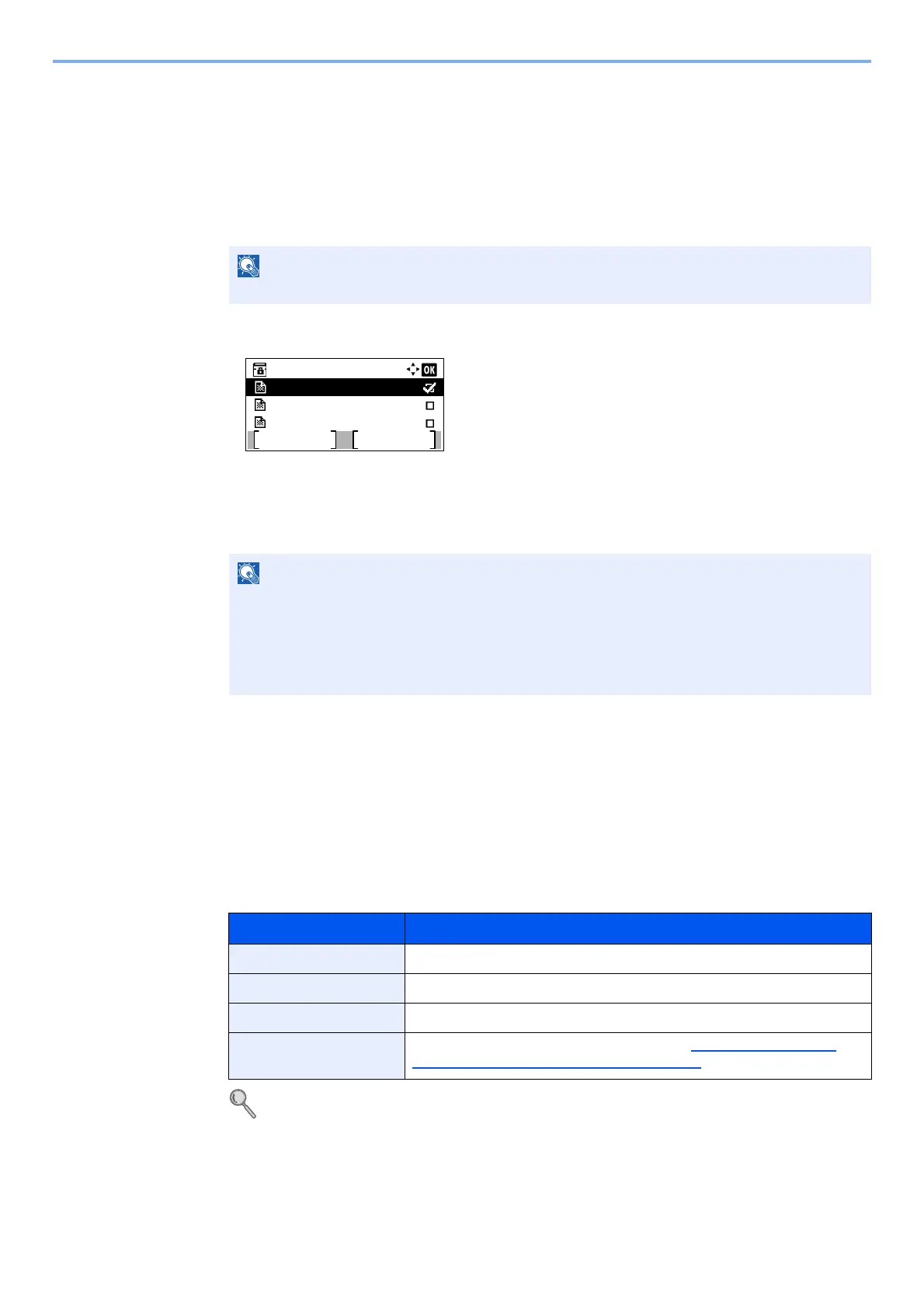
1 Press the [▲] or [▼] key to select the box containing the document you want to print.
2 Press the [OK] key.
3 Press the [▲] or [▼] key to select the document you want to print.
4 Press [Select].
A checkmark will be placed on the right of the selected file.
Select the checkmarked file and press [Select] again to cancel the selection.
5 Press the [OK] key.
3
Print
1 Press the [▲] or [▼] key to select [Print].
2 Press the [OK] key.
3 Use the numeric keys to change the number of sheets to be printed. To change the print
settings, press the [Function Menu] key then change the settings and press the [OK] key.
For each of the functions, refer to the machine’s Operation Guide.
4 Press the [Start] key. Printing starts.
If a Sub Address Box is protected by a password, enter the correct password.
The following operations are possible when [Menu] is pressed.
• [Select All]: Select all the files.
• [Clear All]: Cancel all the file selections.
• [Detail / Edit]: The file information can be checked.
Item Description
File Name Entry Adds a file name.
JobFinish Notice Sends E-mail notice when a job is complete.
Print Override Suspends the current job and gives a new job top priority.
Del. after Print The original is deleted after printing. (refer to Deleting Originals after
Printing from a Sub Address Box on page 5-17.)
Box 1:
Document 1
Document 2
Document 3
Menu Select


 To Next Page