Checking Transmission Results and Registration Status
OPERATION GUIDE 5-7
5
Printing Administrative Reports
You can print various administrative reports to check the results of fax transmission or the status of the functional
setup.
Send Result Reports
Each time you send a fax, you can print a report to confirm whether the fax was sent successfully. You can also
print the transmitted image in the send result report.
1 Press the System Menu key.
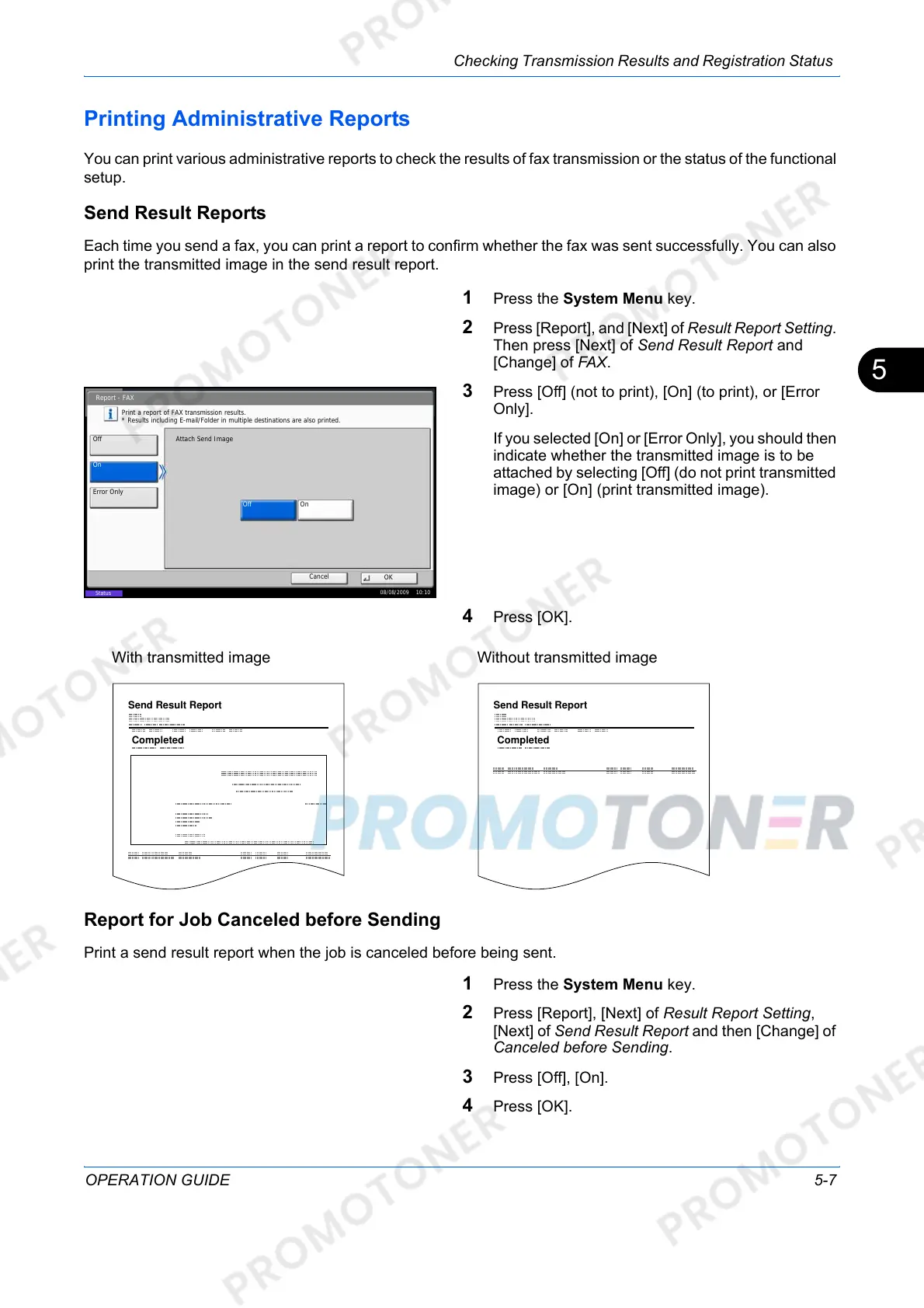
2 Press [Report], and [Next] of Result Report Setting.
Then press [Next] of Send Result Report and
[Change] of FAX.
3 Press [Off] (not to print), [On] (to print), or [Error
Only].
If you selected [On] or [Error Only], you should then
indicate whether the transmitted image is to be
attached by selecting [Off] (do not print transmitted
image) or [On] (print transmitted image).
4 Press [OK].
Report for Job Canceled before Sending
Print a send result report when the job is canceled before being sent.
1 Press the System Menu key.
2 Press [Report], [Next] of Result Report Setting,
[Next] of Send Result Report and then [Change] of
Canceled before Sending.
3 Press [Off], [On].
4 Press [OK].
Status
Report - FAX
Cancel
OK
08/08/2009 10:10
Error Only
Print a report of FAX transmission results.
* Results including E-mail/Folder in multiple destinations are also printed.
OnOff
Off
On
Attach Send Image
Send Result Report
Completed
With transmitted image
Completed
Send Result Report
Without transmitted image



 To Next Page