Chapter 13 - Where to find features
13 Where to find features
The most commonly used features are accessible using the toolbar buttons. All features are available from
the menu bar.
Toolbar buttons - offer quick and clear access to the most commonly used features. Hovering the cursor over
the button will display the tooltip for the button. Simply click the button to use the feature.
Menu bar - all features are available from the menu bar. Related features are grouped under appropriate
menus. Click the menu heading to display the features in that menu. Select the feature you want from the
sub-menu.
Pop-up menu - pop-up menus are available in many areas of the application window. When you click the right
mouse button a menu will pop-up. This menu will only contain the features that apply to the position
clicked.
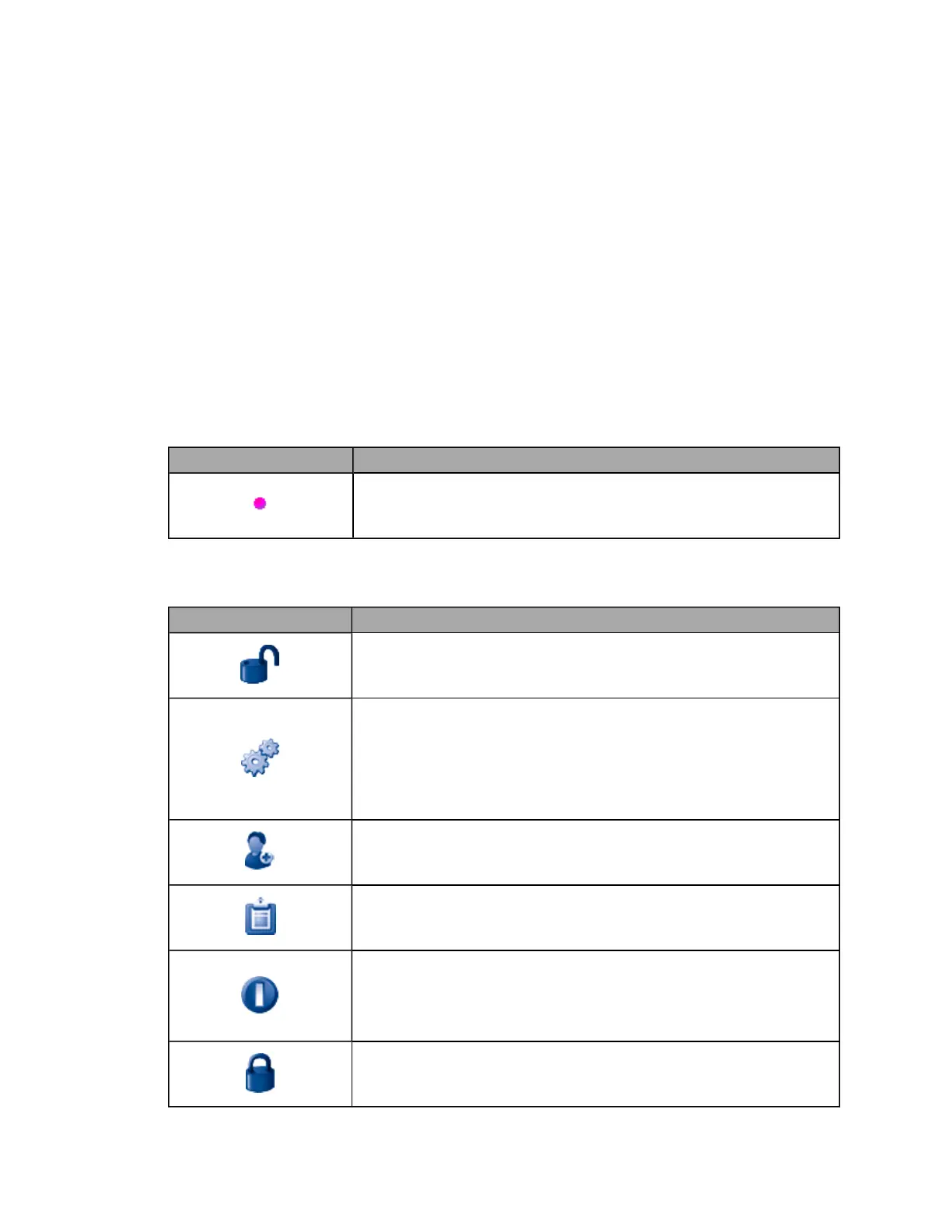
The following tables provide information about the features accessed from the toolbar buttons.
Capture application user reference
Patient List Indicators
Button/section Description
optomap® plus Patient indicator
This indicator is shown on the Patient List. It indicates that the patient has
previously been imaged using an optomap® plus procedure.
System controls
The controls are used to access the system, patient information and system settings.
Button/section Description
LOGIN button
Opens the Login dialog box. You need to log in with your username and
password before you can use the system.
SETTINGS button
Opens the Settings dialog box where you can change many of the system
settings.
You should only change these settings when instructed by your Optos
representative. You will need to login in before the settings options are
available.
PATIENTLIST button
Opens the Select Patient dialog box where you can select an existing patient,
create a new patient or filter the records to find a particular patient.
WORK LIST button
Opens the Select Patient dialog box and displays the list of patients scheduled
for today.
SHUT DOWN button
Shuts down the system.
Once the system has shut down you can switch off the power to the scan
head.
LOGOUT button
Logs out of the system and allows you to shut down or access the settings
options.
77 of 100



 To Next Page