Chapter 13 - Where to find features
Image View Controls
Button/section Description
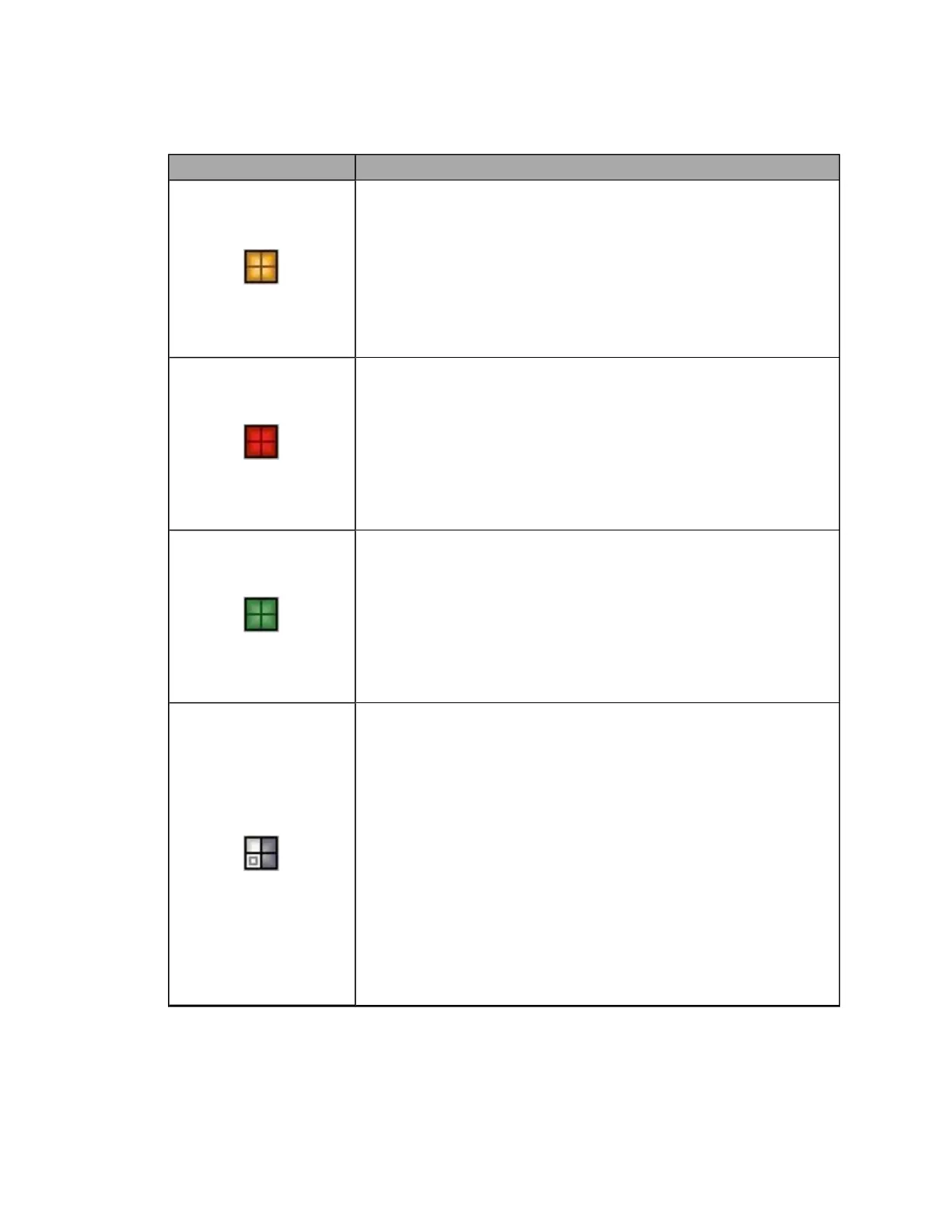
Composite Color View button
Shows the Composite Color view where you can use the zoom and pan
features to view the image in detail.
This default view is used when an optomap® or optomap® plus image is
opened. This view mixes the red and green separations to present a color
image. It is not possible to show optomap® fa or optomap® af images in
this view.
You can also select the Composite Color view by clicking Image menu >
Composite Color View.
Red Separation View button
Shows the Red Separation view as a grayscale image where you can use the
zoom and pan features to view the image in detail.
The retinal image can be separated to present retinal substructures. The
Red Separation view shows deeper layers of the retina.
It is not possible to show optomap® fa or optomap® af images in this view.
You can also select the Red Separation view by clicking Image menu > Red Separation
View.
Green Separation View button
Shows the Green Separation view as a grayscale image where you can use the
zoom and pan features to view the image in details.
The retinal image can be separated to present retinal substructures. The
Green Separation view shows the anterior layers of the retina.
It is not possible to show optomap® fa or optomap® af images in this view.
You can also select the Green Separation view by clicking Image menu > Green
Separation View.
Split Images View button
Shows the Split Images view. This view splits the main pane of the image
window into four quadrants.
The quadrants show the following views:
l
Top left quadrant - optimized Composite Color view.
l
Top right quadrant - Red Separation view.
l
Bottom right quadrant - Green Separation view.
l
Bottom left quadrant - restored original settings of the Full Image view.
The zoom and pan features are operated on the Composite Color view, Red
Separation view and Green Separation view. The Full Image view is not affected and
always shows the full size image, with an indicator of the zoomed-in area
shown in the other three quadrants.
It is not possible to show optomap® fa or optomap® af images in this view.
You can also select the Split Images View by clicking Image menu > Split Images View.
83 of 100



 To Next Page