Chapter 13 - Where to find features
Button/section Description
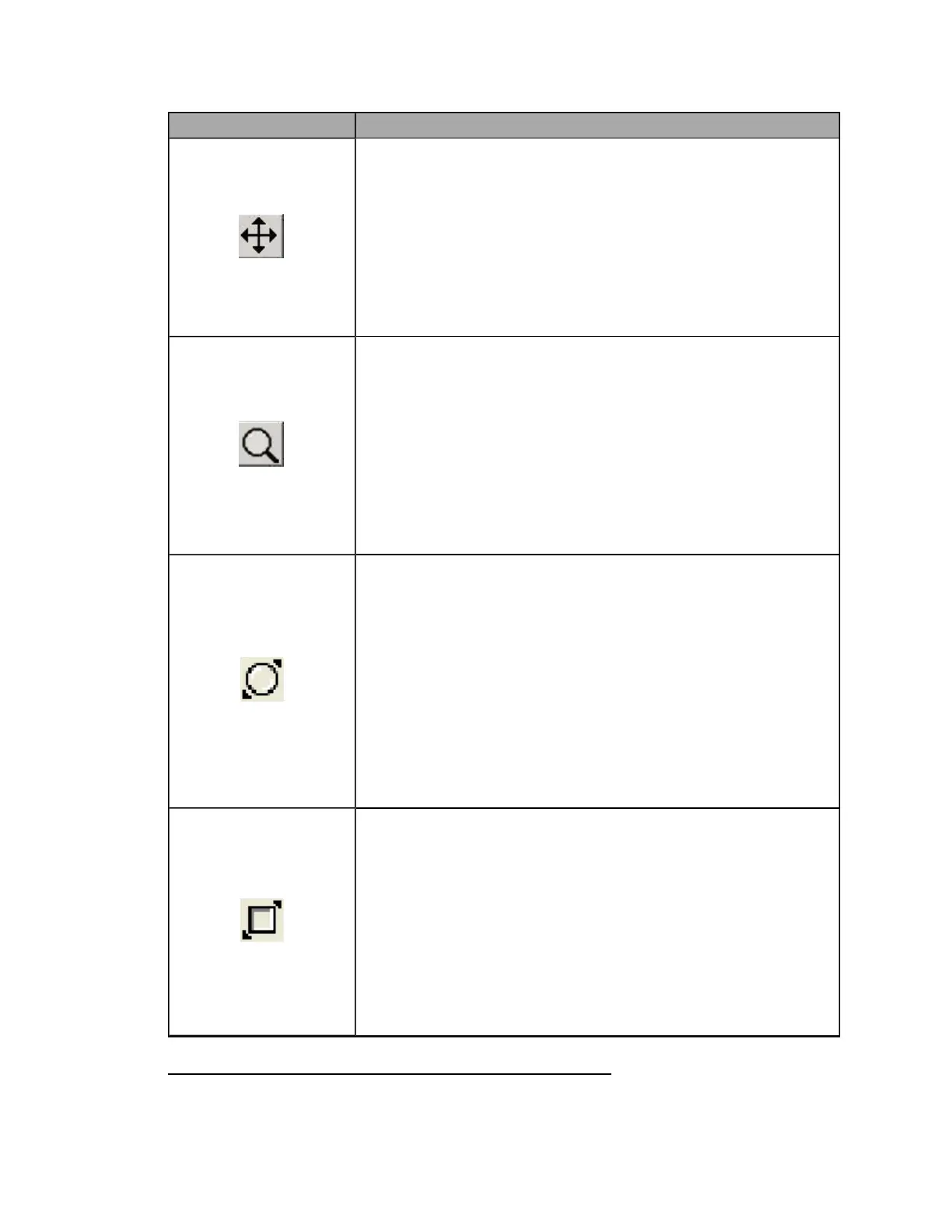
Mouse Move Mode button
Switches to Mouse Move Mode where you can drag the viewed area of the
image. This feature is useful when you want to look at another part of a
zoomed in view.
When the Mouse Move Mode button has been selected you can:
l
Left click mouse to center the image at that point.
l
Drag the mouse to move the viewed area to another position.
You can also pan the image by using the keyboard arrow keys or by
selecting Image menu > Mouse Mode > Move.
Mouse Zoom Mode button
Lets you select an area to zoom in on, and provides a quick way to zoom in
or out of a particular part of the image.
When the Mouse on Drag Mode button has been selected you can:
l
Left click mouse to zoom in and center on that point.
l
Drag the mouse to zoom in on that area.
l
Use the mouse to ‘draw’ a rectangle around the area to be
displayed.
l
Right-click mouse to display the pop-up menu.
You can also zoom in or out by selecting Image menu > Mouse Mode > Zoom.
Show Magnifier button
Lets you look at a locally optimized area of the image. You can also zoom
in and out of the image in the usual way.
The Magnifier may not be available on all systems. Please contact Optos for
more information, see Contact us on page 93.
When the Show Magnifier button has been selected you can right click to:
l
Zoom in and out of the magnified area.
l
Change the color view of the magnified area to Composite Color, Red
Separation or Green Separation view.
l
Select one of the False Color
1
options when either Red Separation or
Green Separation views are selected in the magnifier.
You can also show the magnifier by selecting Image menu > Show Magnifier.
Show Comparison Overlay button
Lets you compare two images of the same eye that were taken at different
times, for example when comparing an image from last year with an image
from this year.
When the Show Comparison Overlay button has been selected you can right click
to:
l
Change the size of the overlay area.
l
Set the transparency of the overlay area. The transparency ranges
from Opaque, where the other image details are shown and blend
through to Transparent where the current image is shown and no
details area blended from the other image.
1
Replaces grey scale with a range of colors. This may help accentuate the differences in the image
intensity.
85 of 100



 To Next Page