Chapter 13 - Where to find features
Button/section Description
l
Change the color view of the Comparison Overlay area to Composite Color,
Red Separation or Green Separation view.
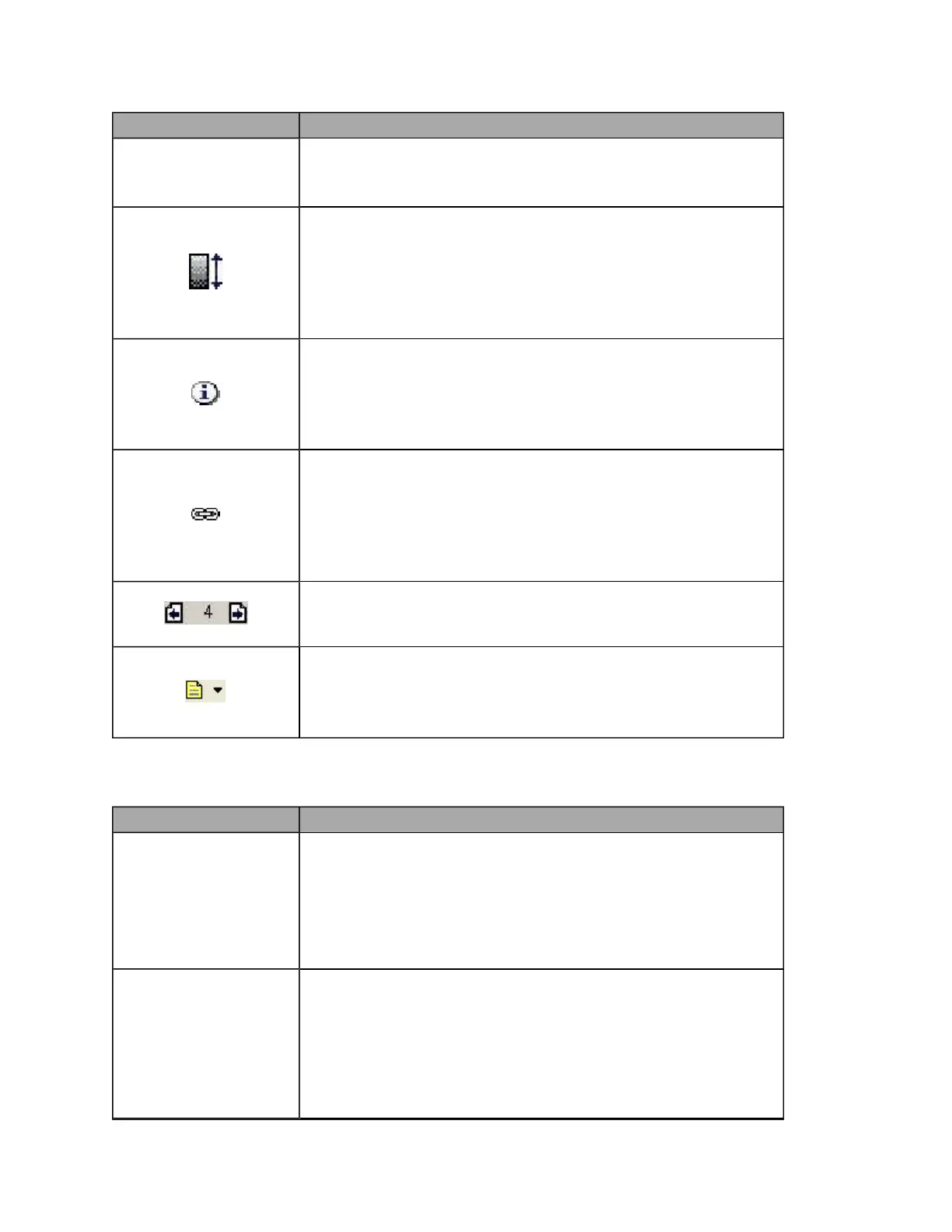
Show/Hide Image Adjustment Pane button
Toggles between hiding and showing the Image Adjustment pane.
The Image Adjustment pane is shown on the right of the image window and
contains the contrast, brightness and gamma settings.
You can also hide or display the Image Adjustment pane by selecting Image menu
> View Adjustment pane.
Show/Hide Image Information button
Toggles between hiding and showing the Image Comments pane. The image
comments are shown on the bottom of the image window and contain the
annotations and review notes associated with the image. You can also
hide or display the Image Comments pane by selecting Image menu > View
Information.
Link/unlink windows modes and view ports button
Toggles between linking and unlinking all the open image windows.
You can also link or unlink all open image windows by selecting Window menu
> Link/Unlink All Windows.
You can select which windows to link. Select Window menu > Select Linked Windows
to display the Link Windows dialog box and select the windows to be linked.
Page buttons
Displays the Previous Page and Next Page in an Image Stack. Also displays the
page number of the current image.
Review Notes button
Displays the toolbar links to Notes, Diagnostic Coding and Procedure Coding dialog
boxes.
You can also open these dialog boxes from the Image menu.
Image Adjustment Controls
You can hide the Image Adjustment Controls by selecting Image menu > View Adjustment pane.
Button/section Description
Contrast control
Contrast control
Drag the slider control to the right or left to either increase or decrease the
contrast respectively. The contrast control increases or decreases the pixel
intensity by an amount proportional to the source pixel intensity; the
intensity of brighter pixels will be changed more than that of dimmer pixels.
You can also change the setting by clicking the control to select it and
pressing the left or right arrow on your keyboard to move the slider control.
Brightness control
Brightness control
Drag the slider control to the right or left to either increase or decrease the
brightness respectively. The brightness control increases or decreases the
pixel intensity by the same amount. If you find that some areas become
saturated, try moving the Gamma control slider instead of the Brightness
control.
You can also change the setting by clicking the control to select it and
86 of 100



 To Next Page