Chapter 13 - Where to find features
Method Description
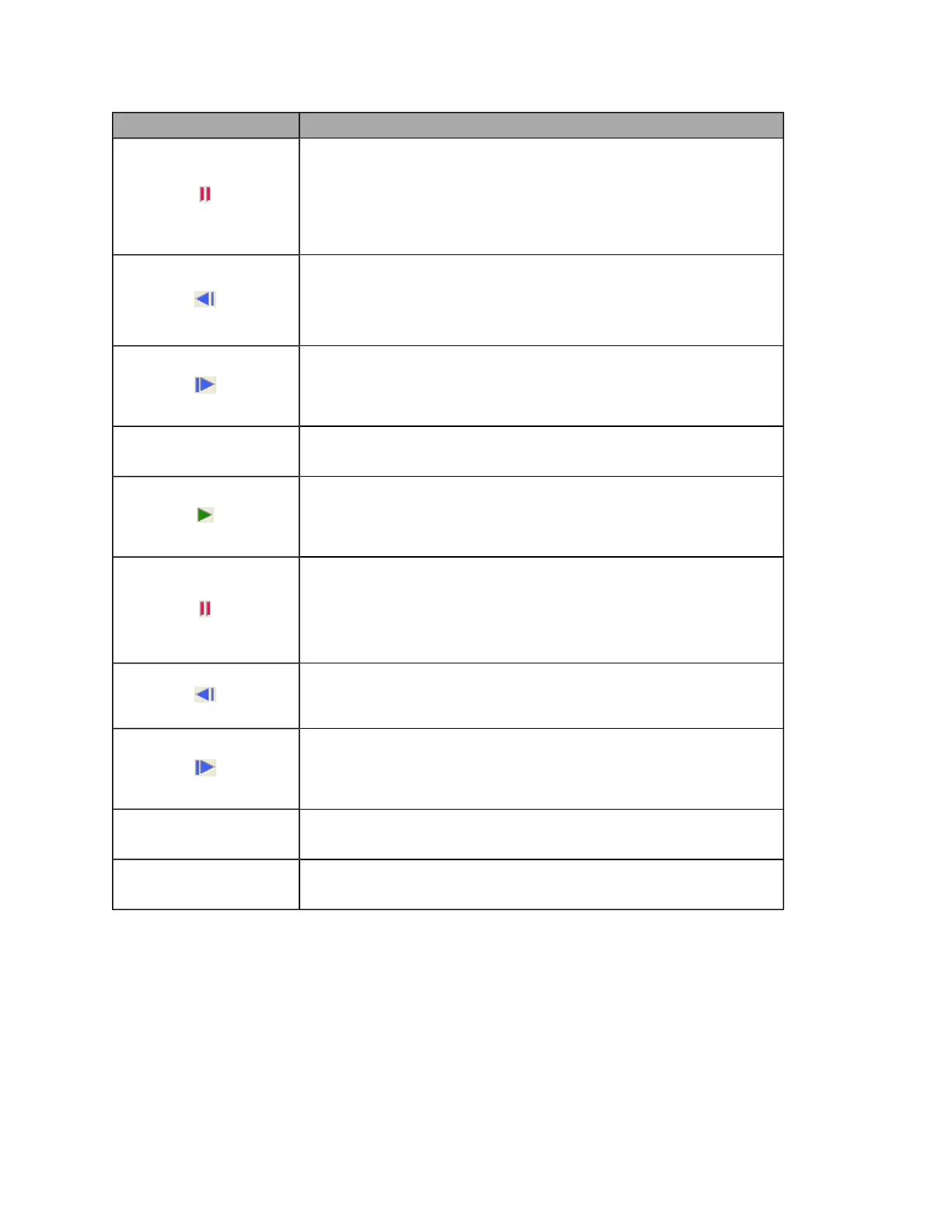
Pause button
Pauses the Automated view. You can stop the Automated view by clicking the
Pause button and then moving on to another task.
The Pause button changes to the Play button when clicked.
You can also pause the Automated view by clicking the image.
Previous button
Click this button to work back through the Automated view one phase at a
time.
You can use the Progress slider to move back multiple phases at once.
Next button
Click the button to move forward through the Automated view one phase at a
time.
You can use the Progress slider to move forward multiple phases at once.
FA Slideshow You can review a stack of optomap® fa images in the FA Slideshow.
The following buttons can be are used to control the FA Slideshow.
Play button
Plays the FA Slideshow. The Play button changes to the Pause button when
clicked.
Pause button
Pauses the FA Slideshow. You can stop the FA Slideshow by clicking the Pause
button and then moving on to another task.
The Pause button changes to the Play button when clicked.
You can also pause the FA Slideshow by clicking the image.
Back button
Click this button to work back through the FA Slideshow one image at a time.
You can use the Progress slider to move back multiple images at once.
Next button
Click the button to move forward through the FA Slideshow one image at a
time.
You can use the Progress slider to move forward multiple images at once.
Progress slider
Progress slider
You can move the slider to go back or forward in the FA Slideshow.
Speed slider
Speed slider
You can change the speed of the FA Slideshow by moving the slider.
Image Comparison Methods
There are several methods available for viewing images using the Review application. Some show large
views of a single image, others show several images at once, another stacks images so that you can page
through them. You can also link images so that when you zoom in or pan, the images are aligned; keeping
a similar area of each image in view. Each method lets you view and compare the images in different
ways.
88 of 100



 To Next Page