software under the Windows platform, but cannot be burned under Linux
platform
1) First, prepare a MicroSD card with 8GB or larger capacity. The transmission speed
of the TF card must be above class10. It is recommended to use a brand MicroSD
card such as SanDisk.
2) Then use a card reader to insert the MicroSD card into the computer
3) Download the Android 10 OS and PhoenixCard flashing tool from Orange Pi's data
download page. Please make sure that the PhonenixCard tool version is
PhonenixCard-v4.2.3. Tools below this version will have problems flashing to the
Android 10 OS.
4) Use the decompression software to decompress the downloaded Android OS
compressed package. In the decompressed file, the file ending with ".img" is the
Android image file
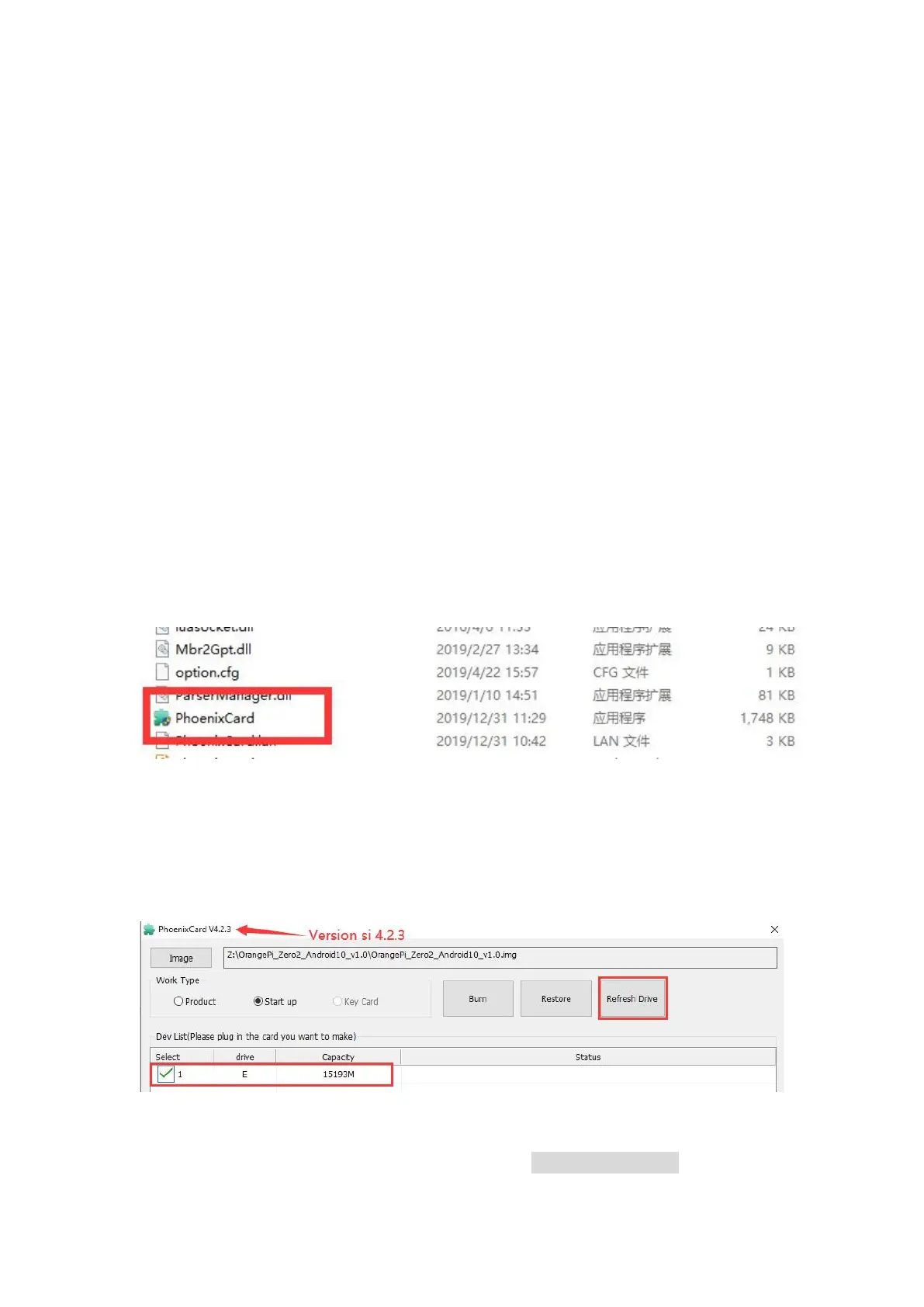
5) Use decompression software to decompress PhonenixCard-v4.2.3.zip, this software
does not need to be installed, you can find PhoenixCard in the decompressed folder
and open it
6) After opening PhoenixCard, if the MicroSD card is recognized normally, the drive
letter and capacity of the MicroSD card will be displayed in the middle list. Please
make sure that the displayed drive letter is consistent with the drive letter of the
MicroSD card you want to burn. If there is no display, you can try to remove and
insert the MicroSD card, or click the Refresh Drive letter button in PhoenixCard
7) After confirming the drive letter, format the MicroSD card first, click the "Restore"
button in PhoenixCard, or use the aforementioned SD Card Formatter to format the


 To Next Page