9)
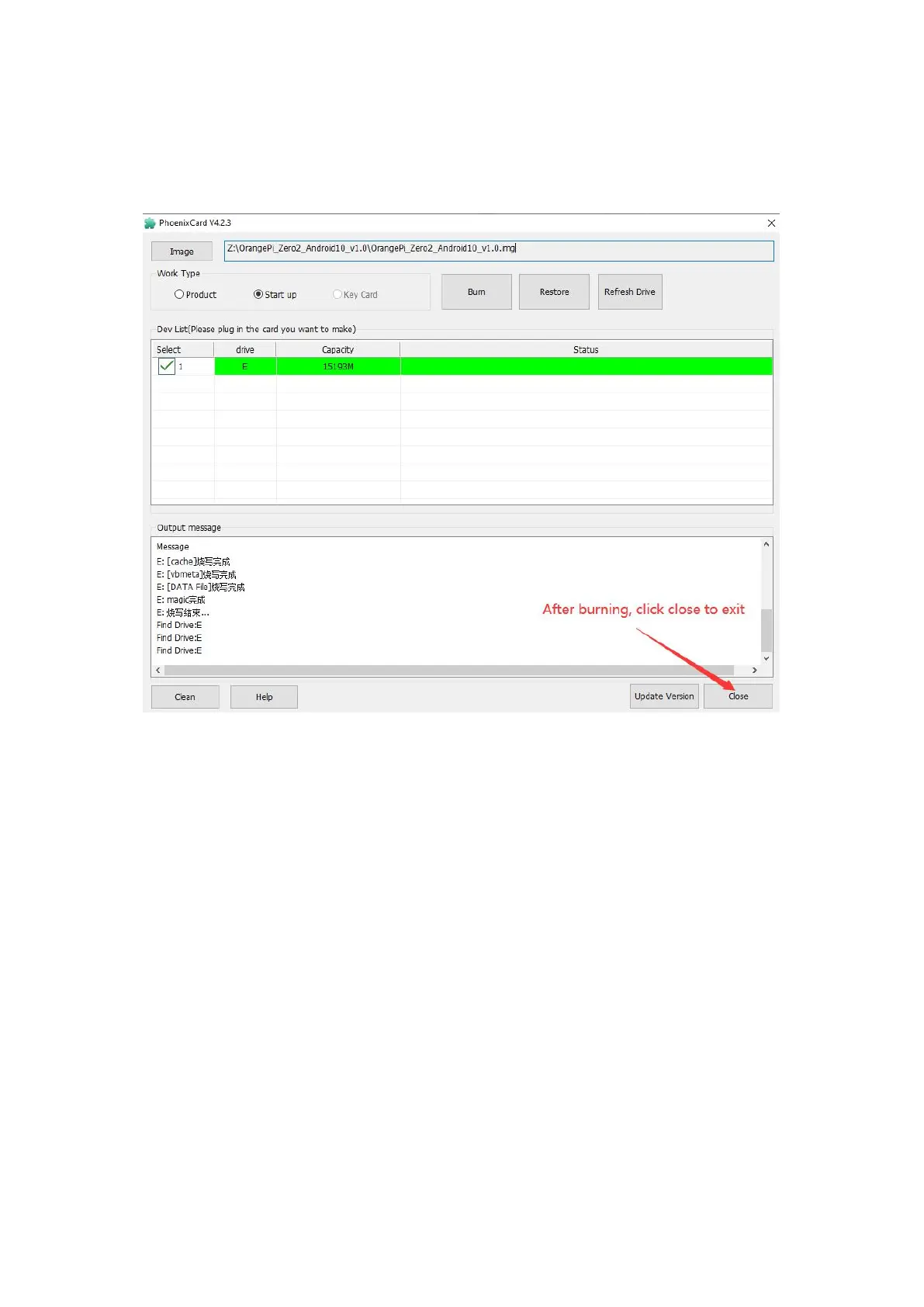
After burning, the PhoenixCard will display as shown in the figure below. At this
time, click the "Close" button to exit PhoenixCard, and then you can unplug the
MicroSD card from the computer and insert it into the development board to start
2.6. Start the Orange Pi development board
1) Insert MicroSD card with well-flashed image into the MicroSD card slot of the
Orange Pi development board
2) The development board has a Micro HDMI interface, you can connect the
development board to a TV or HDMI display through a Micro HDMI to HDMI cable
3) Connect the USB mouse and keyboard to control the Orange Pi development board
4) The development board has an Ethernet port, which can be plugged into the
network cable for Internet access
5) A high-quality power adapter with a 5V/2A (5V/3A is also available) USB Type C
interface
a. Remember not to plug in the 12V power adapter, if you plug in the
12V power adapter, it will burn the development board
b. Many unstable phenomena during OS power-on and startup are
caused by power supply problems, so a reliable power adapter and USB
Type C data cable are very important
6) Then turn on the power adapter switch, if everything is normal, the HDMI display


 To Next Page