[CHG] Device DC:72:9B:4C:F4:CF Modalias: bluetooth:v010Fp107Ed1436
[CHG] Device DC:72:9B:4C:F4:CF UUIDs: 0000046a-0000-1000-8000-
00805f9b34fb
[CHG] Device DC:72:9B:4C:F4:CF ServicesResolved: yes
[CHG] Device DC:72:9B:4C:F4:CF Paired: yes
Pairing successful #Prompt for successful pairing
[CHG] Device DC:72:9B:4C:F4:CF ServicesResolved: no
[CHG] Device DC:72:9B:4C:F4:CF Connected: no
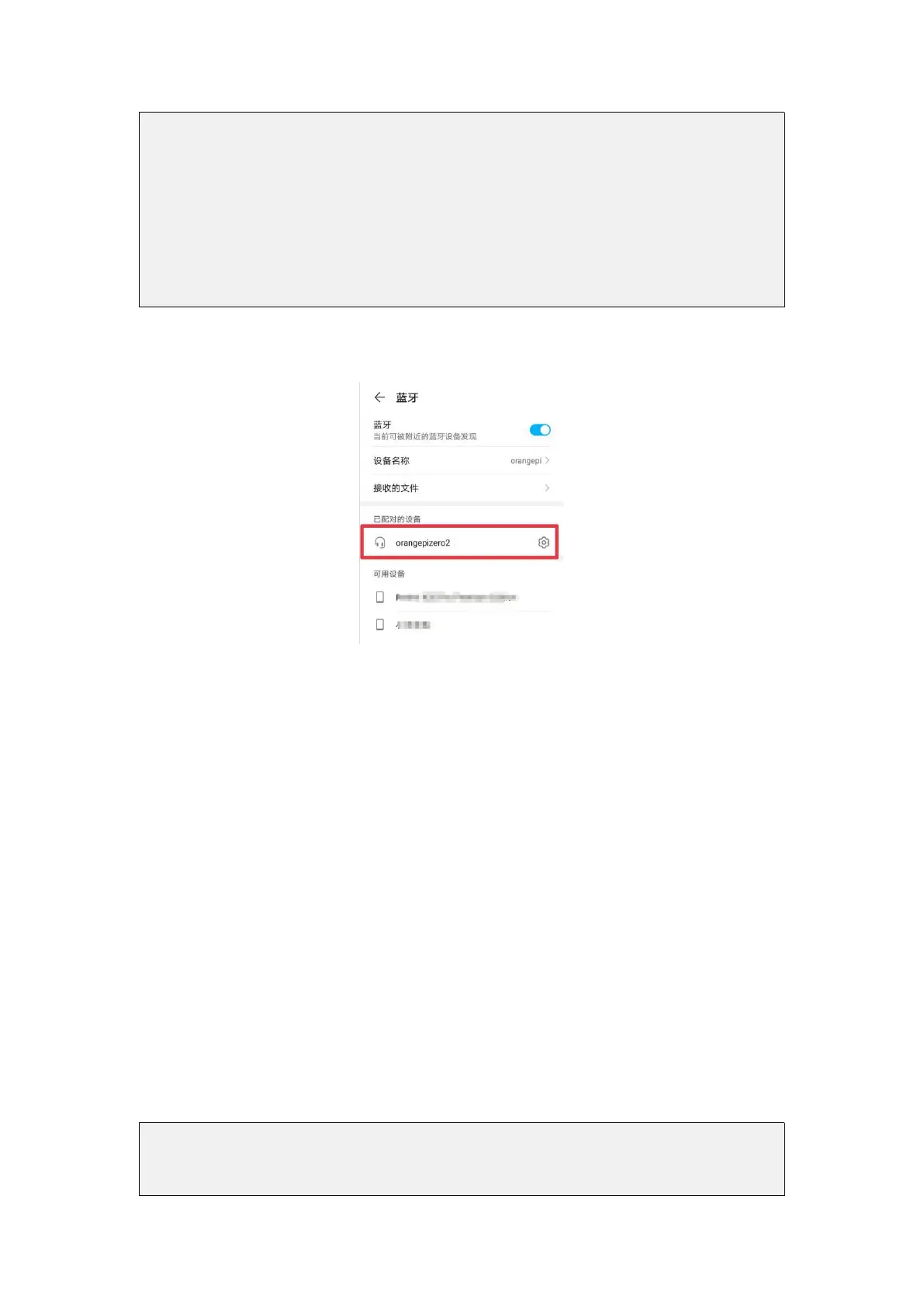
4) After the pairing is successful, the Bluetooth interface of the mobile phone will be
displayed as shown below
3.15. USB interface test
3.15.1. Connect mouse or keyboard test
1) Insert the keyboard of the USB interface into the USB interface of the Orange Pi
development board
2) Connect the Orange Pi development board to the HDMI display
3) If the mouse or keyboard can operate normally, the USB interface is working
normally (the mouse can only be used in the desktop version of the OS)
3.15.2. Connect USB storage device test
1) First, insert the U disk into the USB port of the Orange Pi development board
2) Execute the following command, if you can see the output of sdX, it means that the
U disk is successfully recognized
root@orangepi:~# cat /proc/partitions | grep "sd*"
major minor #blocks name
8 0 30044160 sda


 To Next Page