3.18.2. HDMI audio playback test
1) First use the Micro HDMI to HDMI cable to connect the Orange Pi development
board to the TV (other HDMI displays need to ensure that they can play audio)
2) Upload the audio files that need to be played to the /root folder of the Linux OS.
You can use the scp command to upload in the Ubuntu PC (the IP address in the
command is the IP address of the Orange Pi development board), or copy using a
USB flash drive
test@test:~/AudioTest$ scp audio.wav root@192.168.1.xx:/root ( Modify the IP
address and path according to the actual situation)
3) HDMI audio playback does not require other settings, just use the aplay command
to play directly
root@orangepi:~# aplay -D hw:1,0 audio.wav
3.19. IR receiving test
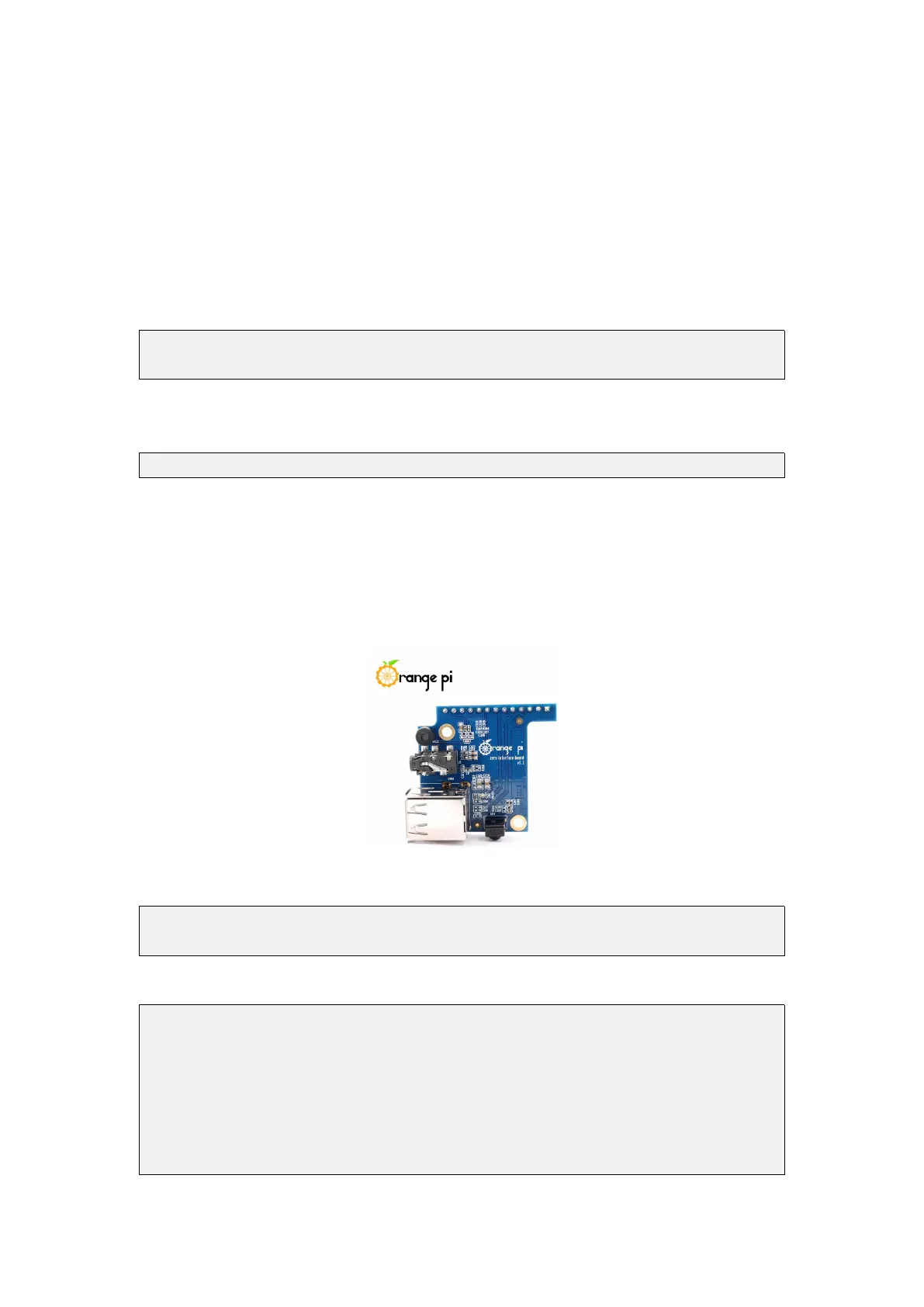
1) First, you need to insert the 13pin adapter board into the 13pin interface of the
Orange Pi development board. After the adapter board is inserted, the Orange Pi Zero
2 can use the IR receiving function
2) Install ir-keytable IR test software
root@orangepi:~# apt update
root@orangepi:~# apt-get install ir-keytable
3) Then execute ir-keytable to view the information of the IR device
root@orangepi:~# ir-keytable
Found /sys/class/rc/rc0/ (/dev/input/event1) with:
Driver: sunxi-rc-recv, table: rc_map_sunxi
lirc device: /dev/lirc0
Supported protocols: lirc nec
Enabled protocols: lirc nec
Name: sunxi_ir_recv


 To Next Page