2) Through the aplay -l command, you can view the sound card devices supported
by the Linux OS, where card 0: audiocodec is the sound card device required for
headset playback
root@orangepi:~# aplay -l
**** List of PLAYBACK Hardware Devices ****
card 0: audiocodec [audiocodec], device 0: SUNXI-CODEC sun50iw9-codec-0 []
Subdevices: 1/1
Subdevice #0: subdevice #0
3) Upload the audio files that need to be played to the /root folder of the Linux OS.
You can use the scp command to upload in the Ubuntu PC (the IP address in the
command is the IP address of the Orange Pi development board), or copy it with
a USB flash drive
test@test:~/AudioTest$ scp audio.wav root@192.168.1.xx:/root (Modify the IP
address and path according to the actual situation)
4) Then use the aplay command to play the audio, the headset can hear the sound
root@orangepi:~# aplay -D hw:0,0 audio.wav
Playing WAVE 'audio.wav' : Signed 16 bit Little Endian, Rate 44100 Hz, Stereo
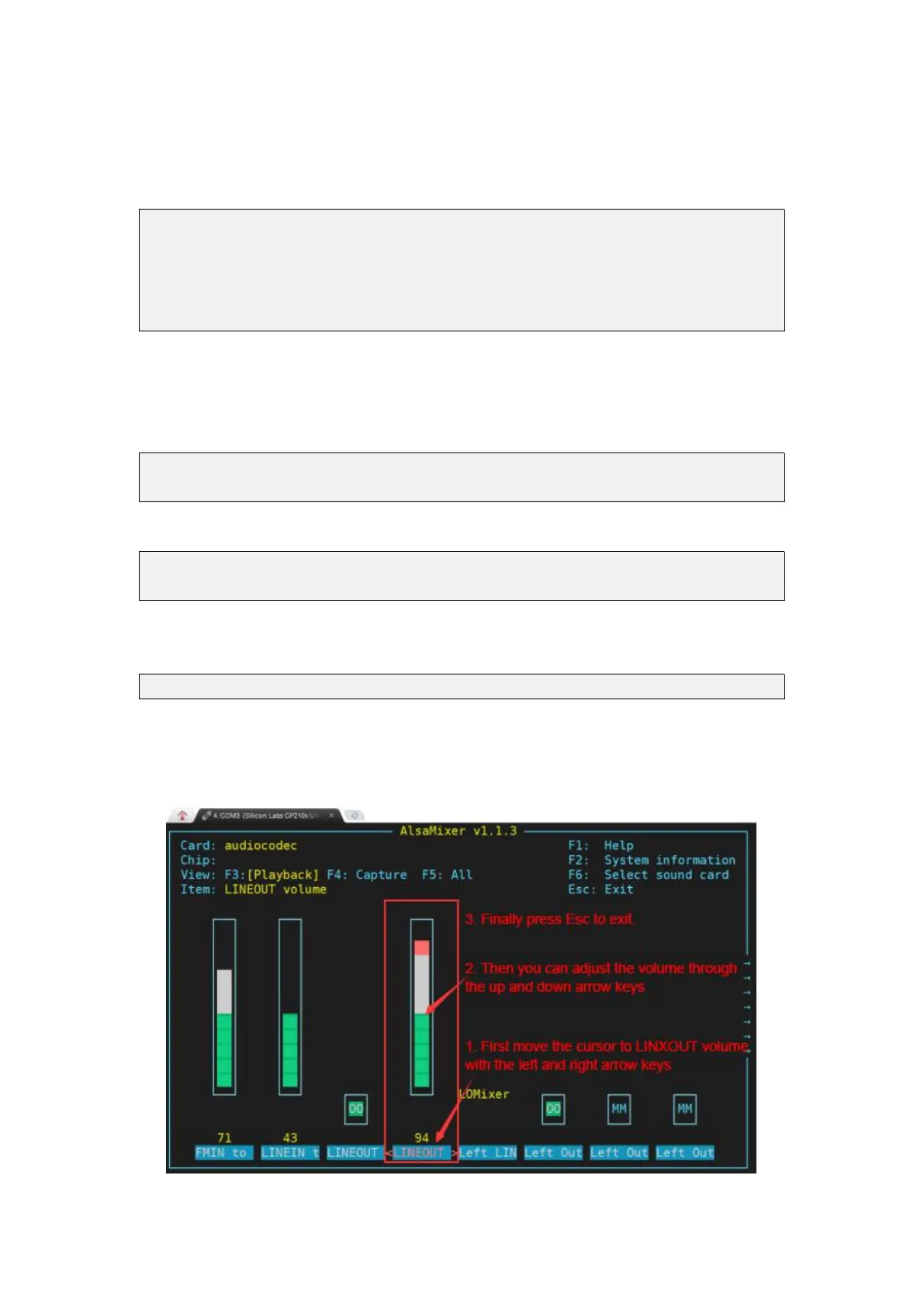
5) The volume of the headset can be adjusted through the alsamixer command
a. Enter the alsamixer command in the terminal
root@orangepi:~# alsamixer
b. After entering the alsamixer command, the following audio setting interface
will pop up, and then you can adjust the size of the audio through the up,
down, left, and right direction keys. The specific steps are shown in the
figure below


 To Next Page