
 Need help?
Do you have a question about the Orbotech Symbion S36 and is the answer not in the manual?
Describes the programming of the Symbion™ range of Inspection Systems.
Explains the typographic conventions used throughout the guide.
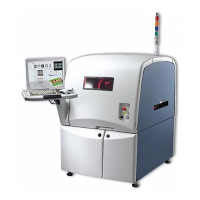
Introduces the Symbion S36 as a new generation of Automated Optical Inspection (AOI) Systems.
Provides step-by-step instructions on how to power on and launch the Symbion application.
Explains navigation and primary functions accessible from the main application welcome screen.
Describes the graphic editor for recipes based on the Background Image.
Explains the hierarchical representation of the inspection recipe and its properties.
Details the editor for managing component properties, grouped under tabs.
Overview shows the entire recipe; View Mode for live images.
Displays inspection results and lists found issues.
Introduces the Wizard for creating new Inspection Recipes.
Provides steps to initiate the Inspection Recipe creation process using the Wizard.
Describes the first step in the Wizard for creating an empty recipe with basic product information.
Defines the physical size of the product to be inspected within the system.
Explains how to load an example product to capture a Background Image.
Details importing manufacturing data into the inspection recipe.
Guides through creating a CAD Import profile to correctly translate manufacturing data.
Defines component locations and verifies orientation relative to the background image.
Describes correcting the background image to fit component data by selecting anchor points.
Explains identifying fiducial components imported from CAD data.
Describes manual identification of fiducial components when not present in CAD data.
Links CAD packages and part numbers to components in the Package Library.
The final step in the Wizard to check the recipe for errors and missing steps.
Covers rectifying errors found during Recipe Verification and final checks.
Details defining components that were not identified during Recipe Verification.
Covers standard Windows functions like Cut, Copy, Paste, and Delete within the editor.
Details functions for component editing such as insertion, cloning, and terminal formatting.
Explains functions applied at component level to fine-tune inspections, with caution for data loss.
Covers creating and manipulating Tag Sets for component selections and grouping them into Inspection Sets.
Replaces a component's package with the latest version from the Package Library.
Replaces the Package in the Library with the version present in the Inspection Recipe.
Introduces the Property Editor's tab for Position inspections and their basic setup.
Reports an error if a component is detected as improperly placed based on the Location Model.
Reports an error if a component is detected as not fitted or incorrectly placed.
Reports an error when a component is detected as being placed on its side.
Reports an error when a component is detected as being placed on one end.
Reports an error when a component is detected as being placed upside down.
Reports an error when a component is detected as being incorrectly oriented.
Reports an error when the end terminals of a component are not detected.
Uses a user-defined percentage off pad allowance for placement accuracy.
Uses off pad allowance according to IPC Class 1.
Uses off pad allowance according to IPC Class 2.
Uses off pad allowance according to IPC Class 3.
Uses user-defined X, Y, and Angle tolerances for placement accuracy.
Disables location control; component placement accuracy is not checked.
A brighter line than the background indicating the polarity of the device.
A sloping edge on the side of the device carrying Pin 1.
A sloping edge on the corner of the device nearest to Pin 1.
A plated mark on the corner of the device nearest to Pin 1.
A line darker than the background indicating the polarity of the device.
A mark in the surface of the device with a rounded profile.
A mark in the surface of the device with a square profile.
A line etched on the component indicating the polarity of the device.
A cut out indicating the polarity of the device.
Reports an error for insufficient or excess solder volume, tunable via TBA Setup Tool.
Reports an error for open solder joints, tunable via TBA Setup Tool.
Reports an error when a terminal is shorted with its neighbor, tunable via TBA Setup Tool.
Reports qualitative defects on components; functionality depends on Inspection Type.
Introduces Optical Character Recognition capabilities and setup.
Describes how to add Optical Character Recognition functionality to a component.
Details the dialog for configuring OCR inspection parameters and settings.
Describes how to add a macro inspector to a component.
Details the toolbar buttons available for controlling and executing inspections.
Defines Multiboards as regular (consistent spacing) or irregular (inconsistent spacing).
Describes the object inserted into the machine, often the carrier.
Describes the single manufacturing unit that may contain Miniboards.
Describes the single repeating, functional unit contained within the Board.
Tracks changes to a single Miniboard and applies them to all other Miniboards.
Identifies how a barcode can be used, as read or added to children, must be added to the Frame.
Describes calibrations and checks available in the Maintenance Module for Symbion hardware.
Used to verify and adjust brightness of cameras and flashes; has a standard verified density.
Used during verification of camera alignment and grid calibration.
Displays the status of periodic checks and calibrations, highlighting expired items.
Provides access to functions described in the Service Manual, excluding MCT.
 General
| Category | Control Systems |
|---|---|
| Model | Symbion S36 |
| Manufacturer | Orbotech |
| Inspection Technology | Optical Inspection |
| Application | Printed Circuit Boards (PCB) |
| Defect Detection | Detects a wide range of defects including shorts, opens, and missing components |

 To Next Page