SYNCHRONIZATION
When the OXI One starts up, Sequencer 1 is selected by default and Internal synchronization mode is
set.
The following sync options can be changed by tapping SHIFT + STOP (sync) button when the
sequencer is stopped:
- INT: OXI One follows internal timing, according to the selected tempo.
- USB: OXI One follows the clock timing received only through the MIDI USB port.
- MIDI: OXI One follows the clock timing received through the MIDI TRS jack or MIDI Bluetooth.
- CLK:OXI One follows the clock timing received through the clock input.
OXI One reads and outputs MIDI clock according to a 24 ppq timing. The analog clock input and
output resolutions can be changed in the Config menu.
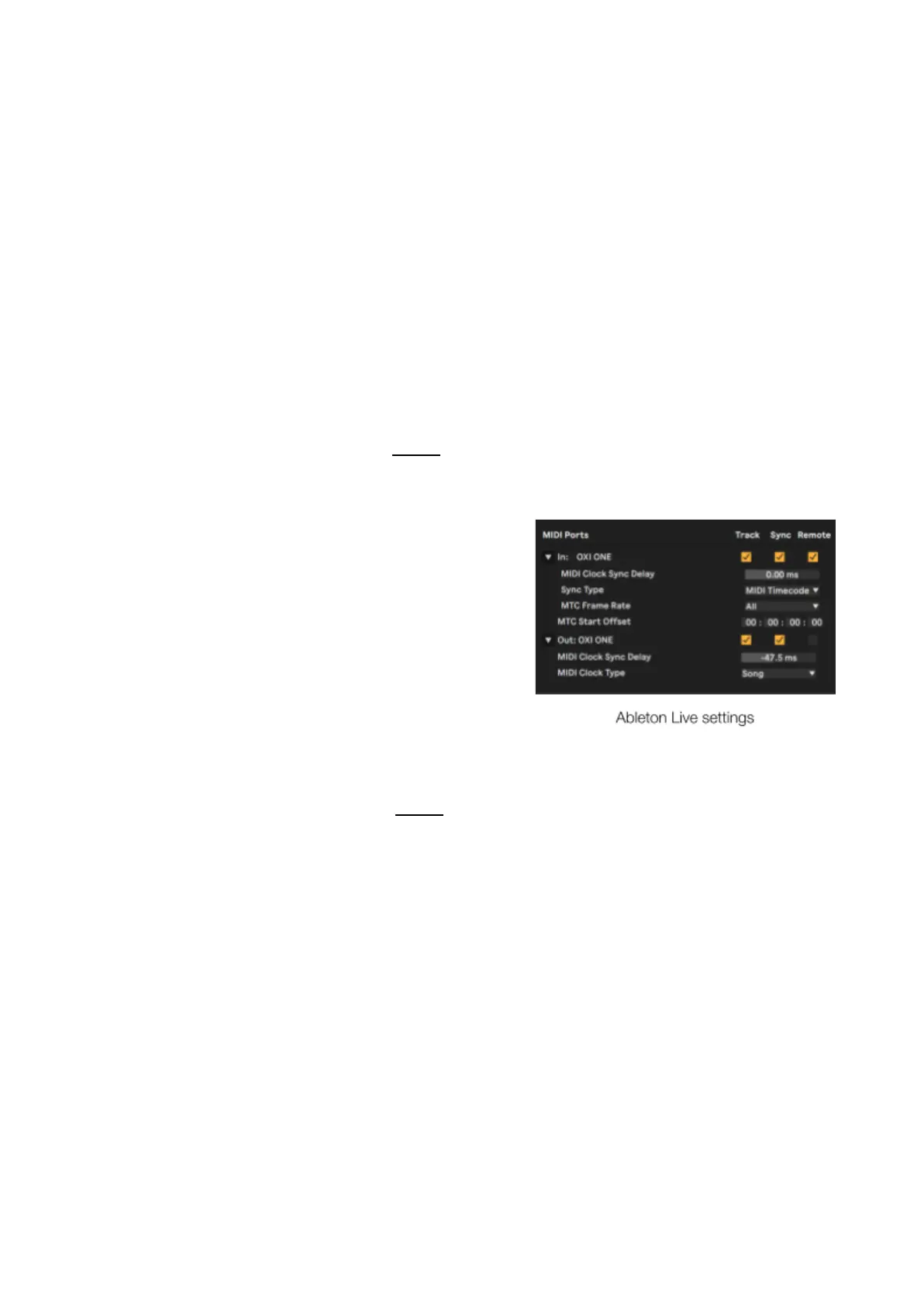
When OXI One is synchronized with a DAW in which either
of them act as a master clock, remember to adjust the
MIDI clock sync delay in your DAW settings to correct
the latency generated by the DAW. The bigger the audio
buffer, the greater the latency is and it also increases with
the project CPU load.
AUTO SYNC
Autoclock can be enabled/disabled in the Config menu.
When Autoclock is enabled and the OXI One is stopped, it will start automatically playing once a MIDI
Start message is received from an external source: MIDI TRS, MIDI BLE or MIDI USB. The OXI One
will automatically follow the external source’s tempo.
Autoclock for Analog clock is also implemented from firmware version 3.8.
INTERNAL CLOCK FALLBACK
When the OXI One receives a MIDI Stop message or when the MIDI external synchronization source is
lost, it will automatically revert to internal sync.
This behavior is not present when the sync source is the analog clock.



 To Next Page