· GATE (secondary function: Scale)
· MODulation (secondary function: Root)
The encoder values appear as a pop-up on the screen.
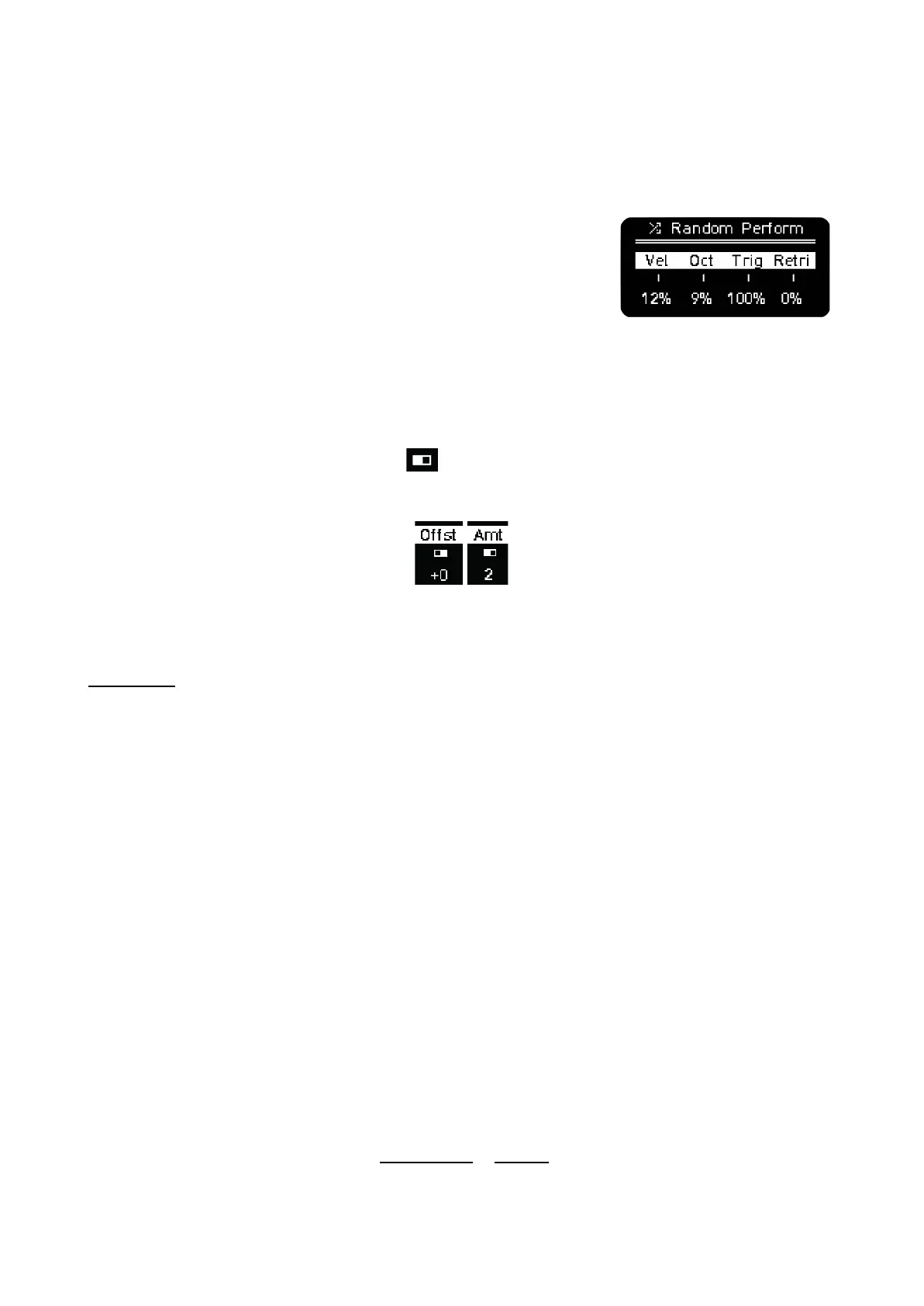
For most of the function buttons and secondary functions, the
screen will display 4 parameters, as shown on the right. The encoders
modify the corresponding parameter position on the screen. For that,
hold or tap the function button and turn the encoder.
· Most parameters don’t require confirmation by pressing the encoder
button. Some do require confirmation.
· In general, pressing the encoder button resets the corresponding parameter to its default value in
most of the menus.
· In some menus there is a toggle symbol that indicates another menu option is available in that
position by shift-pressing the corresponding encoder. For example in the LFO menu, encoder 3
toggles between Amount and Offset:
PRIMARY FUNCTIONS
VELOCITY
Turning the VEL encoder changes the velocity value for all the steps of the selected Sequencer (or the
currently selected track in Multitrack). If there are different velocity values on steps, the screen will
show the minimum and maximum values. Turning the encoder offsets each step value.
Pressing and holding a grid button will show the Step menu, in which you can change the Velocity of
the step. By holding several grid buttons and turning this knob, you can modify the velocity of them all
at once.
Push the VEL encoder and the grid displays the velocity values of the active steps in column chart
form. You can edit the velocity values from there.
Tapping the VEL encoder toggles the Step Velocity View with each ACTIVE step’s velocity value
displayed visually as a column. Velocity values can be changed per step with immediate visual
feedback. To adjust all ACTIVE steps at once, simply turn the VEL encoder. Notice that the display
shows a minimum and maximum velocity value as you turn the encoder, this ensures that each
individual step’s velocity value is increasing or decreasing relative to the velocity value that is assigned
to it. INACTIVE steps without any note data are not affected when the VEL encoder is turned.
Holding a step button and pressing the VEL encoder, the velocity of the selected step is set to the
default value. Default velocity value is fixed to 75.
Velocity affects the amplitude of the AD trig envelope in CV Out by default.



 To Next Page