Digital Video Recorder
25
System Event
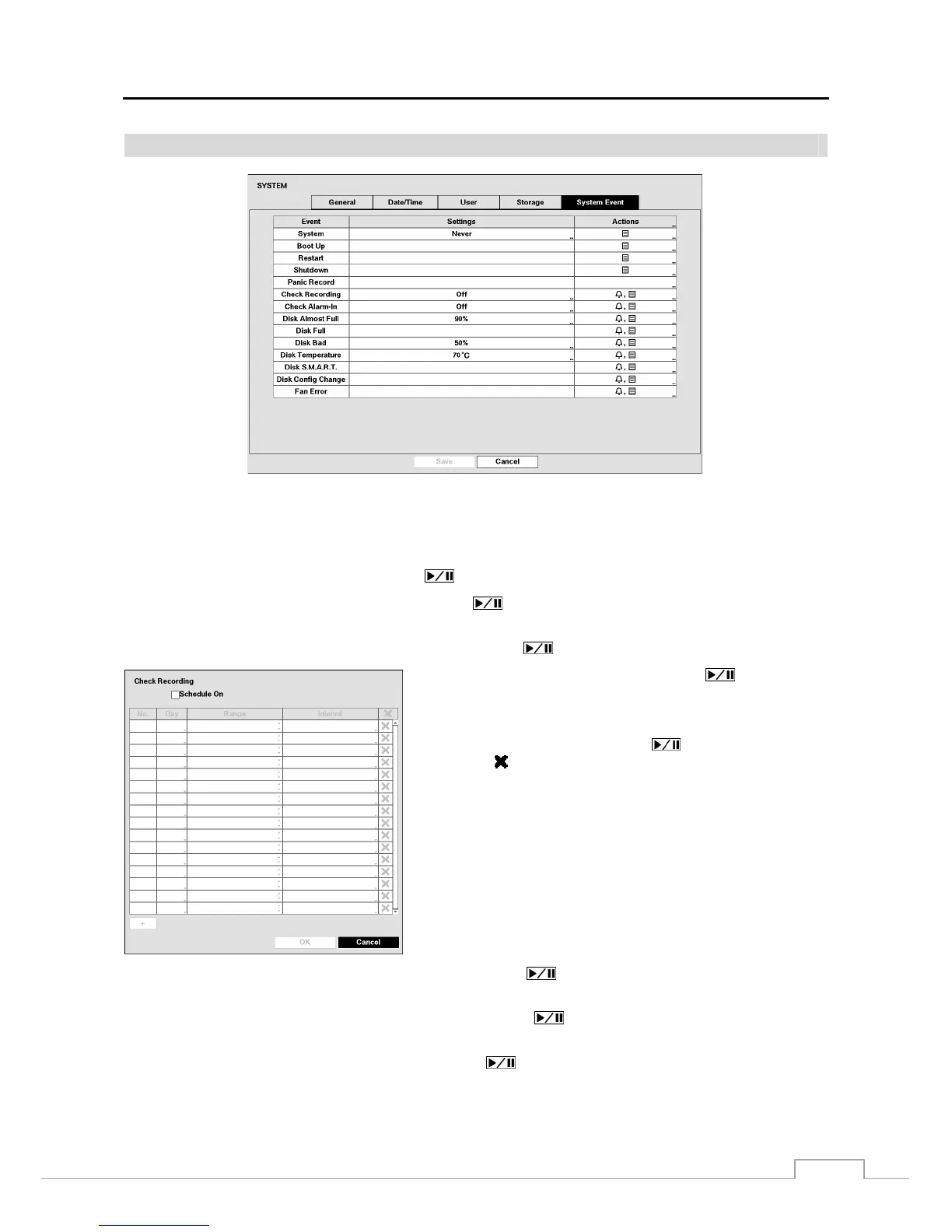
Figure 12: System – System Event setup screen.
The DVR can be configured to run self-diagnostics and report the results.
Highlight the Settings box beside the desired event (System, Check Recording, Check Alarm-In, Disk Almost Full,
Disk Bad, or Disk Temperature), and press the
button.
Highlight the Settings box beside System and press the button. You can select the interval that you want the
DVR to run self-diagnostics on the system. You can select from 1 hr. to 30 days or Never.
Highlight the Settings box beside Check Recording and press the button. The Check Recording screen appears.
Highlighting Schedule On and pressing the button toggles
On and Off. When set to On, you can select the day, time range
and interval that you want the DVR to run self-diagnostics on the
recorder. The Interval can be selectable from 1 min. to 7 days or
Never. Highlight the + and press the
button to add a schedule
item. The
box allows you to delete a check recording schedule.
Highlight the Settings box beside Check Alarm-In and press the button. You can select the interval that you
want the DVR to run self-diagnostics on Alarm Inputs. You can select from 1 hr. to 30 days or Never.
Highlight the Settings box beside Disk Almost Full, and press the
button. Select the percentage level of disk
usage at which you want the DVR to trigger an alert. Percentage levels range from 80% to 99%.
Highlight the Settings box beside Disk Bad, and press the
button. Select percentage level of bad disk sectors
at which you want the DVR to trigger an alert. Percentage levels range from 10% to 90%.







 To Next Page