Digital Video Recorder
63
Export
A–B Clip-Copy: Selecting
(Export) → A–B Clip-Copy will set the starting point of the video to be clip copied,
and the
icon displays at the bottom-left corner of the screen. Selecting A–B Clip-Copy again will set the ending
point of the video to be clip copied and displays the Clip-Copy screen. See the following Clip Copy section for details.
Clip-Copy: Select
(Export) → Clip-Copy, and the Clip-Copy screen appears to allow clip copy setup. See
the following Clip Copy section for details.
Print: Selecting
(Export) → Print allows you to print a selected image. See the following Print section for details.
Status
Selecting
(Status) in the Search menu allows you to check the status of the DVR’s system, inputs and storage. Refer
to the previous Live Monitoring – Status Monitoring section for details.
NOTE: Selecting Status will only be enabled for a user who has System Check authority.
Data Source
Selecting
(Data Source) in the Search menu allows you to select the data source to be searched. Selecting Record
searches recorded data on primary storage installed in the DVR, and selecting Other searches recorded data on storage
used for another DVR then installed in this DVR.
Exit
Selecting
(Exit) in the Search menu exits the search mode and enters the live monitoring mode.
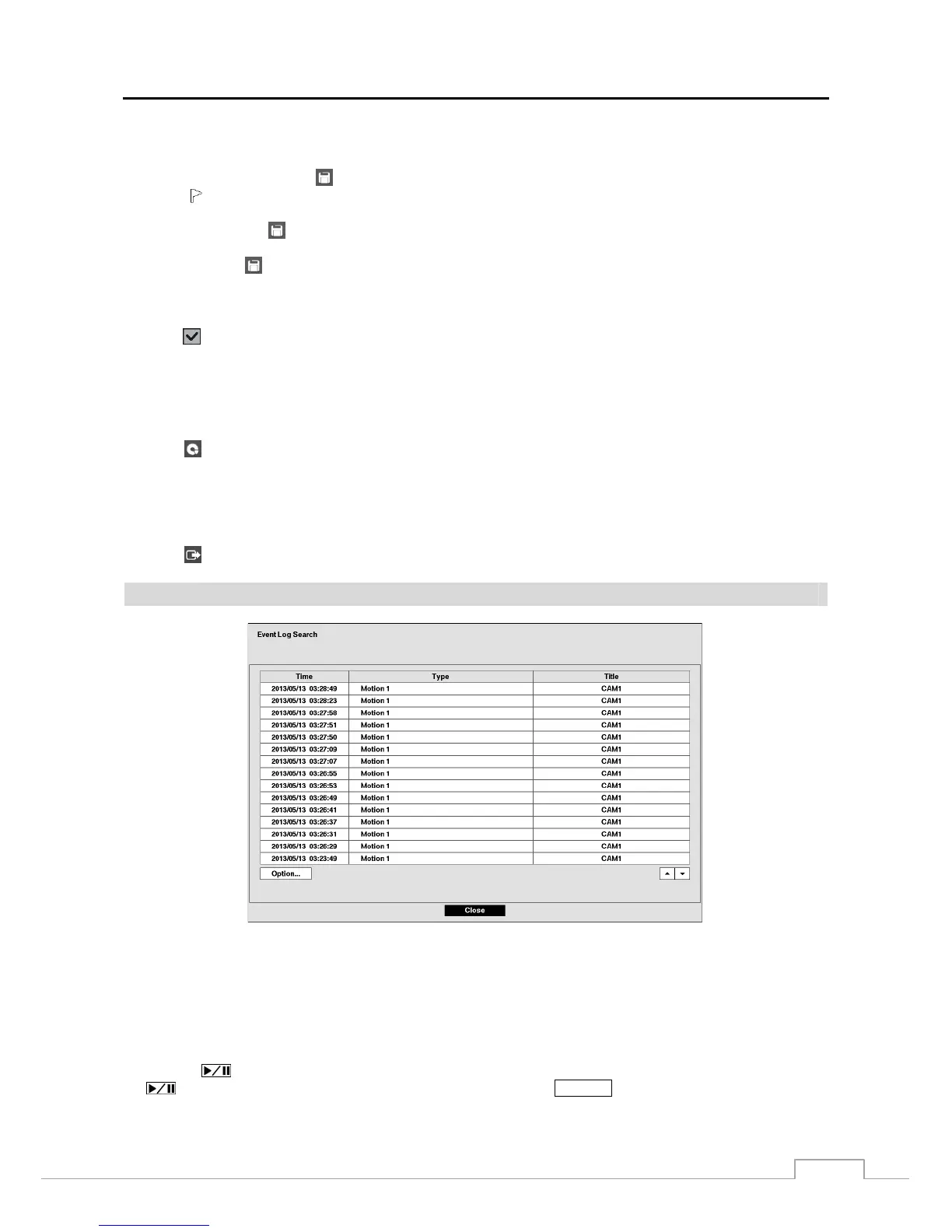
Event Log Search
Figure 46: Event Log Search screen.
The DVR maintains a log of each time the Alarm Input port is activated. The Event Log Search screen displays this
list. Use the arrow buttons to highlight the event for which you would like to see video.
There is no determined user authority to display the Event Log Search screen, however, the event video will not be played
unless a user with Search authority logs into the system
.
Pressing the (Play/Pause) button will extract the event video and display the first image of the event. Pressing
the
button will start playing the “event” video segment. Pressing SEARCH returns to live monitoring.







 To Next Page