Digital Video Recorder
35
Each input can be given a title. Highlight the desired Title box and press the
button. A virtual keyboard appears
allowing you to enter a title name.
Highlight the box under the Actions and press the
button. The DVR can be set to react to text input. Text input
can be associated with cameras, trigger an Alarm-Out connector, sound the DVR’s internal buzzer, notify a number
of different devices, and/or move PTZ cameras to preset positions.
Camera Setup
General
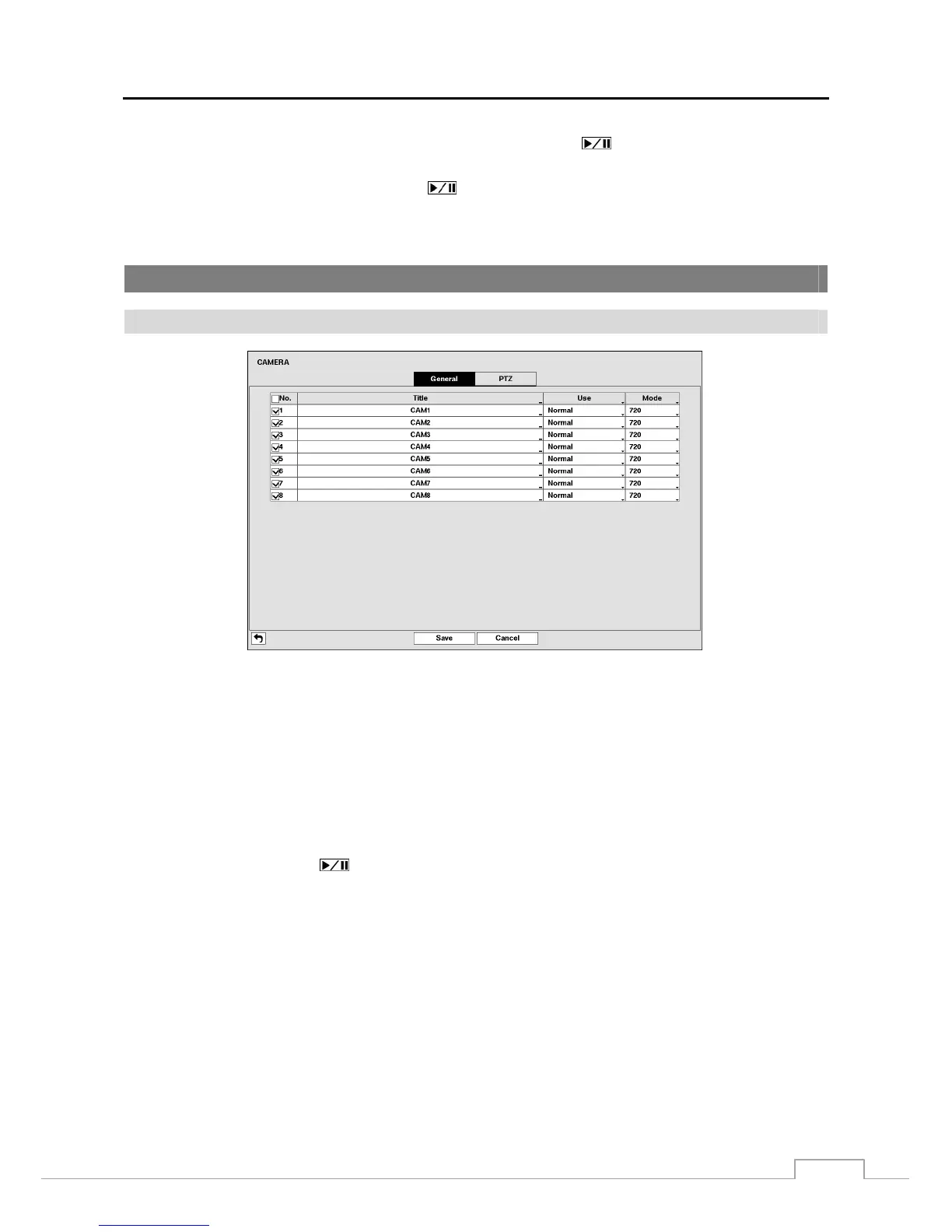
Figure 22: Camera – General setup screen.
You can turn the camera number On or Off, and you can change the Title of each camera using the virtual keyboard.
You can also determine which cameras will display on the monitors by selecting Normal, Covert 1 or Covert 2 from
a drop-down list in the Use column.
NOTE: When selecting the Covert 1, the DVR displays the camera title and status icons on the covert video.
When selecting the Covert 2, the DVR displays only camera title on the covert video.
A user who does not have Covert Camera View authority cannot view video from cameras set to Covert 1
or Covert 2 in both the live monitoring and playback modes.
You can select the width resolution supported by the camera between 720 and 960 by highlighting the box under the
Mode heading and pressing the
button.
NOTE: The system restarts automatically after changing the resolution settings.
When selecting the 960 Mode, the total recording speed and playback speed will decrease.







 To Next Page