Digital Video Recorder
57
While in the PTZ mode, pressing the
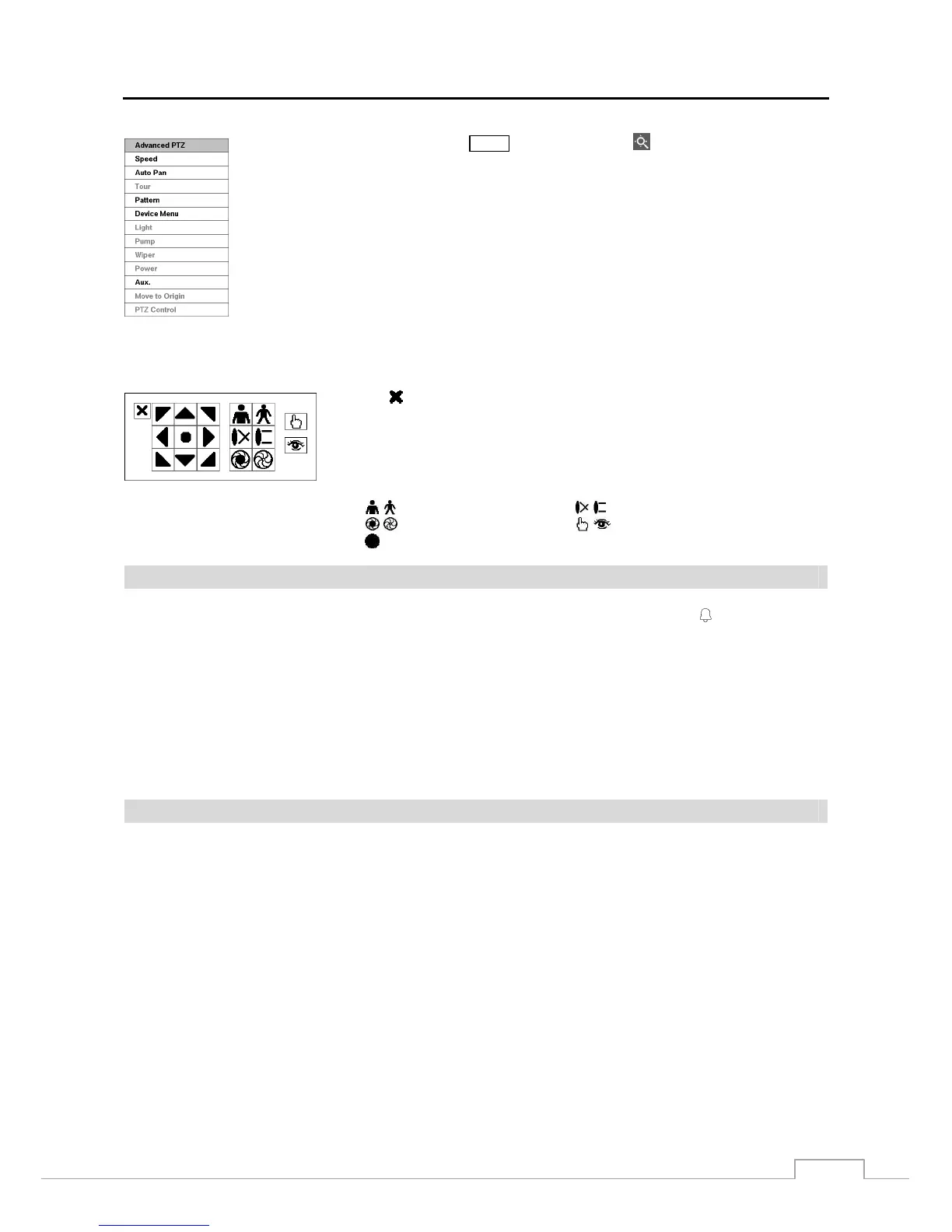
MENU button and selecting (Advanced PTZ) in the menu
displaying at the top of the screen displays the Advanced PTZ menu.
Set the feature you wish to control by selecting it from the menu. Refer to the camera manufacturer’s
instructions for the proper settings. Depending on the camera specifications, some features may
not be supported.
NOTE: The Pan/Tilt speed can be controlled by using the mouse. While in the PTZ mode,
clicking the left mouse button on the image and dragging the mouse in the pan/tilt direction
you want to move and then select the speed.
You can use a mouse for convenient PTZ control. Click the left mouse button on the image and move that image in
the direction you want to by dragging the mouse. Use the mouse wheel to zoom in and out. Position the mouse pointer
at the bottom of the screen, and the following PTZ toolbar will display.
Clicking on the left side exits the toolbar. If you want to display the toolbar again,
position the mouse pointer at the bottom of the screen. Change the toolbar location
by clicking the empty space on the left side of the toolbar and drag it to where you
want it located on the screen. Use the arrow buttons on the toolbar to pan or tilt
the camera in the direction you want. The other controls on the toolbar perform as
described below:
Zoom In / Out Focus Near / Far
Iris Open / Close Set / Load Preset
Advanced PTZ
Event Monitoring
When an event occurs, the DVR will display the camera associated with the event and the icon
displays on screen
if Event Monitoring On is selected in the Display setup screen (Main Monitor tab).
How the cameras are displayed depends on the number of cameras associated with the event. If one camera is associated
with the event, the DVR will display the camera full screen. If two to four cameras are associated with the event, the
DVR will display the cameras on a 2x2 screen. If five to eight cameras are associated with the event, the DVR will
display the cameras on a 1+5, 1+7 or 3x3 screen.
Event monitoring lasts for the dwell time set for event recording. After the dwell time has elapsed, the monitor returns
to the previous screen unless another event has occurred. If you want to return to the live monitoring mode before the
dwell time has elapsed, press one of the camera buttons.
Covert Camera
If a camera is set up as Covert 1 in the Camera setup screen (General tab), that camera will not be displayed unless a
user with Covert Camera View authority logs into the system. However the camera title and status icons will be
displayed on the monitor.
If a camera is set up as Covert 2 in the Camera setup screen (General tab), that camera appears to be Off unless a user
with Covert Camera View authority logs into the system. The camera title will be grayed out and status icons will
not be displayed on the monitor.
NOTE: When a camera is set up as Covert 1, the DVR displays the camera title and status icons on the covert
video. When set up as Covert 2, the DVR displays only the camera title on the covert video.
If a user who has Covert Camera View authority logs into the system, the user can view video from cameras set to
Covert 1 or Covert 2 including the camera titles and status icons.







 To Next Page