Digital Video Recorder
61
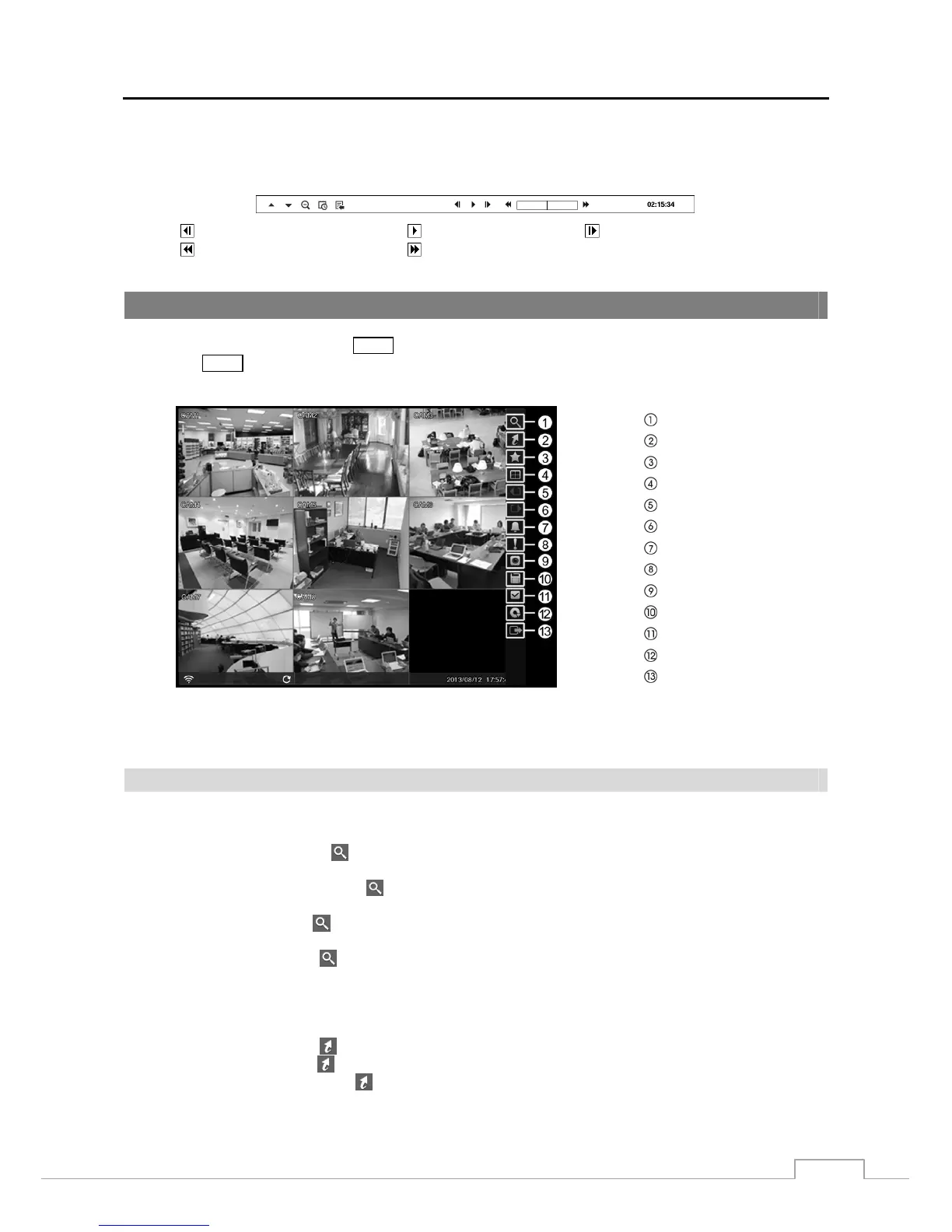
You can use a mouse for convenient playback control. Position the mouse pointer on the playback screen, and the
following Record Table Search (Compact View Mode) screen will display. The individual controls on the toolbar
perform the following functions as described below:
Go to the previous image Play/Pause Go to the next image
Fast backward play Fast forward play
Searching Video
While in the search mode, pressing the
MENU button displays the following Search menu on the right edge of the screen.
Pressing the MENU button again hides the menu. You can navigate through menus and items by pressing the arrow
buttons.
Search
Go To
Bookmark
Display
Previous Group
Next Group
Alarm
Panic
Camera Menu
Export
Status
Data Source
Exit
Figure 45: Search menu.
NOTE: The Search menu also can be displayed by moving the mouse pointer on the right edge of the screen.
Search Menu
Search
Event Log Search: Selecting
(Search) → Event Log Search selects video from the event log. See the following
Event Log Search section for details.
Record Table Search: Selecting
(Search) → Record Table Search selects using a recording table. See
the following Record Table Search section for details.
Motion Search: Selecting
(Search) → Motion Search selects motion events. See the following Motion Search
section for details.
Text-In Search: Selecting
(Search) → Text-In Search selects text input strings. See the following Text-In
Search section for details.
Go To
Go to the First: Selecting
(Go To) → Go to the First displays the first recorded image.
Go to the Last: Selecting
(Go To) → Go to the Last displays the last recorded image.
Go to the Date/Time: Selecting
(Go To) → Go to the Date/Time displays the Go to the Date/Time screen.







 To Next Page