User’s Manual
72
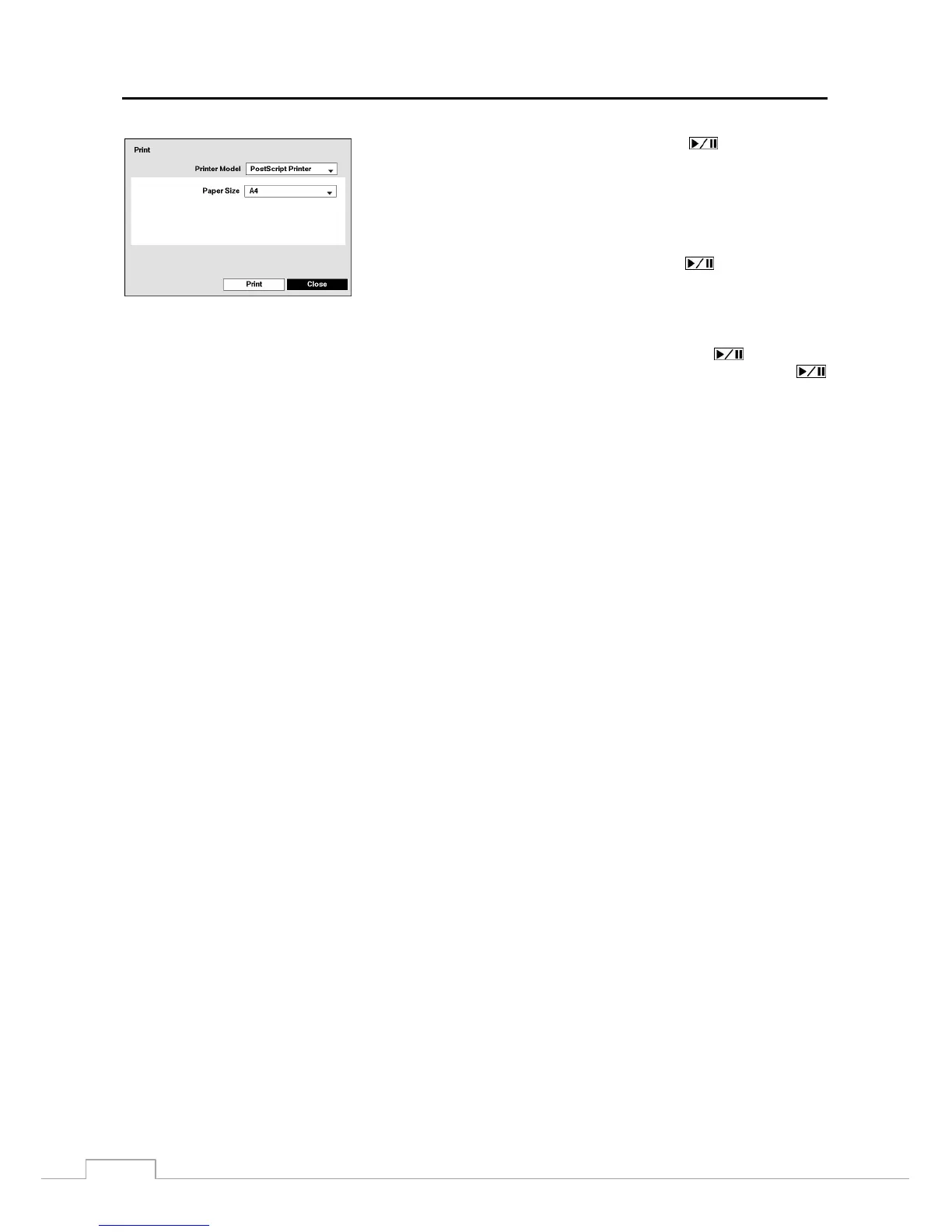
Figure 52: Print screen.
Highlight the box beside Printer Model and press the button. Selecting
PostScript Printer will print images on a PostScript™ printer connected to
the DVR. Selecting File Printer will save the current image as a PDF file on
an external USB hard disk drive or flash drive.
NOTE: Images saved as PDF files can be printed on any printer connected
to your PC.
Highlight the box beside Paper Size and press the button. You can
select the paper size.
Once you have selected the printer model and paper size, highlight the Print button and press the
button. A
message appears asking you if you want to print the current image. Highlight the Continue button and press the
button to print.
NOTE: If your printer only supports an LPT connection (parallel), use an LPT to USB converter cable. The printer
cable is not provided.







 To Next Page