Digital Video Recorder
67
Highlighting Close and pressing the
button will extract the video associated with the Motion event and display
the first image of the event. Pressing the
button will start playing the “event” video segment. Pressing SEARCH
returns to live monitoring
.
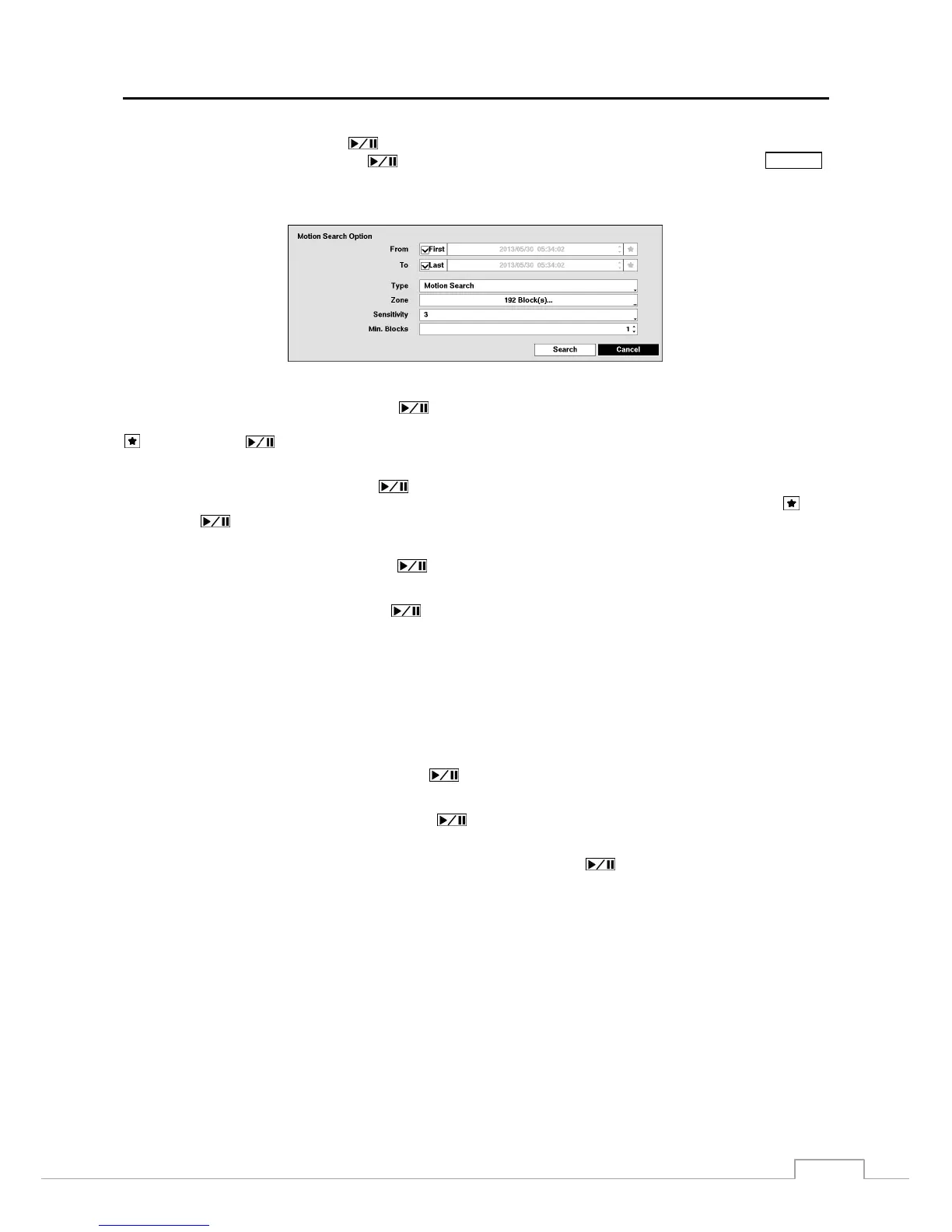
You can also narrow your event search by selecting the Option… button and setting up the new search condition.
You can search video from the first to last recorded images, or you can set the start and stop times and dates.
Highlight the box beside From and press the
button to toggle between On and Off. When set to Off, you can
enter a specific Date and Time. When set to On, the search will be from the first recorded image. When highlighting
and pressing the
button the bookmark list displays and the bookmark point you selected will be the starting
date and time.
Highlight the box beside To and press the
button to toggle between On and Off. When set to Off, you can enter
a specific Date and Time. When set to On, the search will be from the last recorded image. When highlighting
and
pressing the
button the bookmark list displays and the bookmark point you selected will be the ending date and
time.
Highlight the box beside Type and press the
button. You can select between Motion Search and Museum
Search. Motion Search detects motion in the defined area. Museum Search detects if a defined object has moved.
Highlight the box beside Zone and press the
button. An image from the video appears with a grid overlaid. You
can turn sensor blocks On and Off to define the area of the picture in which you want to search for motion.
NOTE: Defining the area of the image in which you want to search for motion is nearly identical to setting up the
DVR for Motion. Please refer to Motion Screen in Chapter 3 — Configuration for more detailed instructions
on setting up the detection blocks.
When setting the Museum Search Zone, the zone should be placed inside of the border line of the target
object. If the selected block is placed on the border line, the sensitivity of the Museum Search may decrease.
The zone should be placed or focused on the centre or, at least, within the outline of targeted object.
Highlight the box beside Sensitivity and press the
button. You will be able to select from 1 (low sensitivity) to
5 (high sensitivity).
Highlight the box beside Min. Blocks and press the
button. You will be able to set the number of sensor blocks
that must be activated.
Once you set your desired search conditions, highlight Search and press the
button to display the search results
in the Motion Search screen. Selecting Cancel exits the screen without saving the changes.
When you search for motion events of another camera, you will be asked whether or not you want to delete the previous
search results from the list.







 To Next Page