20
GETTING STARTED
Locking the Screen
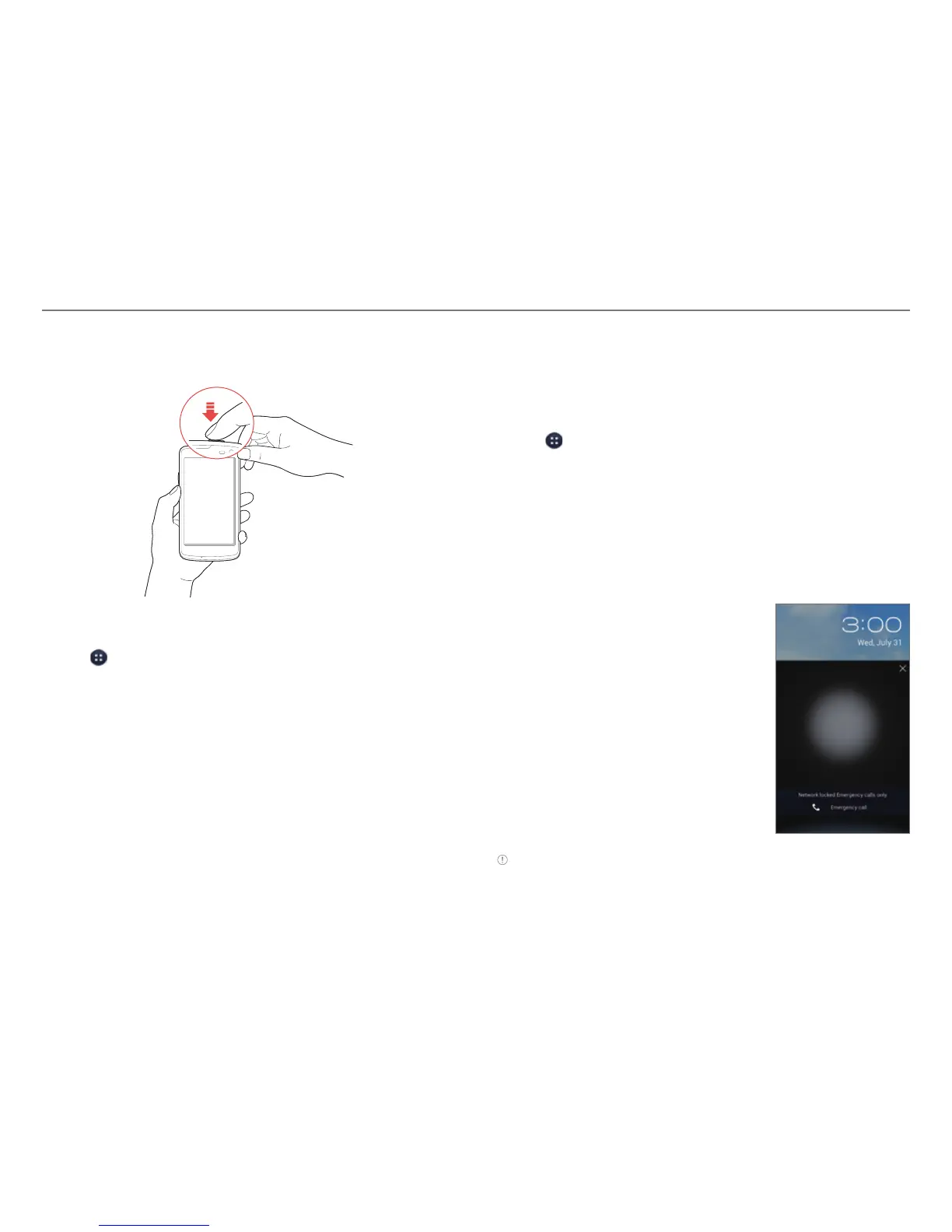
Press the LOCK/PWR key briefly to lock the screen.
Changing the Screen Lock Type
1. Tap > Settings.
2. Tap Security > Screen lock.
3. Select and tap a screen lock type.
Setting a Face Unlock, Pattern, PIN, or Password
You must show your face, connect at least four dots for a
pattern lock, enter at least four numbers for a PIN lock, or enter
a password that is at least four characters long (at least one
character must be a letter).
1. Tap
> Settings > Security > Screen lock.
2. Select and tap a lock type, and then follow the on-screen
instructions.
x Tap None to disable the screen lock.
Unlocking the Screen
Unlocking the Screen with your Face
1. Press the LOCK/PWR key if the
phone is automatically locked.
2. Align your face with the frame on
the screen.
Note
x You can make emergency calls without having to unlock the screen.
x If the phone does not recognize your face, use the backup pattern
or PIN to unlock the screen.


 To Next Page