58
COMMUNICATION
Using Google Search
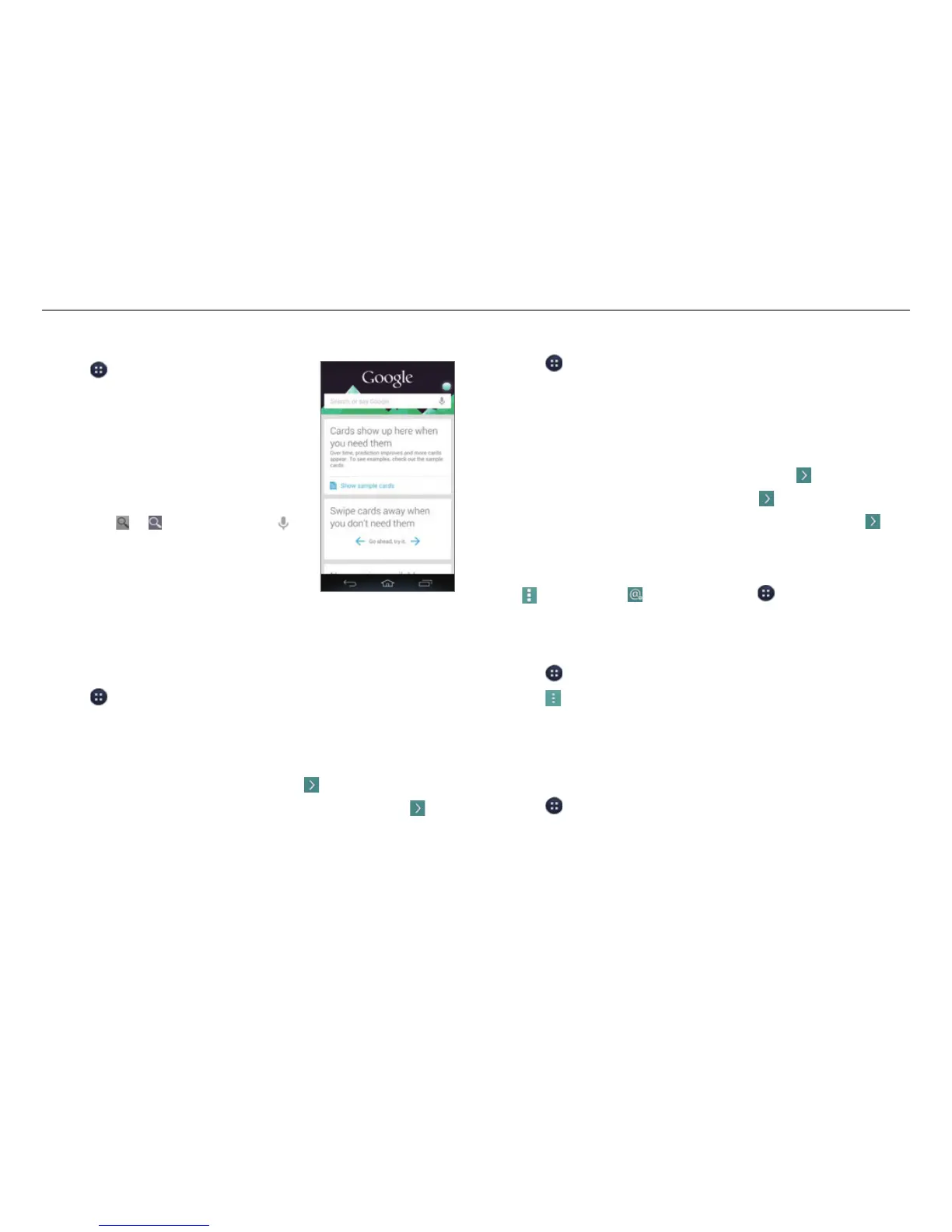
1. Tap > Google.
2. Tap Next > Next > Next > Yes, I'm in.
Then, you'll immediately be taken
to the Google Now screen. Once
you've enabled Google Now, you
can access the cards by tapping
a card.
3. Enter a keyword in the search box
and tap
or . You can also tap
and speak into the phone.
Setting Up Email Accounts
Setting Up Email Accounts Automatically
1. Tap > Email.
2. Select and tap an email service.
3. Enter your email address and password, and then tap
NEXT.
4. Configure the settings, and then tap .
5. Enter an account name and your name, and then tap
.
Setting Up Email Accounts Manually
1. Tap > Email.
2. Select and tap an email service.
3. Enter your email address and password, and then tap
MANUAL SETUP.
4. Select and tap an account type.
5. Enter the server information, and then tap
.
6. Configure the settings, and then tap
.
7. Enter an account name and your name, and then tap
.
To Add Another Email Account
After setting up the email account, in the mail list screen,
tap
> Accounts > . You can also tap > Settings > Add
account > Email.
To Delete an Email Account
1. Tap > Email.
2. Tap
> Settings.
3. Select and tap an email account to remove.
4. Tap Remove account > OK.
Synchronizing Emails
1. Tap > Settings.
2. Select and tap an email account under ACCOUNTS.
3. Tap the check box next to Email.


 To Next Page