55
CALLING & MESSAGING
Sending a New Message
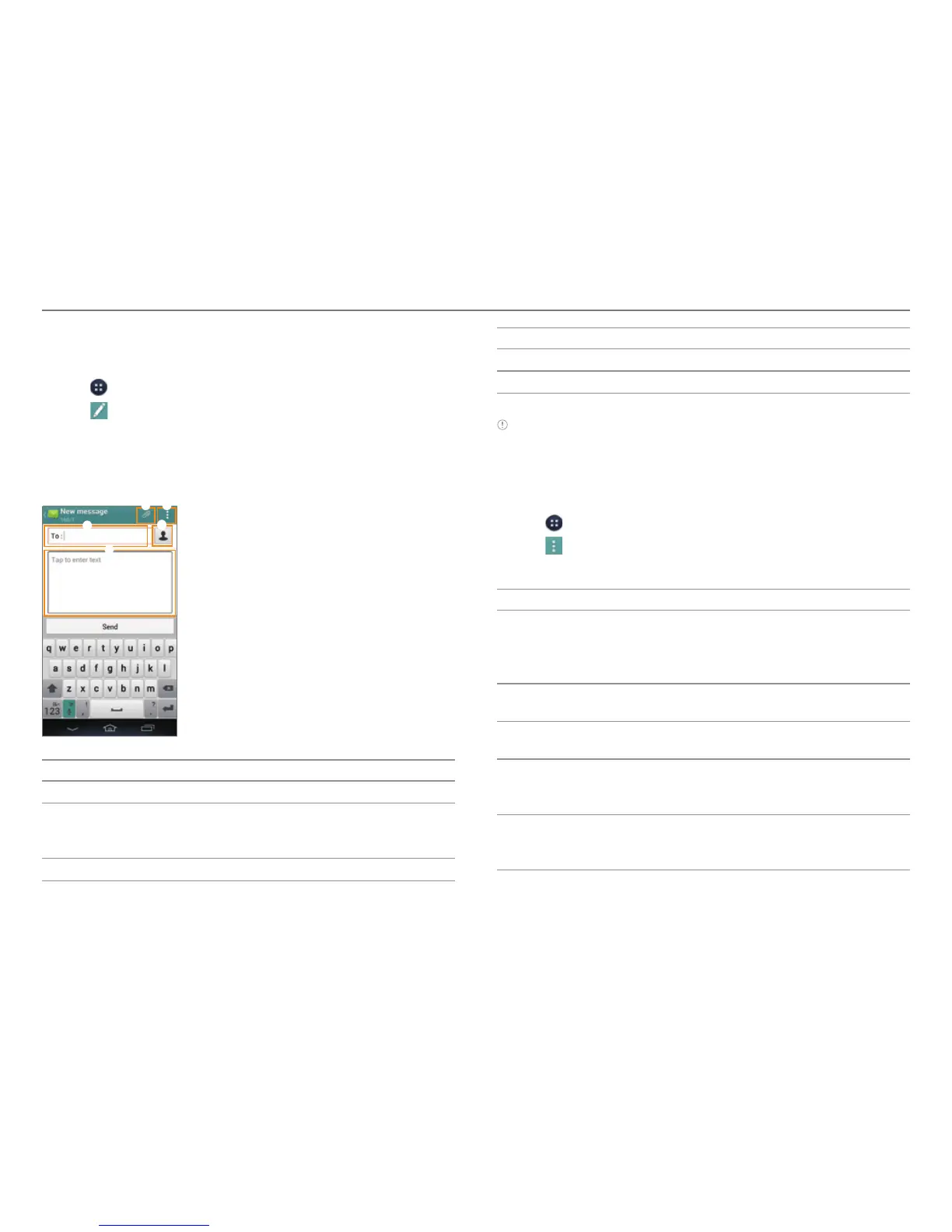
Send text (SMS) or multimedia (MMS) messages.
1. Tap
> Messages.
2. Tap
.
3. Enter the recipient's number or email address.
4. Tap the message input field and enter a message.
5. Tap Send.
3
1 2
4
5
No. Description
1
Attach a picture, video, audio, contact, or others.
2
Insert text. Add a slide. Add cc or bcc fields. Discard
a message. Manage templates. Launch the slide
manager. Save the message as a template.
3
Recipient input field
No. Description
4
Select recipients from Con
tact, Call log, or Group.
5
Message input field
Note You can add multiple recipients in the recipient input field by
adding a comma, space, or semicolon between each recipient's
phone number or email address.
Configuring Message Settings
1. Tap > Messages.
2. Tap
> Settings.
3. Select and tap an option.
Option Function
Storage
Enable/disable automatic deletion of
old messages. Set the text message or
multimedia message limit. View the SMS/
MMS count.
Signature
settings
Edit your signature. Append your signature
to outgoing messages automatically.
Text (SMS)
messages
Manage messages stored on your SIM card.
Multimedia
(MMS)
messages
Retrieve multimedia messages
automatically. Access the extra settings. Set
the storage for saving attachments.
Notifications
Set the message notification to appear.
Select a ringtone or vibration for message
notifications.


 To Next Page