39
Job Screen
...Overview
Menu
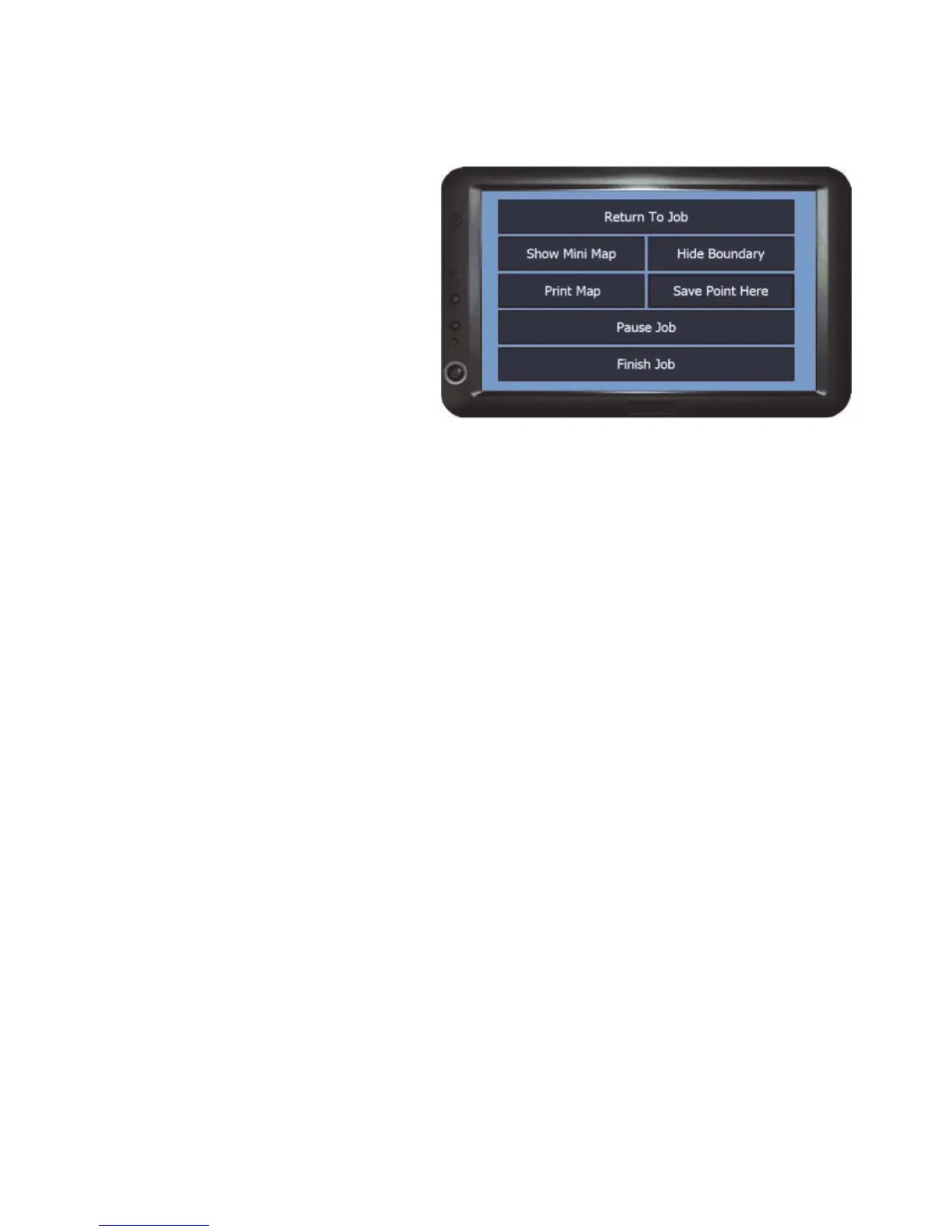
During a job if the menu button is
pressed the job screen options will
open. The options in this menu
allow the operator to print the
boundary map, show or hide
various elements of the 3D
guidance view for optimisation, set
a point of reference, pause and
finish a recording job.
Return To Job - Exits the menu and returns to the job screen.
Show/Hide Mini Map - Toggles the 2D overview map display on or off in the
guidance screen.
N.B. The mini map needs be hidden when using the Headland Warning
feature.
Show/Hide Boundary - Toggles the display of the blue boundary line on or off
on the 3D guidance view.
Save Point Here - Use this to set a location point for your current position to
return to if a refill is required. The location point will display in the mini map.
Ensure the trace recording is OFF when going to refill to avoid inaccurate
records.
Pause Job - Press this option to pause the job if you need to fill up or are
stopping for the day so it can be continued at a later time. This will close the job
screen and save the recorded job.
N.B. This function will not work if Recording is set to No and/or
Autonaming is set to Yes.
Finish Job - Press this to complete a job. This will close the job screen, save
the recorded job data ready to be transferred to WebTrack and return to the
Home Screen. If the selected ‘Job Type’ has notes attached the Notes screen
will open to fill in before the job is completed (see Recording Details > JobType
on page 19 for more information).



 To Next Page