Gamut Documentation: Introduction
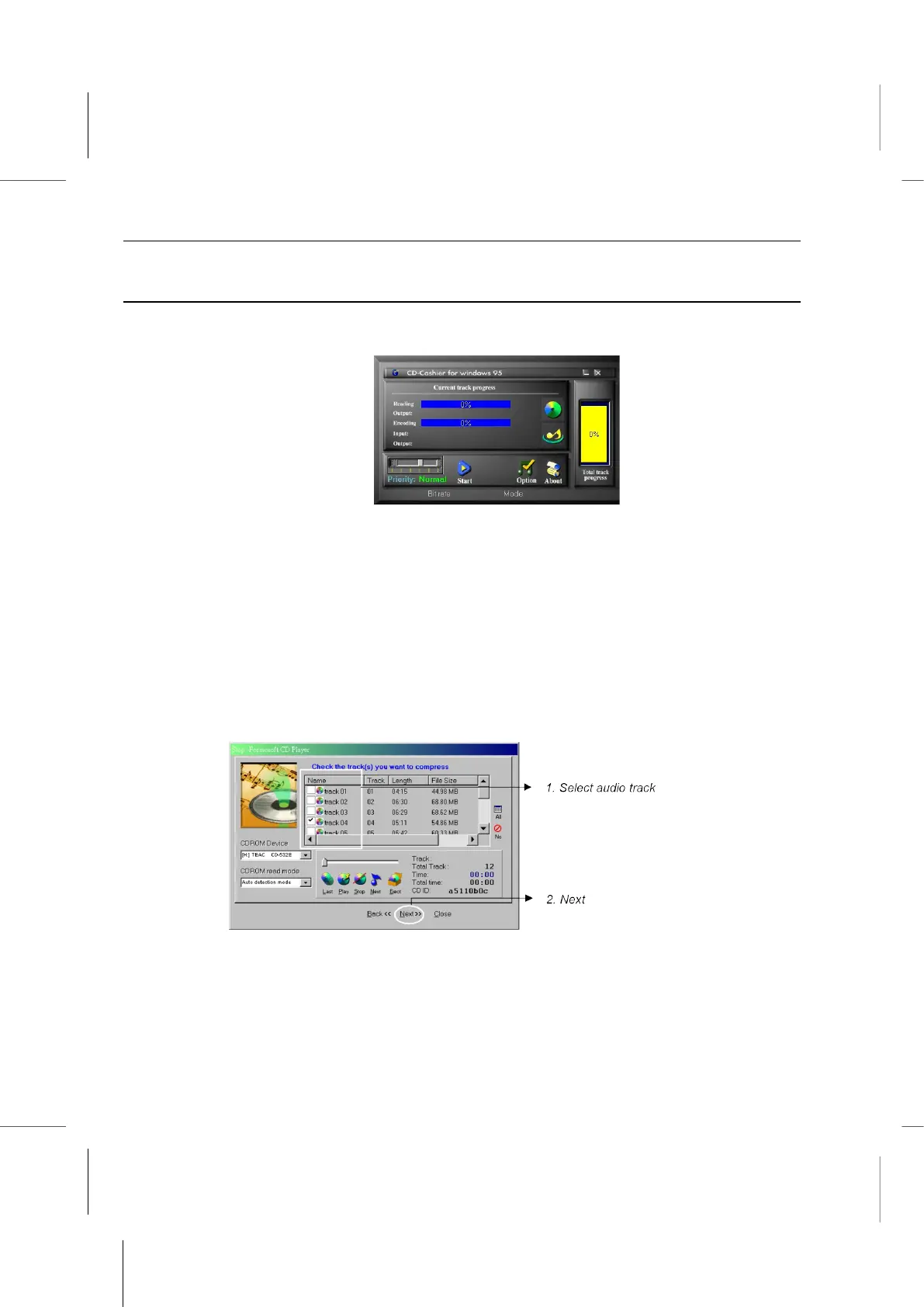
Produce MP3 files – Use CD-Cashier
Start CD-Cashier from the GAMUT Menu Bar or click Start/Program Files/GAMUT/
CD-Cashier.
1. Place an audio CD into CD-ROM/DVD drive and click the Start button on the CD-
Cashier panel. Follow the Wizard instructions, and continue by clicking Next after
each step.
2. Select ‘Digital recording from Audio CD’ to capture the audio track with high quality
digital technology.
If the CD-ROM drive doesn’t provide CDDA audio track capture function, select
‘Analog recording from Audio CD’ to record MP3 files with analog technology.
However, analog technology may not result in the same quality as digital technology
recording does.
3. Select the audio tracks in ‘Check the track(s) you want to compress’ window.
4. Choose a directory for saving the MP3 files.
5. Select the default ‘Variable bit rate (Guaranteed audio quality)’ option to enable the
best quality audio compression. Then click Encode to begin the production of the MP3
files.



 To Next Page