WINDVD Documentation: Set the DMA Mode for the CD-ROM/DVD-ROM
Volume up – [Shift] + [] keys Title menu – [Ctrl] + “T” keys
Volume down – [Shift] + [] keys Next angle – [Ctrl] + “V” keys
Next subtitle – [Ctrl] + “L” keys Subtitle On/Off – [Ctrl] + “O”
Navigate left/right/up/down – []/[]/[]/[]
If the version of the Drivers Support CD is lower than V1.6, we suggest that you
should set the DMA mode for the DVD-ROM first, before you running the WinDVD.
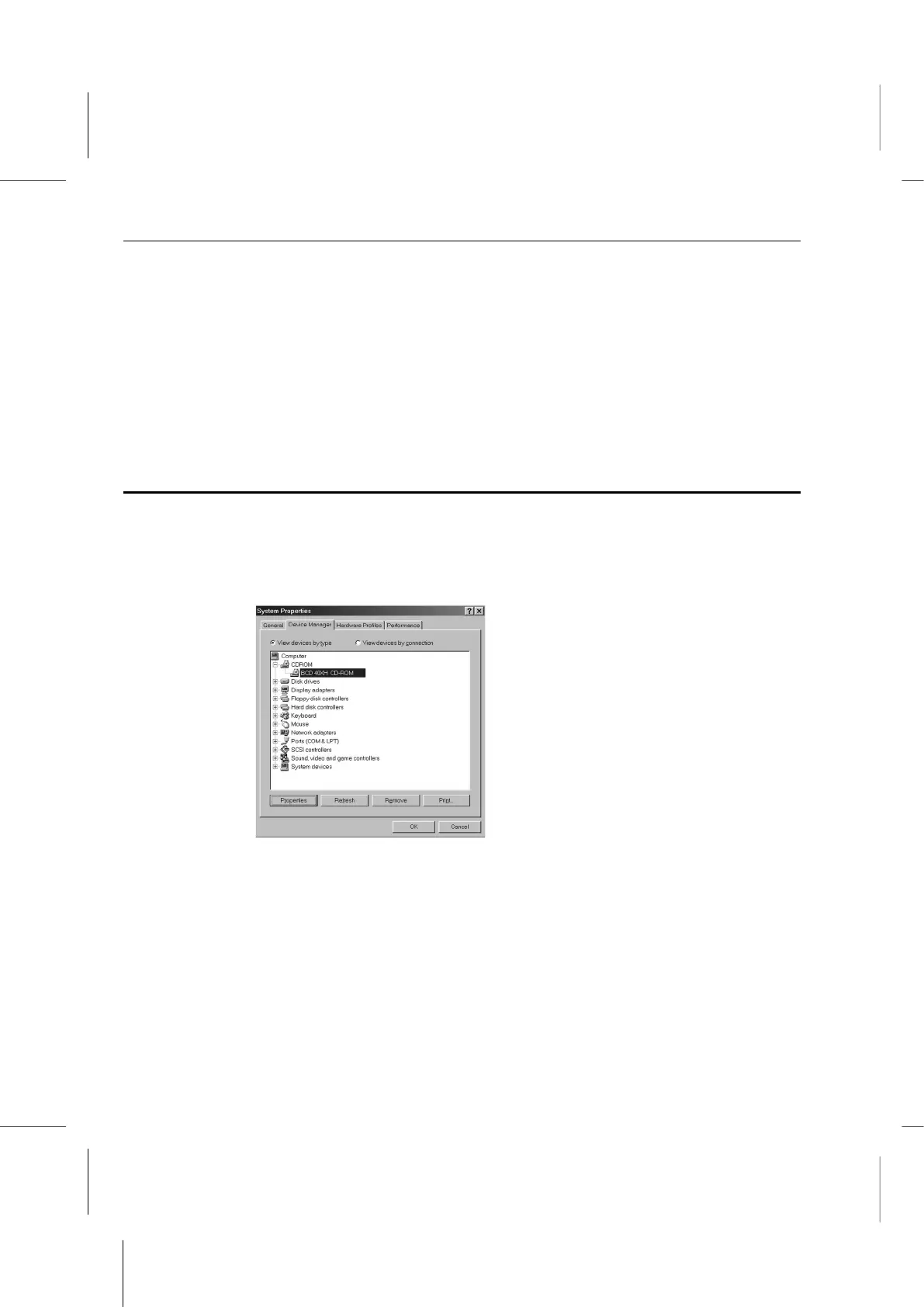
Set the DMA Mode for the CD-ROM/DVD-ROM
1. Open the Control Panel. Click on the Start button and then point to Settings and click
on the Control Panel item
2. Find the System item in the Control Panel window and double-click on it to open it.
3. Click on the Device Manager tab to bring it to the front.
4. Double-click on the CDROM/DVDROM item to bring out the used device.
5. Click on the used device and click Properties button. The device Properties window
will appear.



 To Next Page