Book PC
Recording audio data—Use Voice-Catcher
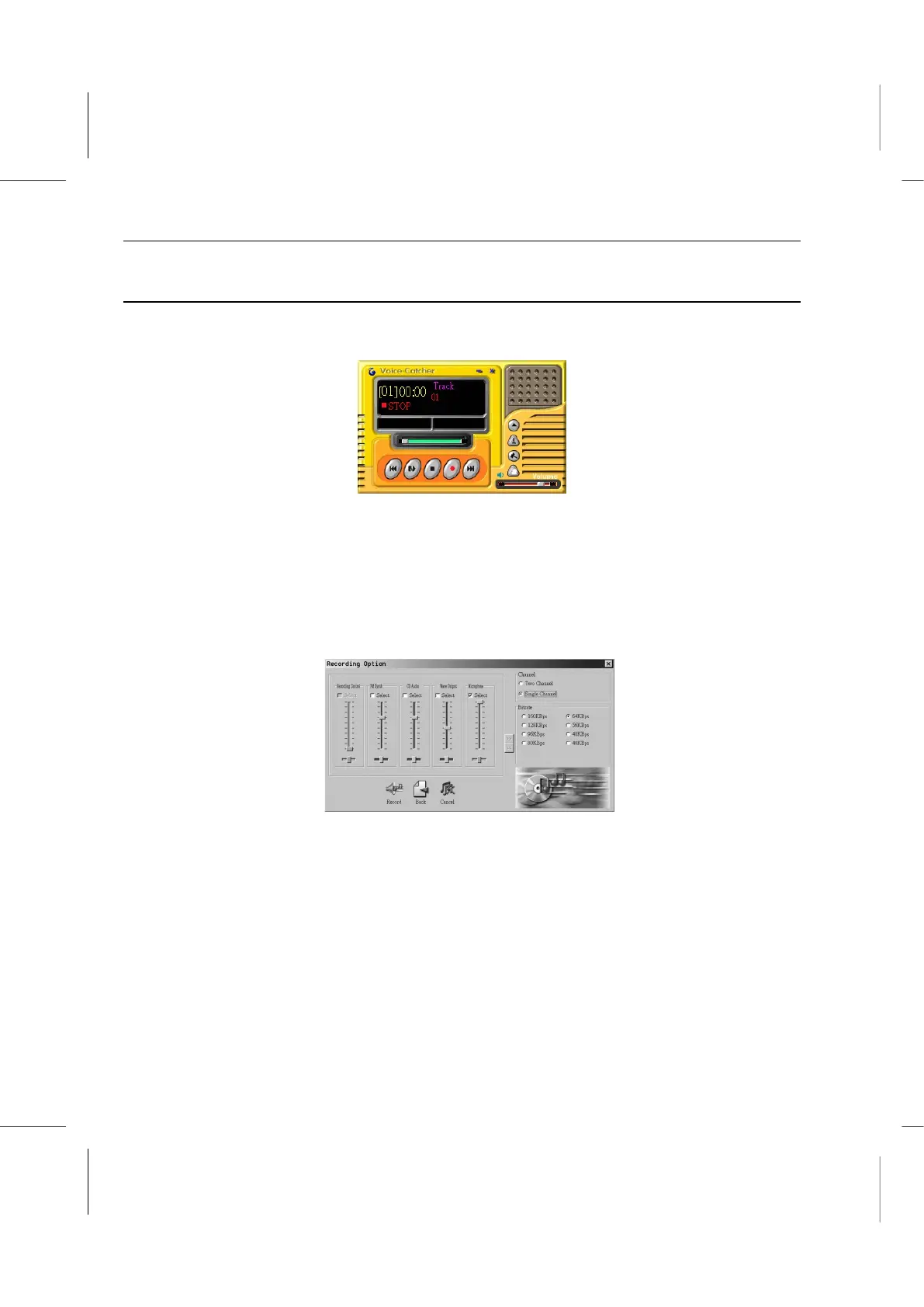
Start Voice catcher from the GAMUT Menu Bar or click Start/Programs/Gamut/
Voice Catcher.
1. Make sure that your recording environment setup is ready. Then click on the ‘Start
recording’ button to start.
2. Next select the recording format. The system default GM2 is a compressed format.
3. Next type the name of the recorded file or browse to find an existing file.
4. Select the recording source, and adjust the volume, then select the desired recording
mode and compression ratio.
Note: Normally, when recording vocal audio, select Single Channel 64K BPS. A
one-hour recording will take up about 28 MB. For recording common music files,
Two Channel 128K BPS is suggested. A one-hour recording will take up about 56
MB.
5. After the setup is done, single click the ‘Record’ button to start recording.
6. Once you have finished recording, click the ‘Stop’ button. Click on the ‘Play’ button to
play the recorded file.



 To Next Page