Book PC
Play music CDs – Use 3D
FS
-ACD
Start 3D
FS
-ACD from the GAMUT Menu Bar or click Start/Program/Gamut/3DFS-ACD.
1. After 3D
FS
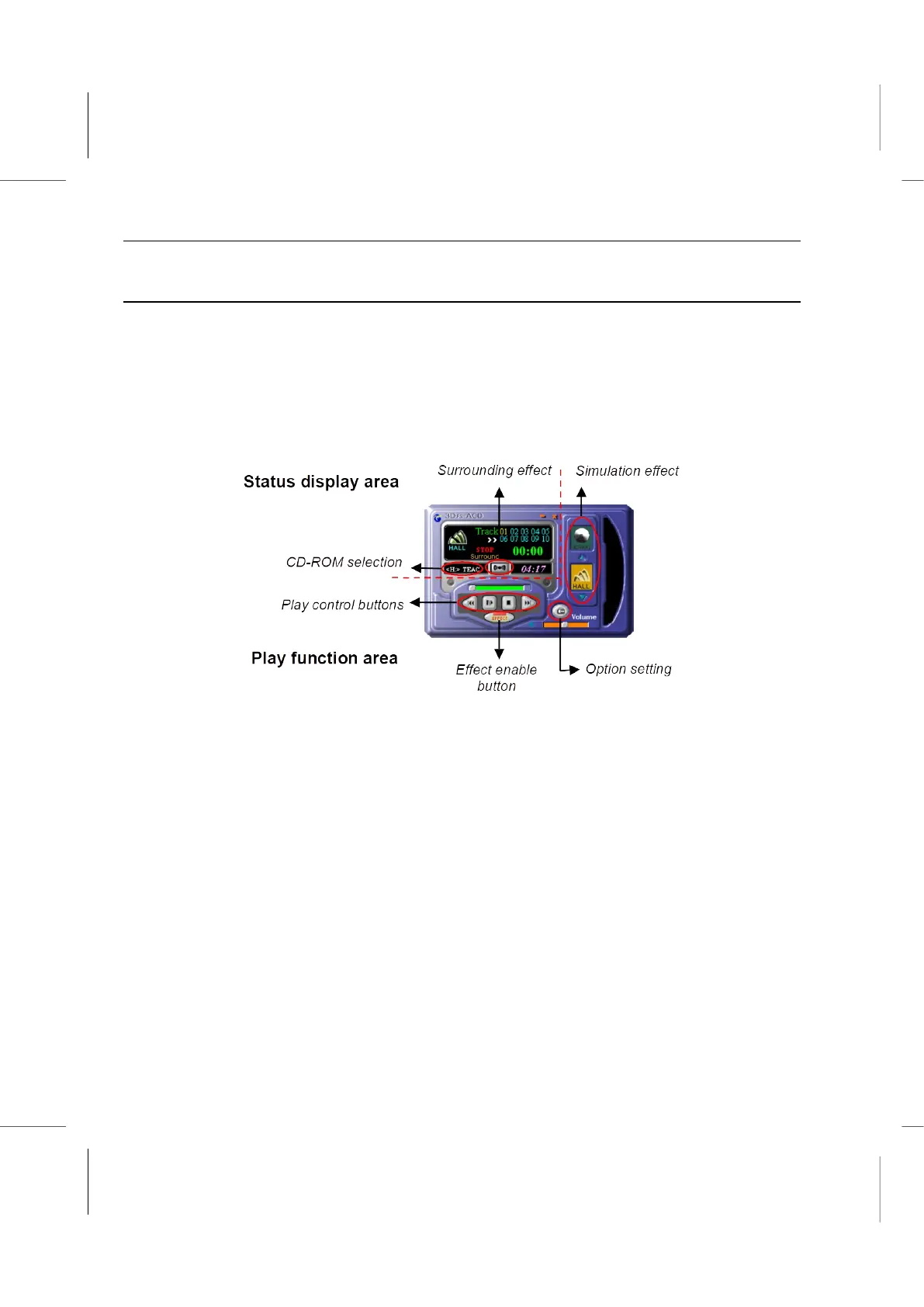
-ACD is activated, the program will detect any audio CD in the
CD-ROM/DVD drive automatically. The number of tracks will be shown in the ‘Status
Display Area’. You can start the music by clicking on the track number.
2. Through the control buttons (play, stop, rewind, and forward) you can gain full control
of music playback.
3. Click on the ‘Effect enable’ button to select simulation effects. After the effect is enabled, you
can click on the ‘surrounding effect’ in the Play Function area to enable it.
4. On the right side of the main panel, the ‘simulation effect’ area, you can set various digital
effect options including HALL, VOCAL, SOFT, ROCK and BASS.
NORMAL sets the default effect.
HALL simulates effect of concert hall.
VOCAL enhances vocal clarity and the quality of the voice.
SOFT enhances the listening effect, especially suitable for Jazz and New age music.
ROCK creates Rock effect, suitable for dancing and dynamic music.
BASS enhances the bass effect.
When you are using the “Effect enable’ mode, or are switching from one effect to another,
there is a 1 to 3 seconds delay. The delay time differs from one sound card to another.



 To Next Page