Relion 1900e/2900e Manual
103 Revision 1.3
11. Reset and Recovery Jumpers
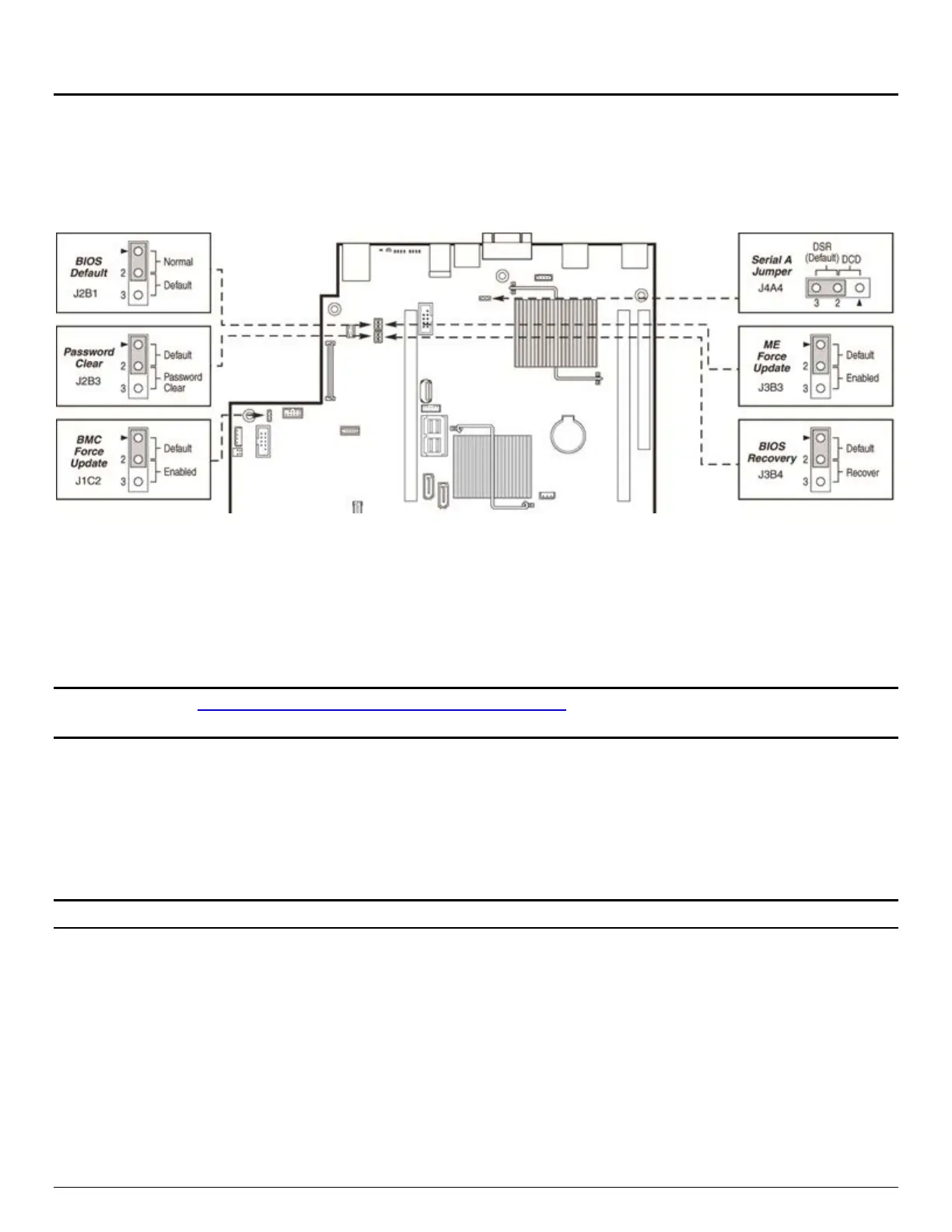
The server board includes several jumper blocks which can be used to configure, protect, or recover specific
features of the server board. The following diagram identifies the location of each jumper block on the
server board. Pin 1 of each jumper block can be identified by the “▼” silkscreened on the server board next
to the pin.
Figure 31. Reset and Recovery Jumper Block Location
The
following sections describe how each jumper block is used.
11.1 BIOS Default Jumper Block
This jumper resets BIOS options, configured using the <F2> BIOS Setup Utility, back to their original default
factory settings.
Note: This jumper does not reset Administrator or User passwords. In order to reset passwords, the
Password Clear jumper must be used
1. Power down the server and unplug the power cord(s)
2. Remove the system top cover and move the “BIOS DFLT” jumper from pins 1 - 2 (default) to pins 2 - 3
(Set BIOS Defaults)
3. Wait 5 seconds then move the jumper back to pins 1 - 2
4. Re-install the system top cover
5. Re-Install system power cords
Note: The system will automatically power on after AC is applied to the system.
6. During POST, access the <F2> BIOS Setup utility to configure and save desired BIOS options
Note
:
After resetting BIOS options using the BIOS Default jumper, the Error Manager Screen in the <F2> BIOS
Setup Utility will display two errors:
• 0012 System RTC date/time not set
• 5220 BIOS Settings reset to default settings
Note also that the system time and date may need to be reset.


 To Next Page