136
6
Playback/Deleting/Editing
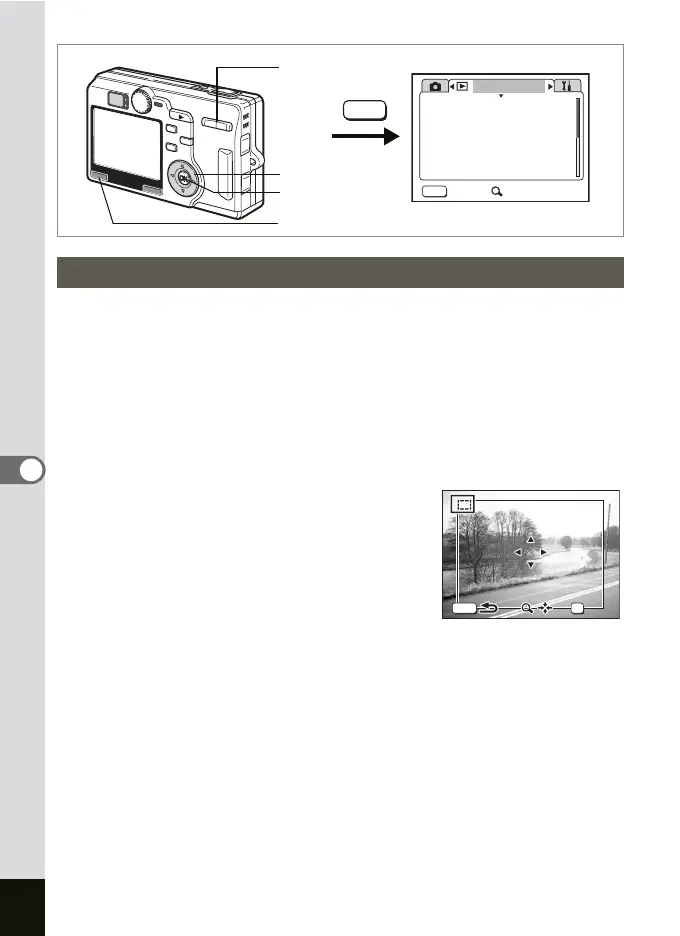
You can trim part of a picture and save it as a separate image.
1 Press the MENU button in the Playback mode.
The [Q Playback] menu appears.
2 Use the four-way controller (23) to select [Trimming].
3 Press the four-way controller (5).
The images that can be trimmed are displayed.
4
Use the four-way controller (
45
) to choose an image to trim.
5 Press the OK button.
The Trimming screen appears.
6 Trim the image.
• Operations that can be performed on the Trimming screen
Zoom/f/y button: Changes the size of the trimming
Four-way controller (
2345):
Moves the trimming position up, down, left
and right
MENU button: Returns to the screen for selecting an image
7 Press the OK button.
8 Press the four-way controller (5).
Trimming Images
MENU
Playback
Protect
DPOF
Slideshow
Digital Filter
Exit
3
sec
SIMPLE
Trimming
Resize
MENU
MENU button
OK button
Four-way controller
Zoom/f/y button
OK
MENU
OK
100-0013
100-0013
OK



 To Next Page