144
7
Settings
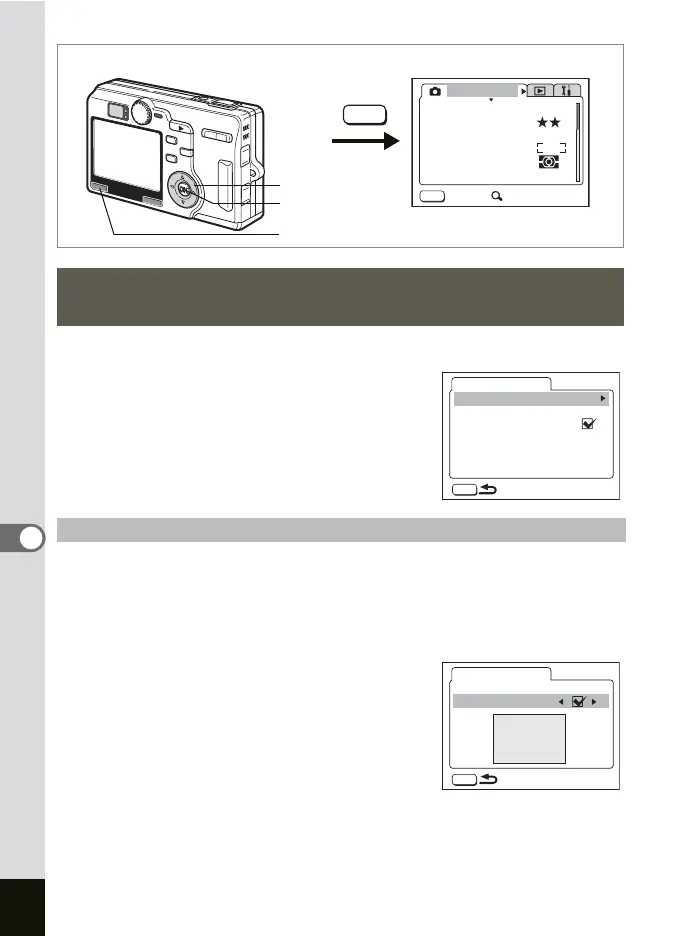
1 Select [Screen Setting] on the [B Set-up] menu.
2 Press the four-way controller (5).
The Screen Setting screen appears.
You can display an image recorded with the camera as the welcome
screen when the camera is turned on.
3 Use the four-way controller (23) to select [Start-up
Screen].
4 Press the four-way controller (5).
The Change Start-up Screen screen appears.
5 Use the four-way controller (45)
to select O (On)/P (Off).
O(On) : Displays the start-up screen
P (Off) : Hides the start-up screen
6 Press the four-way controller (3).
7 Use the four-way controller (45) to choose an image
for the start-up screen.
Changing the Start-up Screen, Background Color
and Screen Effects
Changing the Start-up Screen
How to recall the [
B Set-up] menu
MENU
AWB
AUTOAUTO
2560
Rec. Mode
Recorded Pixels
Quality Level
White Balance
Sensitivity
Exit SIMPLE
AE Metering
Focusing Area
MENU
MENU button
OK button
Four-way controller
MENU
Screen Setting
Start-up Screen
Background color
Screen effect
MENU
Start-up Screen
Start-up Screen
Optio



 To Next Page