30 – The Touch Screen
Getting Started with WiFi
WiFi Introduction
Other Network
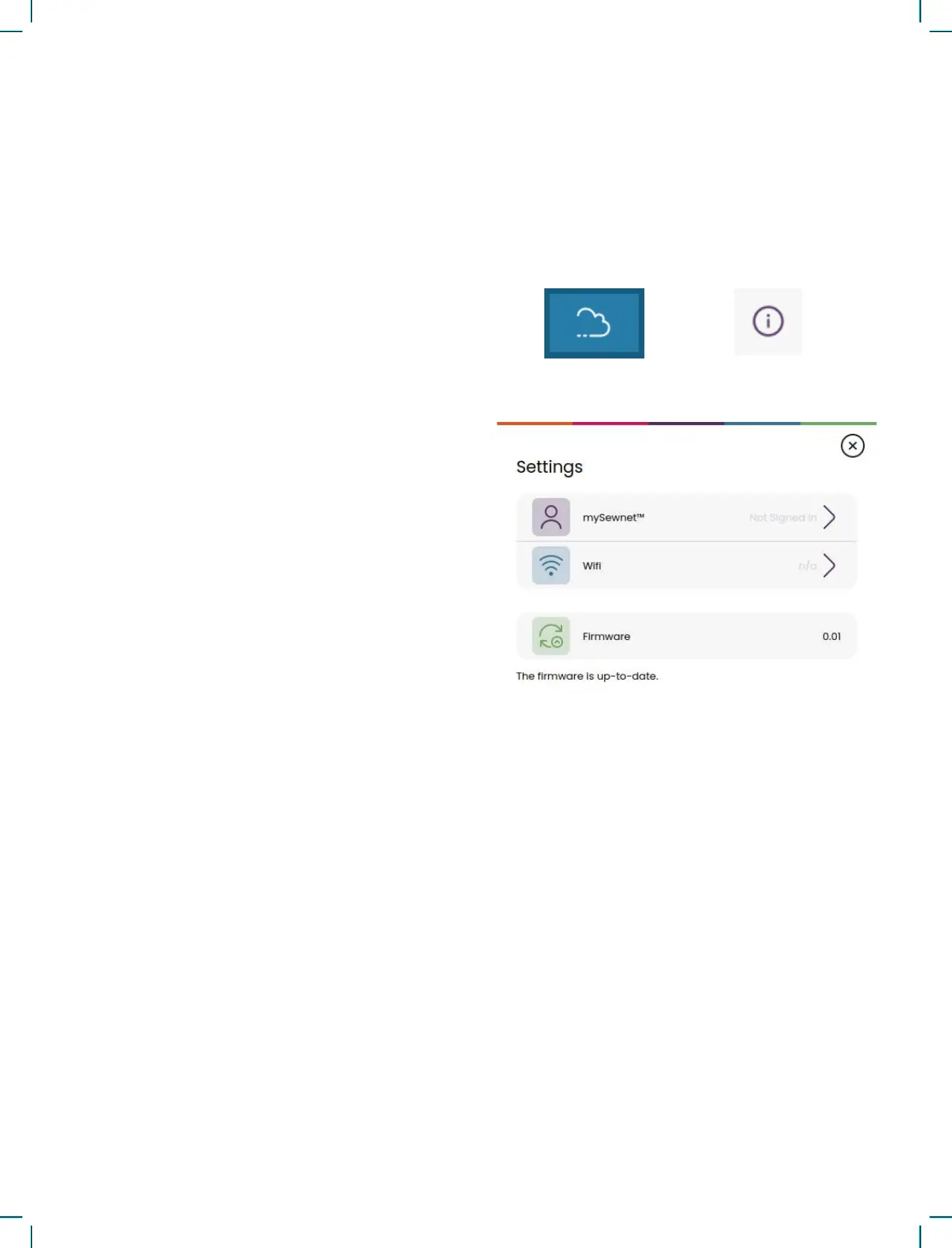
Touch the mySewnet button in the top bar, and
then the Settings Button in the top corner or bottom
corner of the screen. Select from the list of available
networks. If your network is password protected,
you will be prompted to enter the password to con-
nect. Touch the information icon to open an infor-
mation pop-up about the network. You can also see
the signal strength and if the network is password
protected, indicated with a closed padlock.
Your machine features WiFi which makes it possible
to connect your machine wirelessly to the mySew-
net services. Follow the steps below to connect your
machine.
Touch the button to connect to another network. A
pop-up will be shown on the screen where you can
enter the name of the other network.
Firmware Update Using WiFi
To be able to get the latest rmware wirelessly you
need to connect to a network using WiFi. When
connected, your machine will automatically search
for available rmware update. If the machine has
detected that there is a newer rmware available,
the rmware update button will be visible in the
mySewnet settings. Touch the button to download
and install the latest rmware.
Restart the machine when the update is completed.
Check the rmware version number in the mySew-
net settings.



 To Next Page