41
White Balance
Setting Auto WB will calculate a white balance based on the information
in the image. Auto WB is good for most applications.
If you are using a specic light source you can choose that option
here.
If the camera back is tethered to a computer, and white balance is set
from within Capture One it is indicated with the C1 icon in place of the
WB indicator on the main screen.
When the camera back is used tethered to a computer this setting is
set from within Capture One.
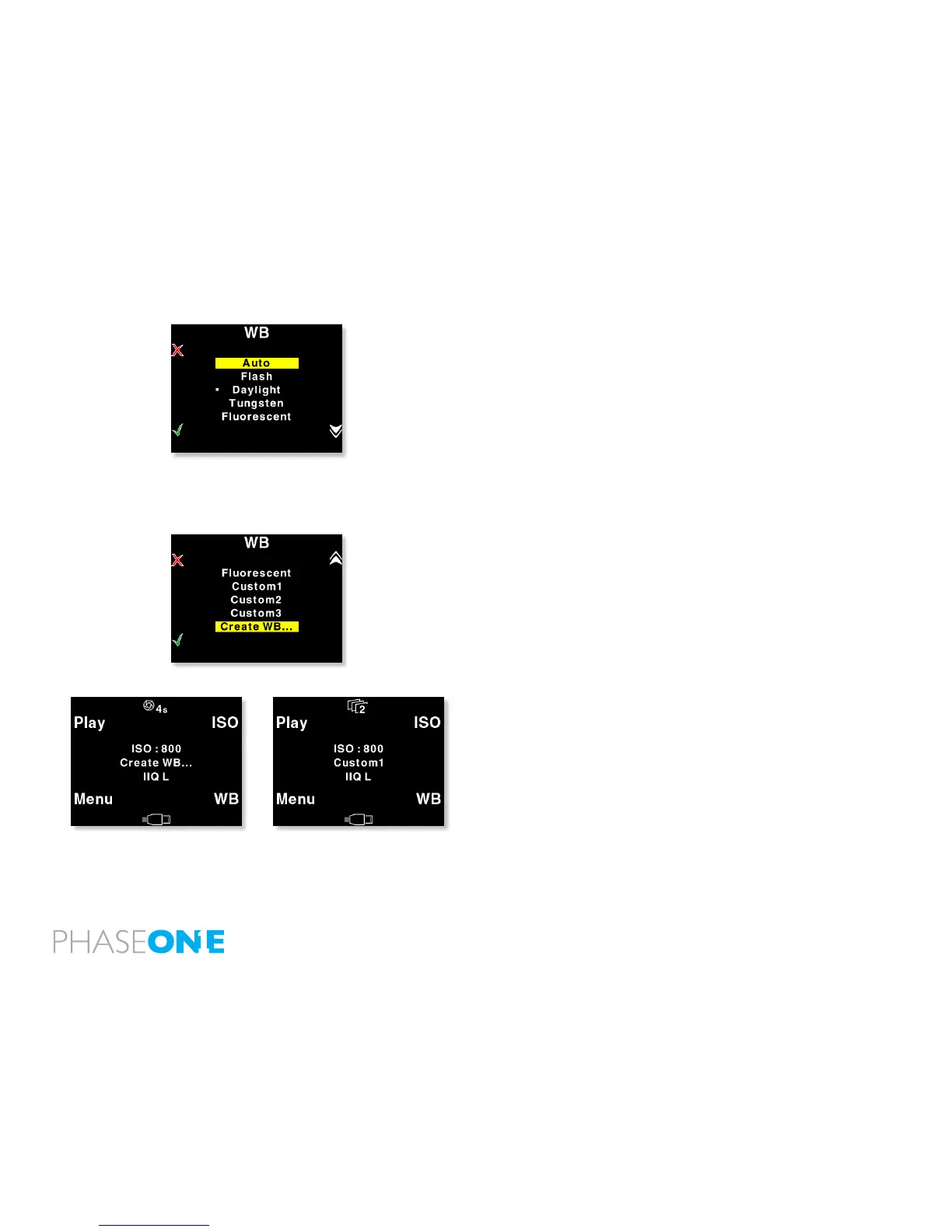
Custom White Balance on P 65+
P 65+ back allows you to create up to 3 custom white balances.
Custom WB is available when pressing the WB button at the main
menu.
When scrolling to the bottom of the WB options four options are
available:
“Custom1”, “Custom2”, “Custom3” and “Create WB…”
To make a new custom white balance select Create WB… and choose
which one from the following: “Custom1”, “Custom2” or “Custom3”
When one of the options is selected the “Make Custom WB” will be
blinking.
Now you are ready to capture the image that should be used for white
balancing. Place the viewnder center circle on an area (gray card or
neutral white surface) and capture the image.
You have now made the custom white balance and it has been set as
the current capture white balance.


 To Next Page