E9480UD_EN.qx3 04.7.22 8:26 PM Page 12
12 Hookups (cont'd)
Connecting to a TV Only
TV has Component Video In Jacks
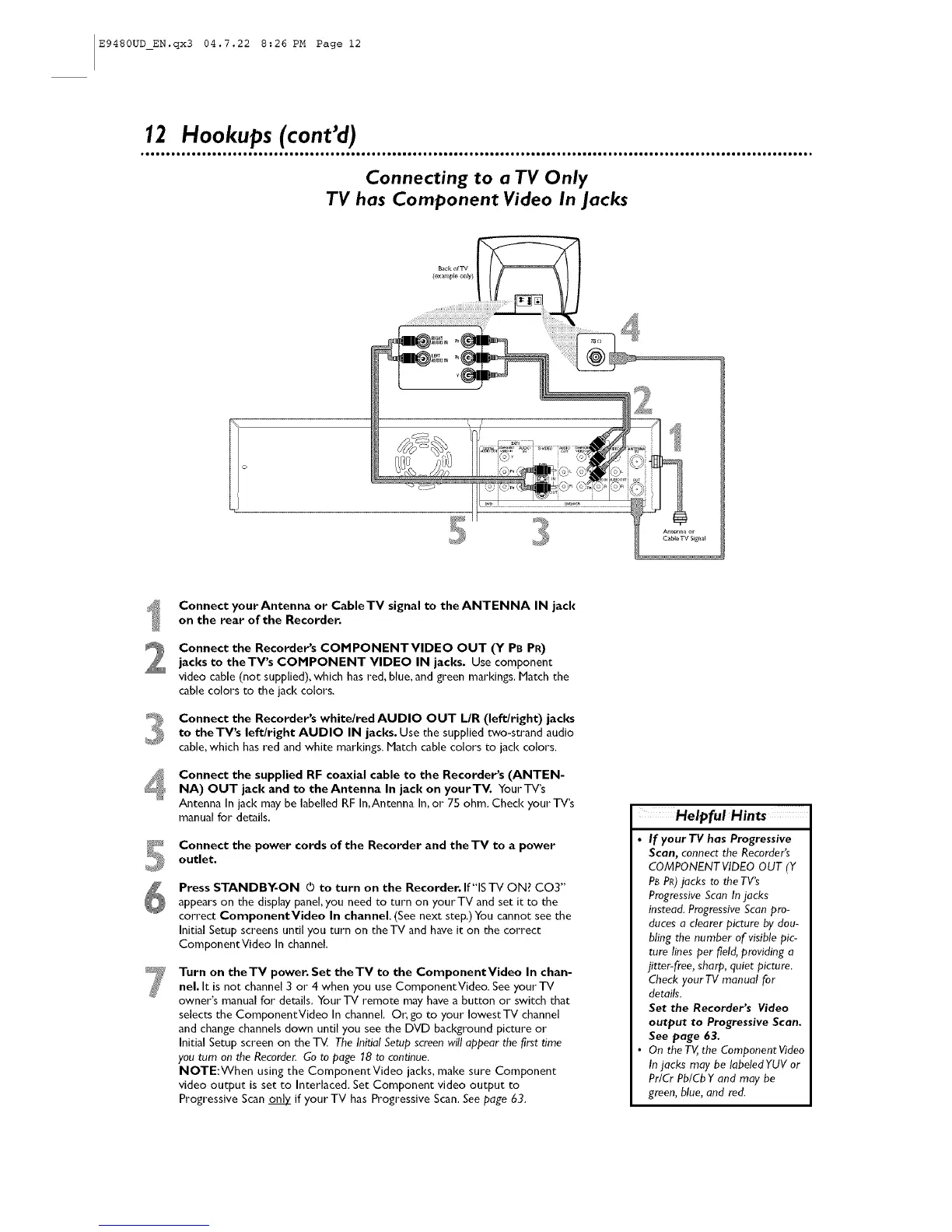
Connect yourAntenna or CableTV signal to the ANTENNA IN jack
on the rear of the Recorder.
Connect the Recorder's COMPONENTVIDEO OUT (Y PB PR)jacks to theTV's COMPONENT VIDEO IN jacks. Use component
video cable (not supplied), which has red, blue, and green markings. Match the
cable colors to the jack colors.
Connect the Recorder's whitelred AUDIO OUT L/R (left/right) jacks
to theTV's left/right AUDIO IN jacl<s. Use the supplied two-strand audio
cable,which hasred and white markings. Match cable colors to jack colors.
Connect the supplied RF coaxial cable to the Recorder's (ANTEN-
NA) OUT jack and to the Antenna In jack on yourTV. Your TV's
Antenna In jack may be labelled RF In,Antenna In,or 75 ohm. Check your TV's
manual for details,
Connect the power cords of the Recorder and the TV to a power
outlet.
Press STANDBY-ON O to turn on the Recorder. If"IS TV ON? CO3"
appears on the display panel, you need to turn on yourTV and set it to the
correct ComponentVideo In channel. (See next step,)You cannot see the
Initial Setup screens until you turn on the TV and have it on the correct
ComponentVideo In channel,
Turn on theTV power. Set theTV to the ComponentVideo In chan-
nel. It is not channel 3 or 4 when you use ComponentVideo. See your TV
owner's manual for details, Your TV remote may have a button or switch that
selects the ComponentVideo In channel, Or, go to your lowestTV channel
and change channels down until you see the DVD background picture or
Initial Setup screen on the TM The Initial Setup screenwill appear the first time
you turn on the Recorder. Go to page 18 to continue.
NOTE:When using the ComponentVideo jacks, make sure Component
video output is set to Interlaced. Set Component video output to
Progressive Scan _ if your TV has Progressive Scan. See page 63.
HelpfulHints
• If your TV has Progressive
Scan, connect the Recorder's
COMPONENT VIDEO OUT (Y
P_ PR)jacks to the TV's
ProgressiveScan In jacks
instead. Progressive Scan pro-
duces a clearer picture by dou-
bling the number of visible pic-
ture lines per field, providing a
jitter-free, sharp, quiet picture.
Check your TV manual for
details.
Set the Recorders Video
output to Progressive Scan,
See page 63.
On the TV, the Component Video
Injacks may be labeled YUV or
Pr/Cr PblCb Y and may be
green, blue, and red.



 To Next Page