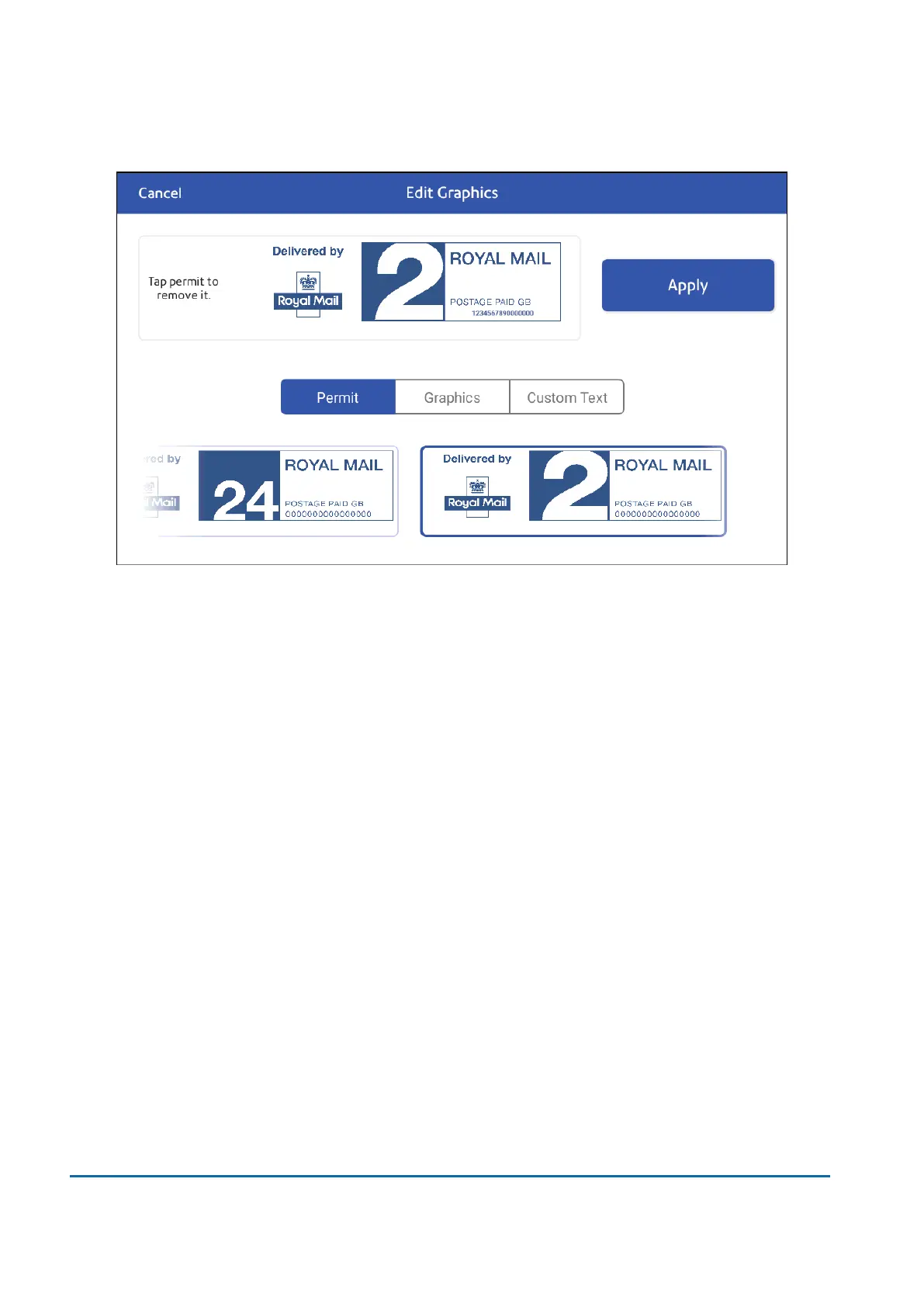
6. Select the desired permit.
7. Confirm with Apply.
8. Place the envelope or envelopes on the feed deck. Depending on the SendPro Cmodel you
have, feed the envelopes manually or tap Start to feed the envelopes.
Important: Depending on the permit selected, you may only be able to print certain graphics and
custom text messages depending on your envelope or label size.
Printing a graphic without printing postage
Print a graphic without printing postage, such as the Received graphic on incoming mail.
1. Tap Envelope Printing on the Home screen.
2. Tap Print Mode.
3. Select Graphic Only.
4. Tap Apply.
5. Tap Graphic.
6. Select your graphic.
7. Confirm with Apply.
8. Print the graphic on the envelope or tape.
10 • Printing
Pitney Bowes User Guide March 2023 116












 To Next Page