Sending post using Signed For rates
If you use Signed For rates, your device now prints a tracking barcode directly onto the mailpiece. You
can then track your mail via the Royal Mail website.
You can obtain the tracking numbers printed by:
l
Viewing or emailing a report on your device.
l
You can also generate a report by using Inview™ within Your Account on your computer.
l
Printing a receipt when franking mail.
To print Signed For rates and view printed tracking numbers, follow the steps in each section below.
l
Printing Signed For rates
l
Viewing printed Signed For tracking numbers
Printing Signed For rates
1. Tap Envelope Printing on the Home screen.
2. Tap Class.
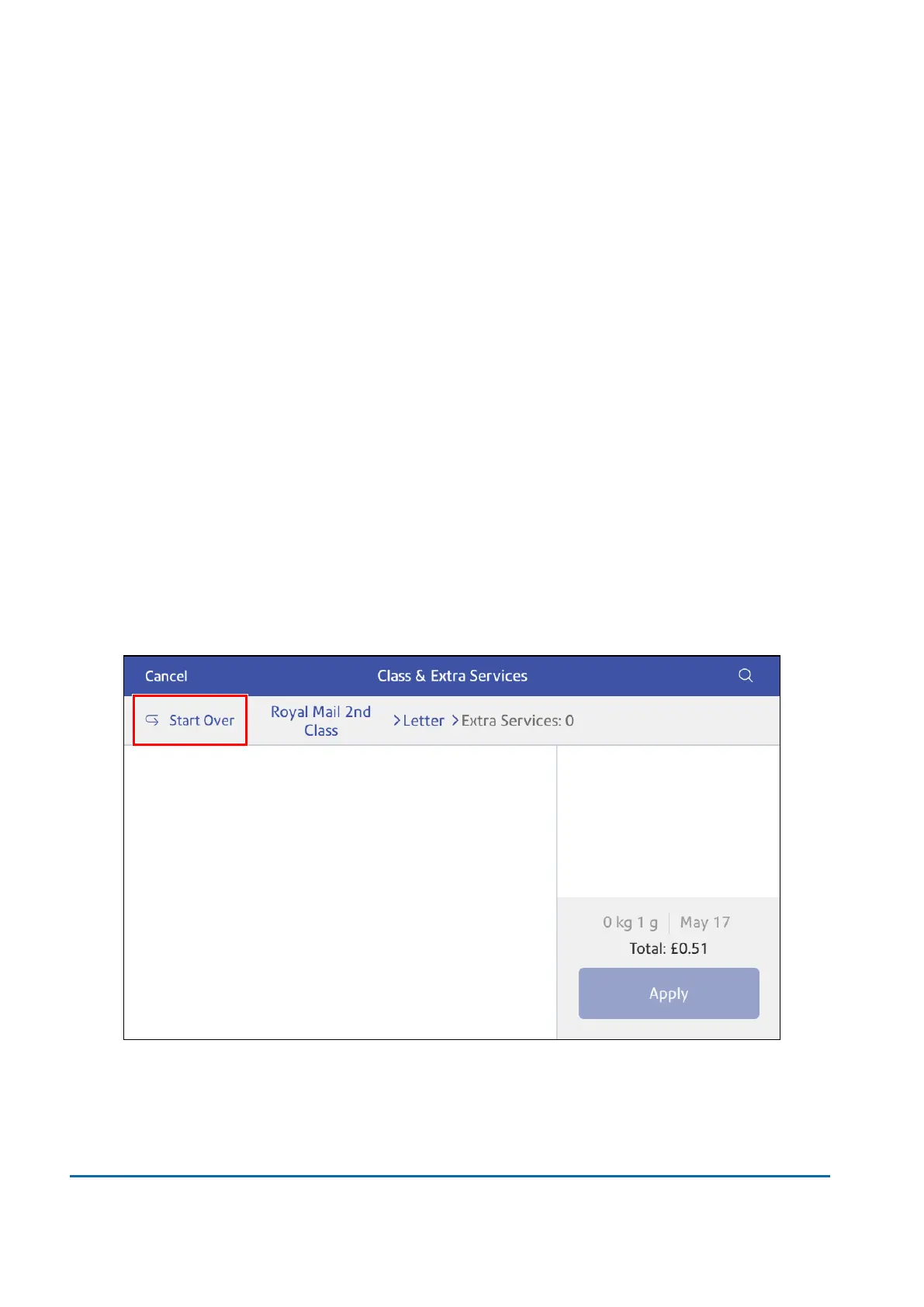
3. Tap Start Over.
6 • Mailing and Shipping
Pitney Bowes User Guide March 2023 75












 To Next Page