Manual upload of your postage transactions
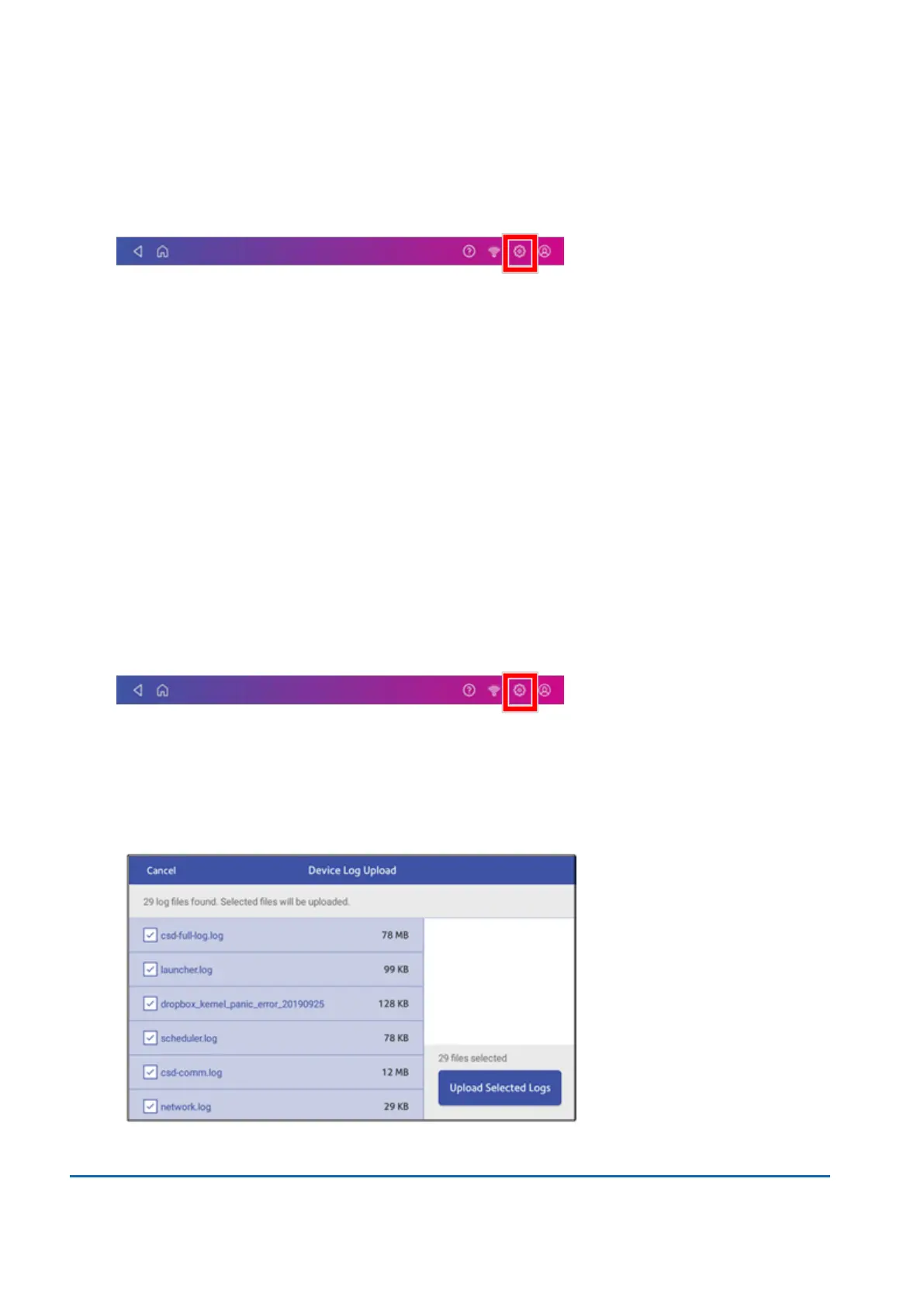
1. Tap Settings.
2. Scroll down to the Envelope Printer Settings section.
3. Tap Sync Transaction Data.
l
A series of messages appear, starting with "Preparing Transaction Data" followed by
"Sending Transaction Data."
l
Once the upload is complete, the message "Transaction Data Sent" appears.
l
The message "No Sync Required" appears if there are no new transactions to upload.
Uploading system logs
Your device creates system logs that monitor operations on your device. If you need to upload system
logs to a Pitney Bowes support representative, you can find them in the Advanced Device Options
section under Settings.
1. Tap Settings.
2. Scroll down to the Advanced device Options section.
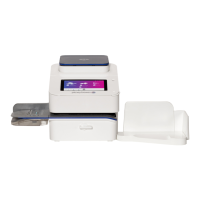
3. Tap System Log Upload.
4. Select the logs you want to upload.
5. Tap Upload Selected Logs.
13 • Settings
Pitney Bowes User Guide March 2023 141



 To Next Page