2. Tap the Edit icon for the shipping cost account you want to modify.
3. Tap the Active or Inactive option as required. Tap the back arrow to close the keyboard.
4. Tap the tick box for Make this my default Cost Account to make this account the default.
5. Tap the Description field to change the description.
6. Tap Update when done with all your changes.
Adding a shipping labels preset
Add presets to store commonly-used parcel information. Presets are ideal for repeat parcels that use
the same attributes such as weight, dimensions, carrier and class services.
You can add up to eight presets.
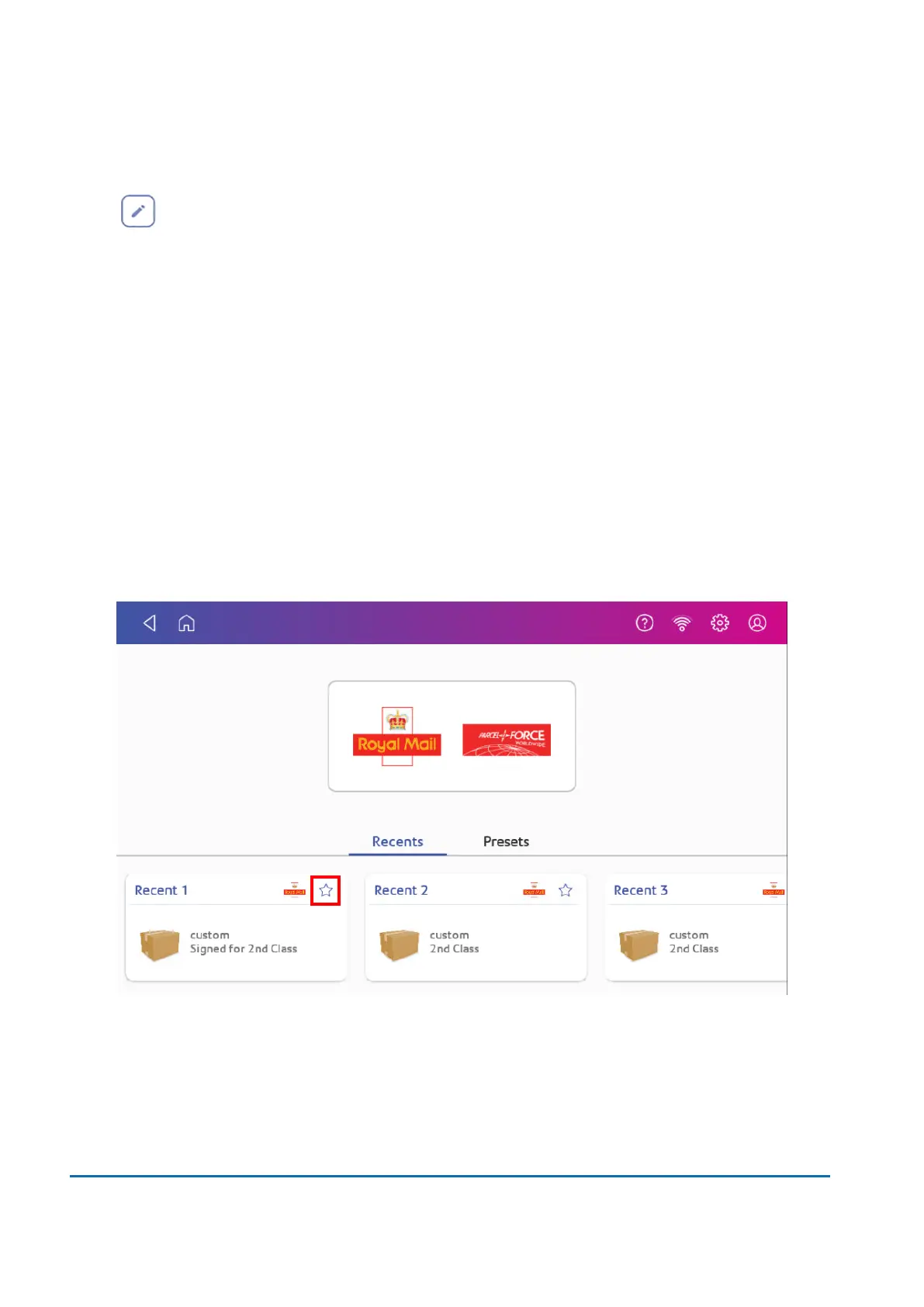
1. Once you print a label it appears in the Recents screen of the Parcel Shipping app.
2. Tap the star on the label you have printed.
3. Enter the name of the preset in the Name Preset field.
4. Tap the green tick.
5. Tap Save.
6 • Mailing and Shipping
Pitney Bowes User Guide March 2023 64












 To Next Page