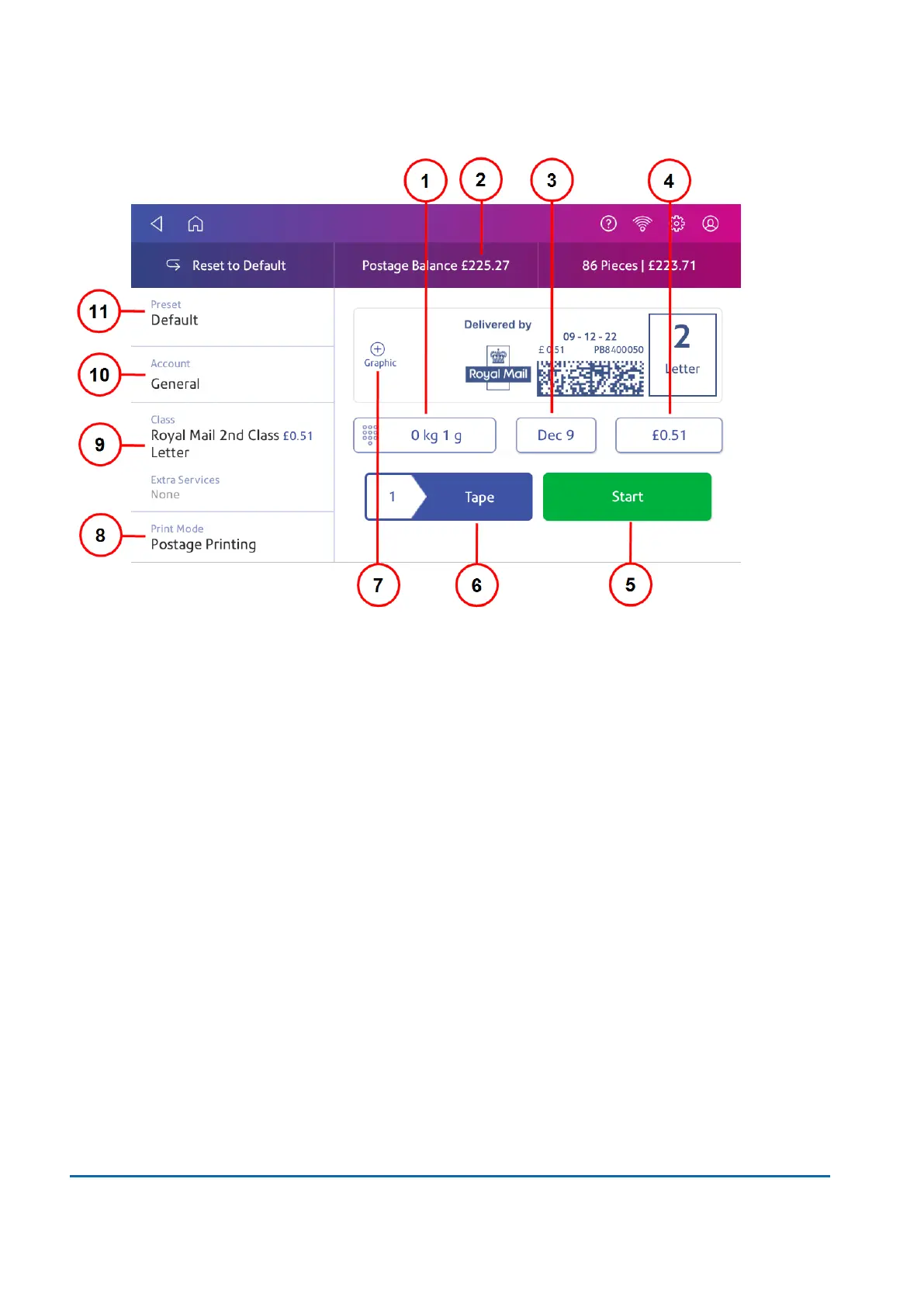
On this screen, you can:
1. Weight - Tap the weight to view the weighing options. You can enter the weight manually or use
a scale.
2. Postage Balance - View the balance of funds you have remaining in your device.
3. Date - Tap the date to view the date options.
4. Total postage amount - View the total postage amount.
5. Tap Start to begin feeding and printing postage on the envelopes loaded on the feed deck. The
Start button is only present on SendPro C models equipped with an automatic feeder.
6. Tap Tape to begin printing postage on tape. To print more than one tape, tap the number next to
Tape and enter the number of tapes. Tape is only present on SendPro C models equipped with
an automatic feeder.
7. Graphic - Tap Graphic to preview or add graphics.
8. Print Mode - View the available printing modes such as printing a graphic only, printing the date
and time, or seal envelopes without printing postage.
9. Tap Class to view the class and any extra services.
10. Account - Tap Account to charge back postage to departments or clients. Run reports showing
how you spent your postage over specific time periods.
11. Preset - Tap Preset to store a group of commonly-used settings. Presets can store settings
such as a postage class, an account and a graphic.
16 • Product Information
Pitney Bowes User Guide March 2023 162












 To Next Page