2. Tap Sync Transaction Data.
3. Tap Got It at the Transaction Data Sent or No Sync Required prompt.
Viewing and exporting reports in Inview
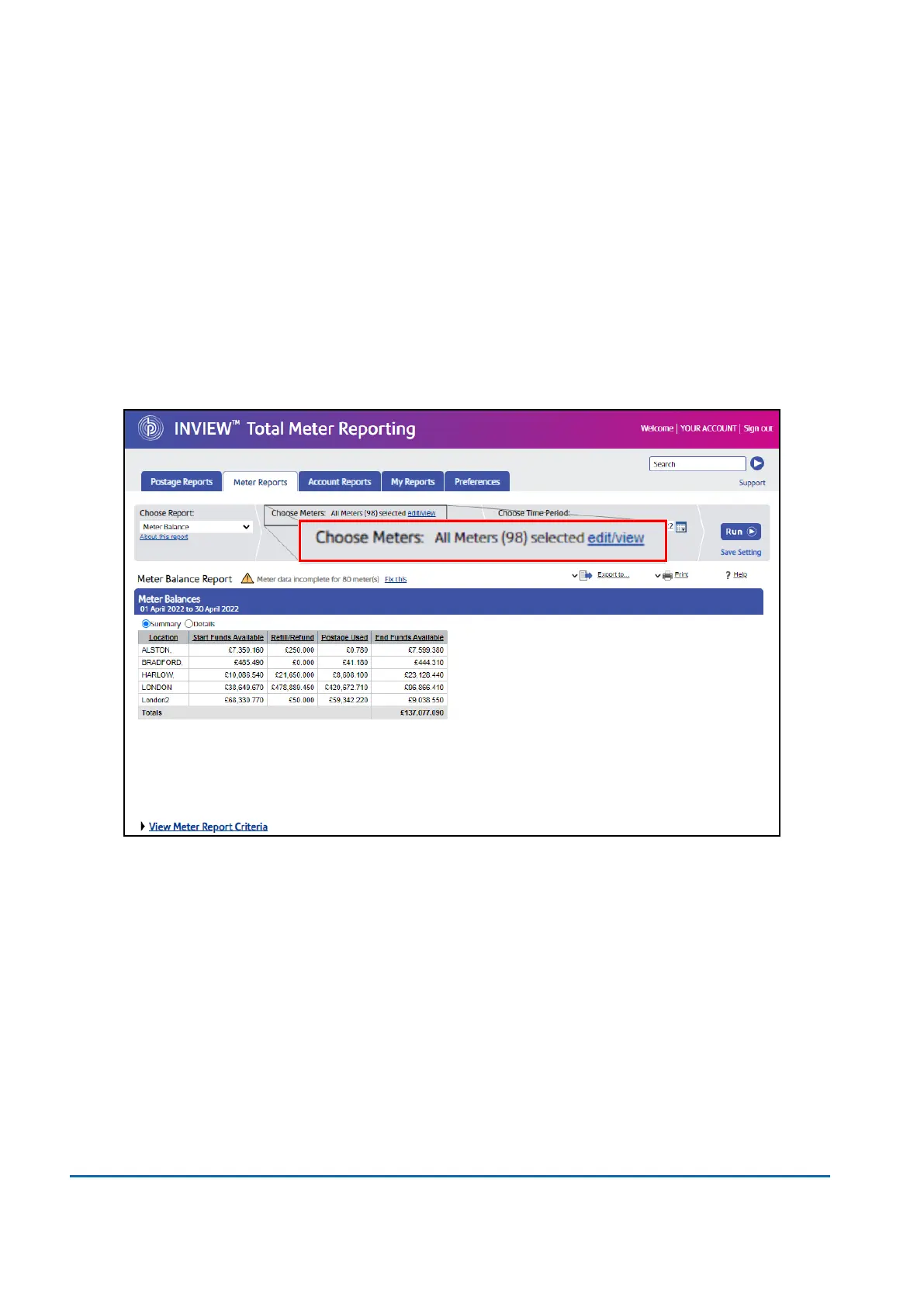
1. Sign in to the Pitney Bowes Your Account online portal.
2. Scroll down to Inview Total Meter Reporting, then click Launch. Alternatively, from the Your
Products drop-down in the top navigation bar, select Inview Analytics.
3. Click Meter Reports.
4. If necessary, select your franking machine from the Choose Meters edit/view link.
6 • Mailing and Shipping
Pitney Bowes User Guide March 2023 82












 To Next Page