37
The Basics
Channel Selection
Each channel can be set up and controlled independently, and you choose which channel is being
actively controlled with the [RED BUTTON] and [YELLOW BUTTON] found in the bottom left of the controller
section. The LED next to each button indicates the active channel: red, yellow, or both. Hold one button
and press the other to control both at the same time; even if they are in totally different states. One as a
keyboard and one as a sequencer for example, or as two sequencers where one is running and the other is
stopped.
It might be helpful to think of the red and yellow buttons as enabling controls to “pass-through” to each
channel, no matter what state they’re in.
With control of both channels active, touching a single touch pad might play a keyboard note for both
channels, or enable steps in both sequences. It might turn one step on and another off, or play a note for
one channel working as a keyboard, and disable a step on the other in sequencer mode. And it isn’t just
the touch pads; the same “pass-through” behavior is true for turning knobs, or pressing buttons.
It’s important to pay close attention to which channels are actively selected.
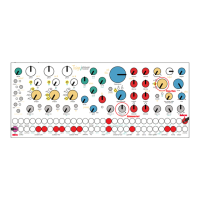
The Value Knob
The Touch Controller interface is knob per function, every function is written on the panel with the
exception of the white [VALUE KNOB]. The white [VALUE KNOB] is used to assign values to selected
parameters.
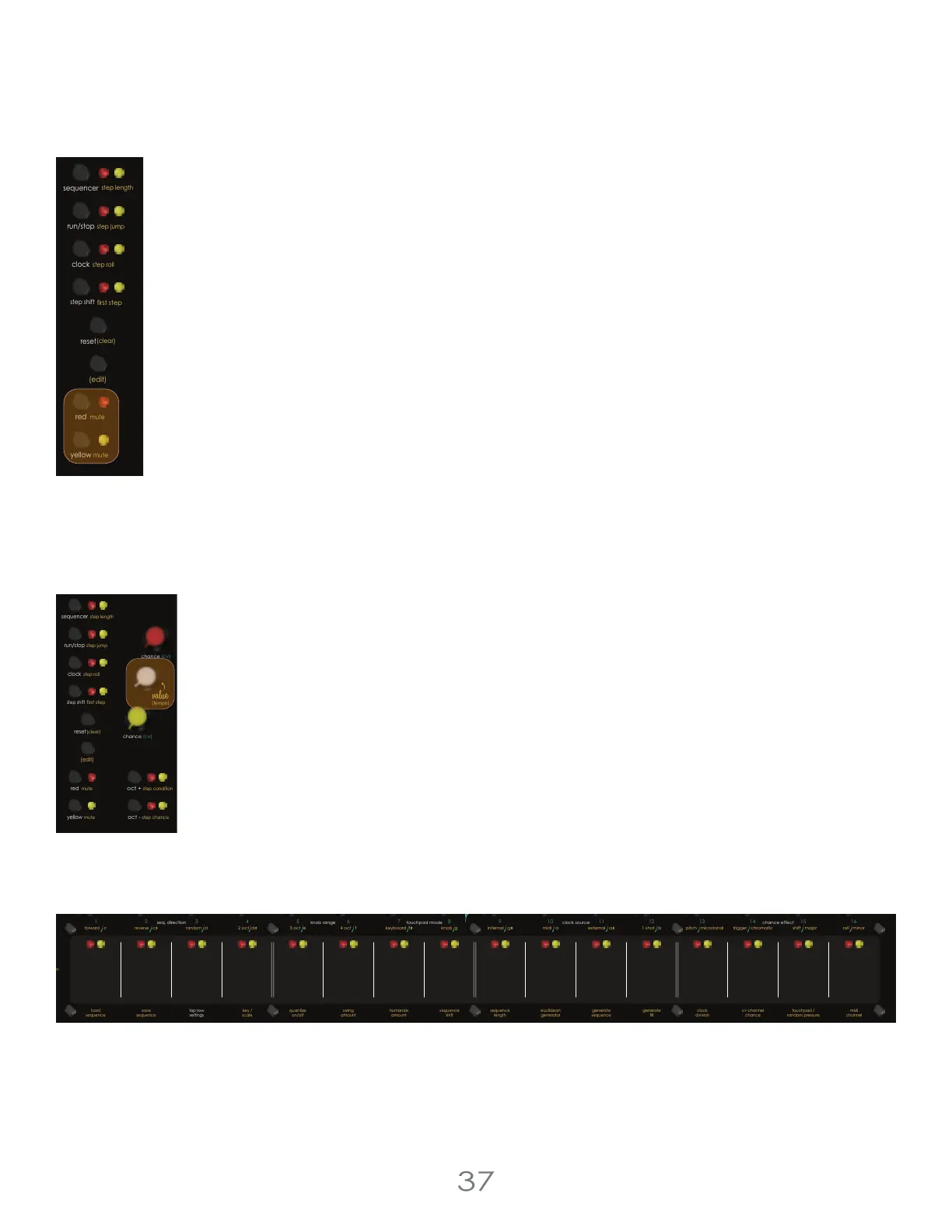
Each of the buttons cover two functions. The function written below the button in WHITE is the main
function that happens when the button is pressed. Holding the controller section’s [EDIT BUTTON]
(center left) and pressing any button triggers the alternate function written next to the button in
YELLOW.
When the sequencer is disabled, the [VALUE KNOB] acts as an octave shift of up to 7 octaves for the
active channel (Red, Yellow, or Both).
The Touch Pads
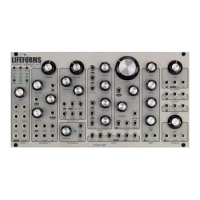
The [TOUCH PADS] are a set of16 pressure sensitive “buttons”. They are used to turn on and off steps in knob mode, as a play
surface in keyboard mode, or for editing settings. The [TOUCH PAD LEDS] are used to communicate information in the sub
screens of the Touch Controller. The [TOUCH PADS] are important!
Holding the controller section’s [EDIT BUTTON] and pressing any of the Touch Pads triggers the alternate function written
under the Touch Pad in YELLOW or WHITE.
4 Voltage Lab 2 Touch Controller
chance (cv)
step shift
(edit)
mute
red
mute
yellow
run/stop
step roll
clock
first step
sequencer
step jump
reset
(clear)
step length
chance (cv)
chance (cv)
step shift
(edit)
mute step condition
red
mute
yellow
run/stop
step roll
clock
oct +
oct -
first step
sequencer
step jump
reset
(clear)
(tempo)
step chance
step length
pressure
pitch
cv
cv channel
gate
trigger
reset /
1-shot
reset /
1-shot
repeat repeatchance
scan
pressure
pitch
cv
trigger
chance
scan
envelope
clock clock
resetout
thru
in
13
3 oct e
4 oct f
knob gkeyboard f
internal g midi a 1-shot bexternal a
5
8
7
6
1
42
3
chance (cv)
chance (cv)
16
15
14
9
12
11
10
red channelclockmidi
yellow channel
pittsburgh
modular
c d
step condition
cv channel
oct +
oct -
seq. direction
touchpad mode
knob range
clock source
pitch microtonal trigger chromatic roll minorshift major
chance effect
c
2 oct d
gate
envelope
(tempo)
step chance
step length
cv cv
euclidean
generator
sequence
length
touchpad /
random pressure
generate
fill
generate
sequence
clock
division
midi
channel
sequence
shift
cv channel
chance
quantize
on/off
top row
settings
key /
scale
load
sequence
save
sequence
swing
amount
humanize
amount
forward
reverse
random


 To Next Page