Section 4. PlexTools Professional Functions
14 PlexTools Professional Reference Guide
In order to use the GigaRec feature, you need:
• CD-R drive (such as the PlexWriter Premium) that supports GigaRec.
• Recording software, such as PlexTools Professional, that supports GigaRec.
(GigaRec is sometimes called “overburn.”)
• Player software that recognizes the GigaRec disc.
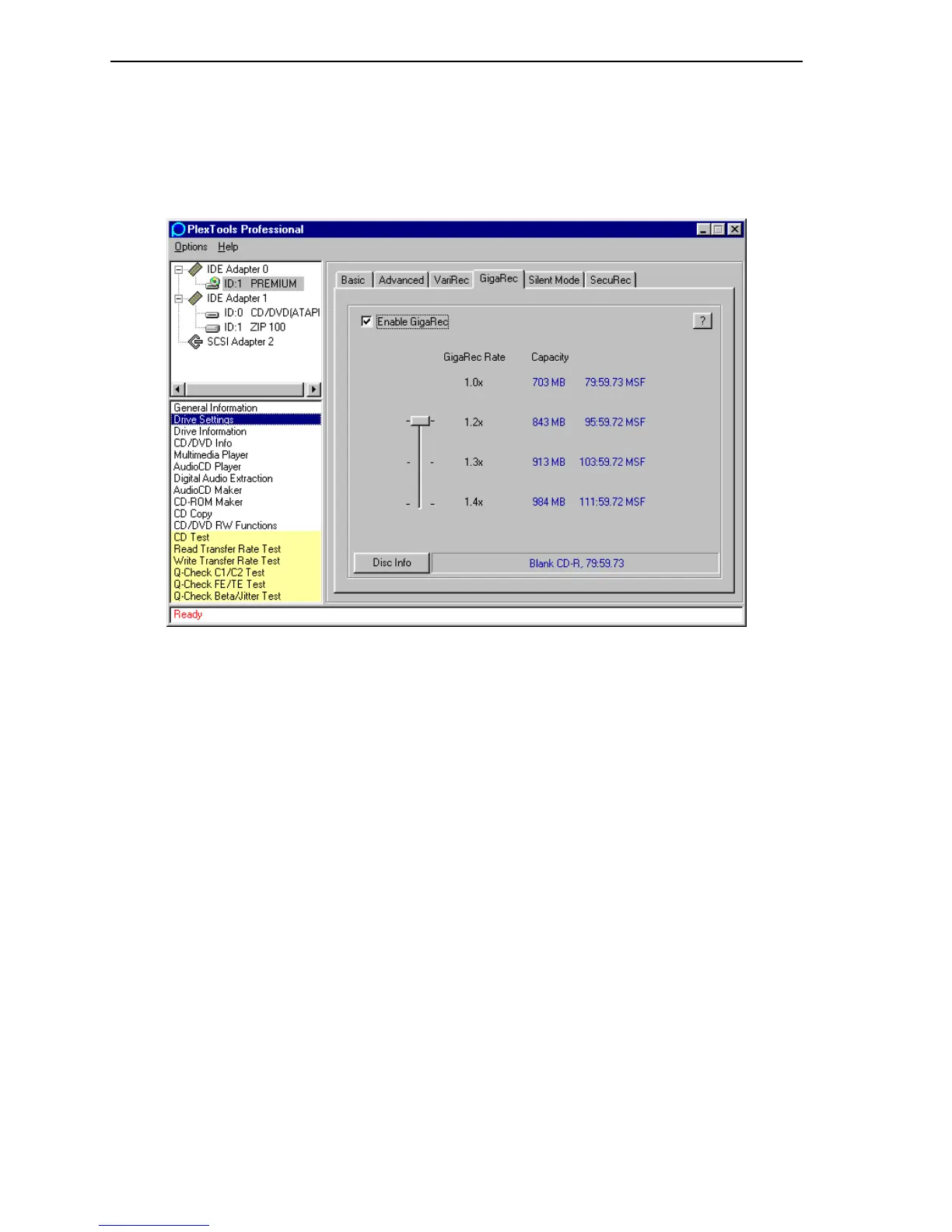
Figure 11: GigaRec Drive Settings Window
• Enable GigaRec: Enables GigaRec writing.
• GigaRec Rate: Selects disc capacity. For example, choosing 1.2x increases the
disc’s writing capacity by 20 percent. So the capacity of a 703-MB disc is
increased to 843 MB, or 95 minutes and 59 seconds.
Procedure for GigaRec Recording
1. Insert a blank Type 74 (650-MB/74-min.) or Type 80 (700-MB/80-min.) CD-R
disc in the PlexWriter Premium drive. (You can’t use CD-RW discs with
GigaRec.)
2. In the PlexTools Professional menu bar, select Drive Settings. You see the tabs
for drive settings.
3. Select the GigaRec tab. You see the GigaRec window.
4. To enable GigaRec, place a check mark in the Enable GigaRec box.
5. Click next to one of the GigaRec Rate numbers to select the capacity.
6. Using a disc-at-once (DAO) recording application such as PlexTools Professional
CD-ROM Maker or AudioCD Maker, record data on the CD-R disc. When
recording is completed, you see the GigaRec results at the bottom of the
recording application window.



 To Next Page